BLOGS · GAME BLOGS
PUBLISHED
READING4 min
Setting up the RPCS3 v0.0.29+ emulator for Uncharted: Drake's Fortune
Get Uncharted: Drake's Fortune running smoothly on your PC with this RPCS3 v0.0.29+ emulator setup guide. We cover optimization, requirements, performance troubleshooting, and common bugs.
It's been just under a year since the fourth installment of Nathan Drake's adventures launched on PC. Yet, Sony never bothered to ensure PC gamers could experience the series' protagonist's story before A Thief's End. Neither the first, second, nor third parts of the legendary Uncharted series were released on PC, which, unsurprisingly, led to extremely low sales for the fourth game.
That said, if you're still interested in Nathan Drake's adventures, you can now play the first part of the exclusive Uncharted trilogy, 'Drake's Fortune,' on PC using the RPCS3 emulator.
First and foremost, ensure your copy of Uncharted: Drake's Fortune is version 01.01. Older versions might not work correctly with the settings below. However, we did test version 01.00 a bit, and the game performed almost identically to 01.01.
Second, and equally important, check your emulator version: it should be RPCS3 v0.0.29 Alpha | master (main branch) or newer. Update if necessary. If your version is significantly newer, some of these settings might already be unnecessary, so try playing the game without any extra changes first. It's also possible that the game won't launch at all with the settings provided below. If that happens, let us know in the comments for this post, and we'll try to put together a new guide as soon as possible.
And third, currently, playing Uncharted: Drake's Fortune on RPCS3 still has some issues. These range from rare visual artifacts when the camera collides with objects, to less frequent application crashes, critical bugs, and FPS drops in graphically intensive scenes.
Also, remember that this title still hasn't achieved 'Playable' status. Therefore, there are no 100% guarantees you'll be able to finish the game without encountering a critical bug.
 ⤢ ВІДКРИТИ
RPCS3 configuration for Uncharted: Drake's Fortune
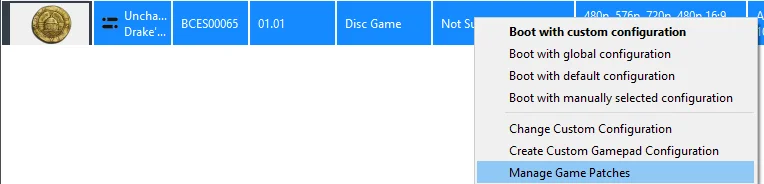
Launch the emulator and right-click the 'Uncharted: Drake's Fortune' icon. Then, from the dropdown menu, left-click 'Manage Game Patches':
 ⤢ ВІДКРИТИ
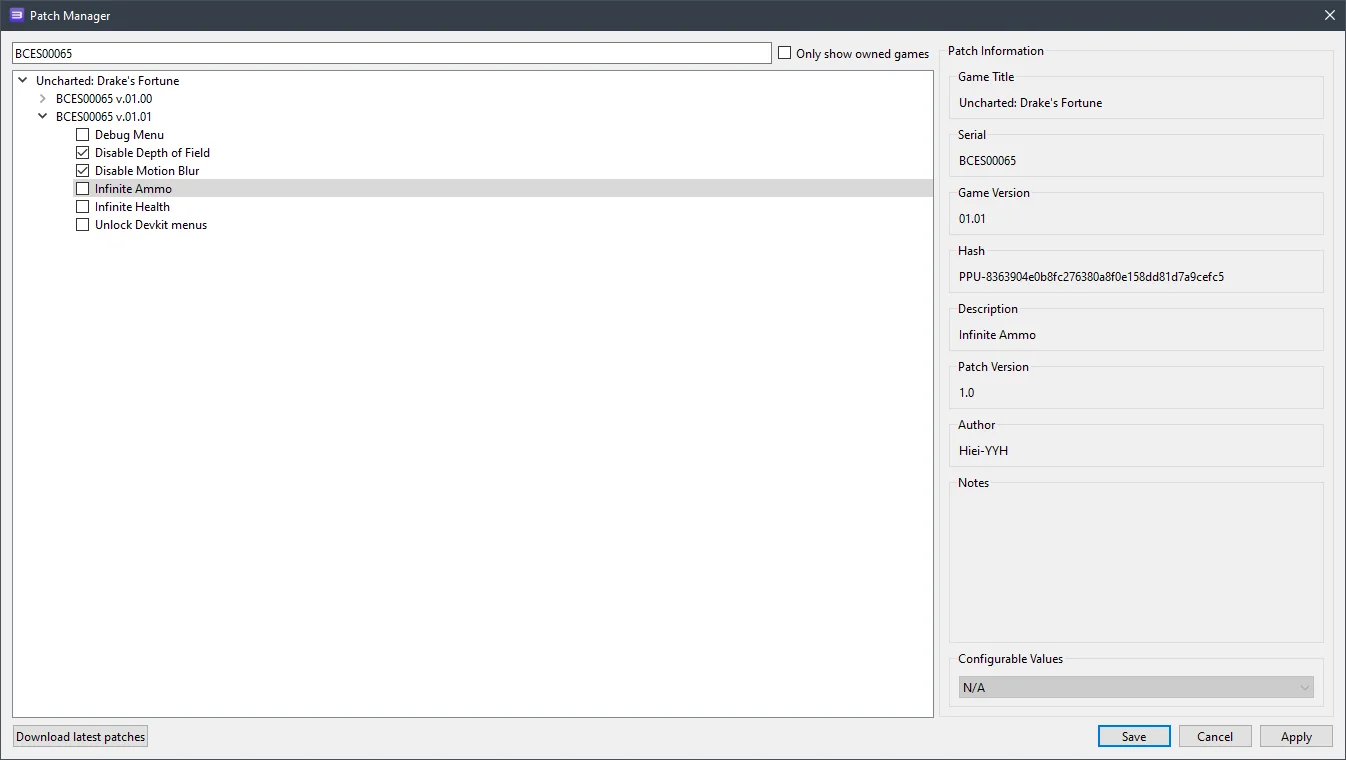
Here, you only need to activate two patches:
 ⤢ ВІДКРИТИ
“Disable Depth of Field”
“Disable Motion Blur”
The first parameter disables depth of field, which can behave incorrectly at this emulation stage. The second disables motion blur—a crucial option that removes image artifacts in both the foreground and background.
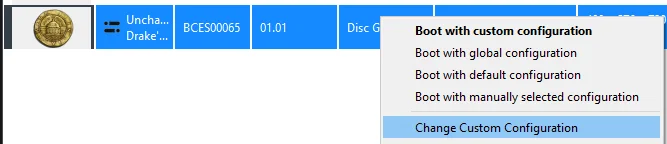
Next, click 'Apply,' then 'Save.' Right-click the 'Uncharted: Drake's Fortune' icon again, then select 'Change Custom Configuration' from the dropdown menu:
 ⤢ ВІДКРИТИ
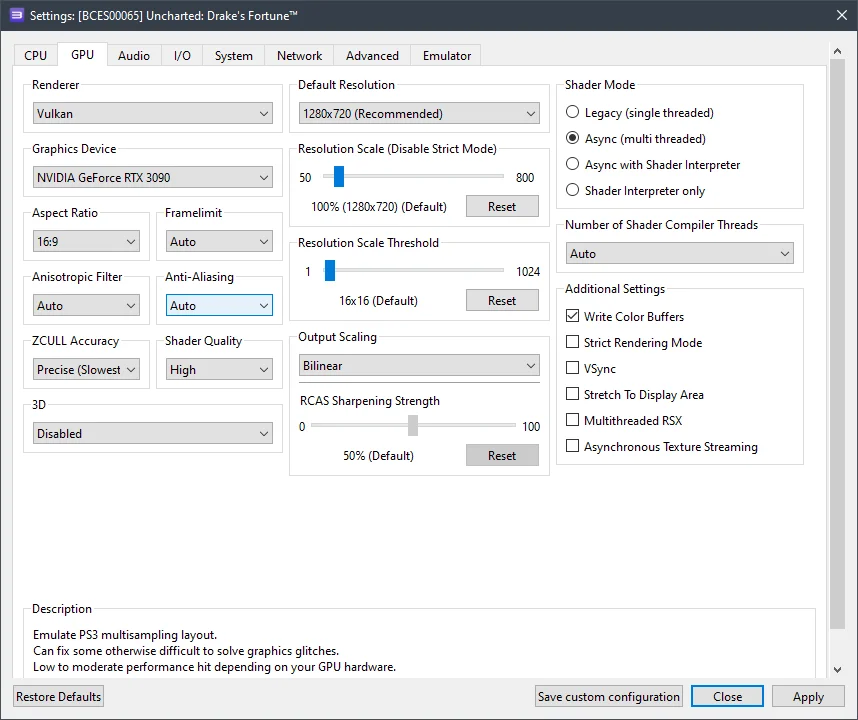
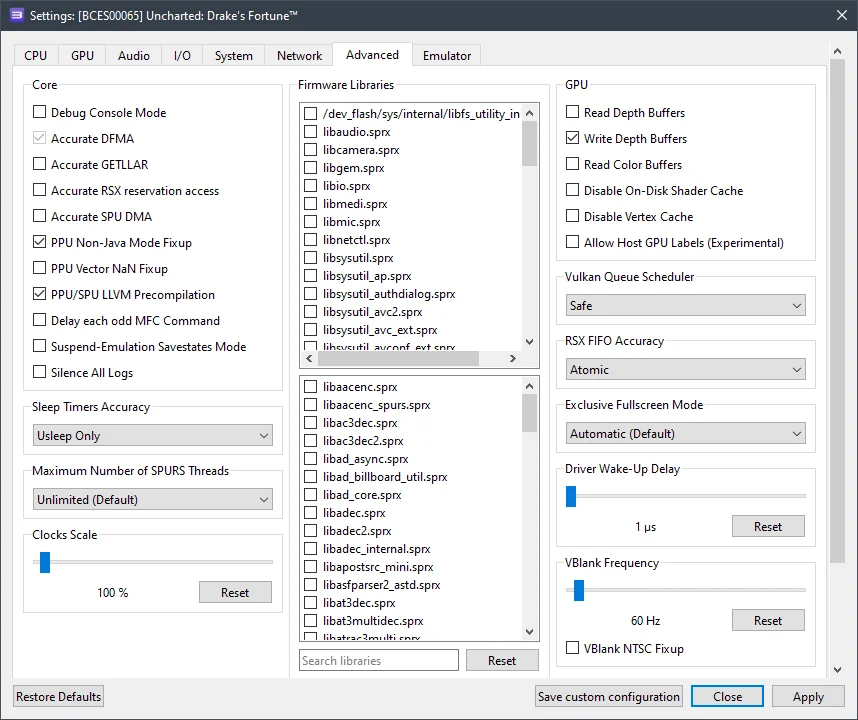
In this window, set the options according to the selections and screenshots below.
GPU configuration
Setting | Option | Description |
|---|---|---|
Write color buffers | On | Fixes screen flickering issues. |
 ⤢ ВІДКРИТИ
Advanced settings
Setting | Option | Description |
|---|---|---|
Write depth buffers | On | Fixes smoke and fog rendering. |
RSX FIFO accuracy | Atomic | Improves game stability. |
 ⤢ ВІДКРИТИ
Let's dive into the results. With RPCS3 configured, we managed a relatively acceptable 17-30 FPS on the AMD Ryzen 5 3600. The Intel Core i5-12400F, however, provided a more stable 24-30 FPS. Keep in mind that weaker chips than our test systems (like Ryzen 7 1600-1800X or Xeon E5-2630-2670v3) will struggle significantly more to achieve stable frame rates.
Below are screenshots captured on our AMD Ryzen 5 3600 and RTX 3090 setup:
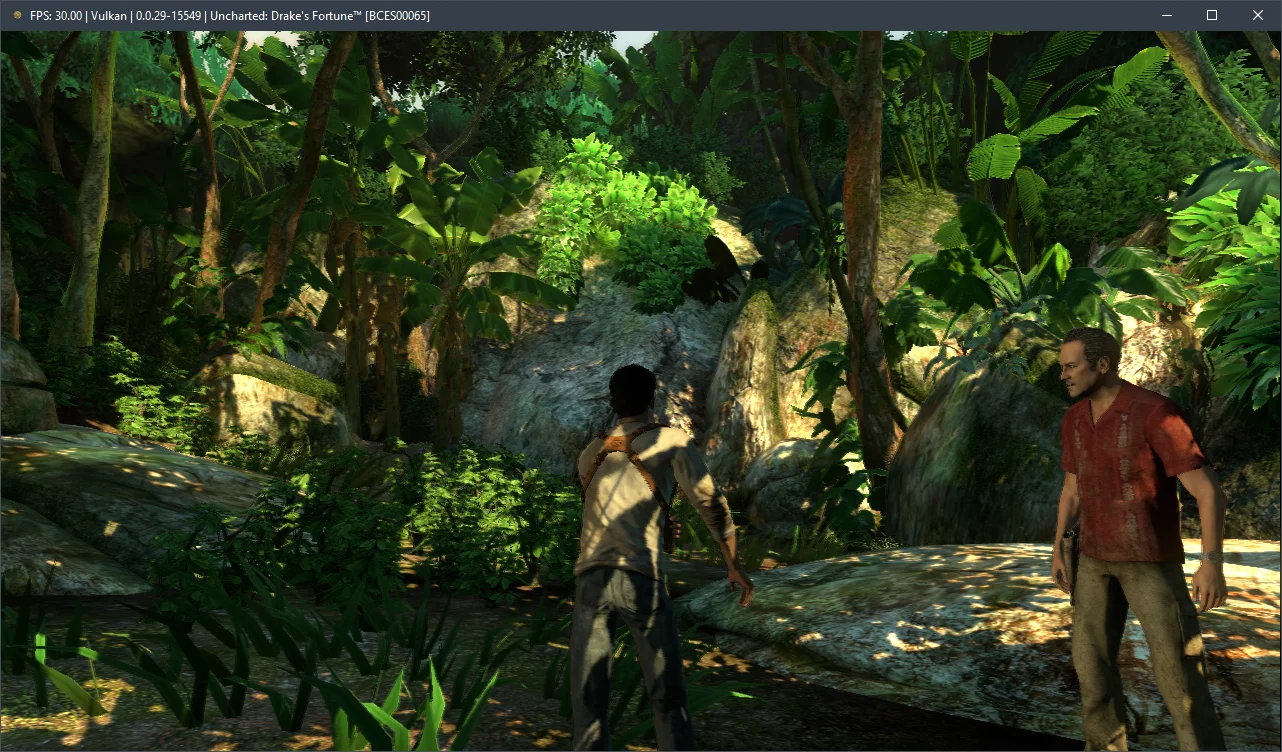
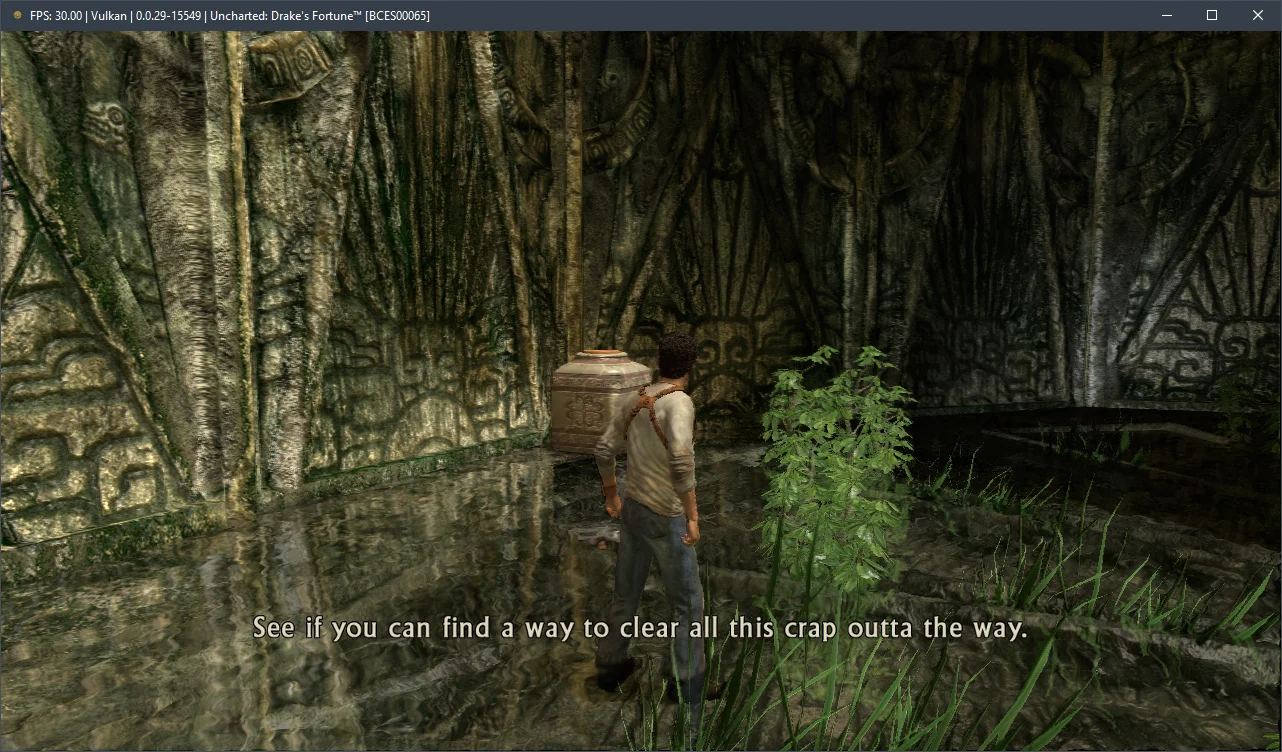
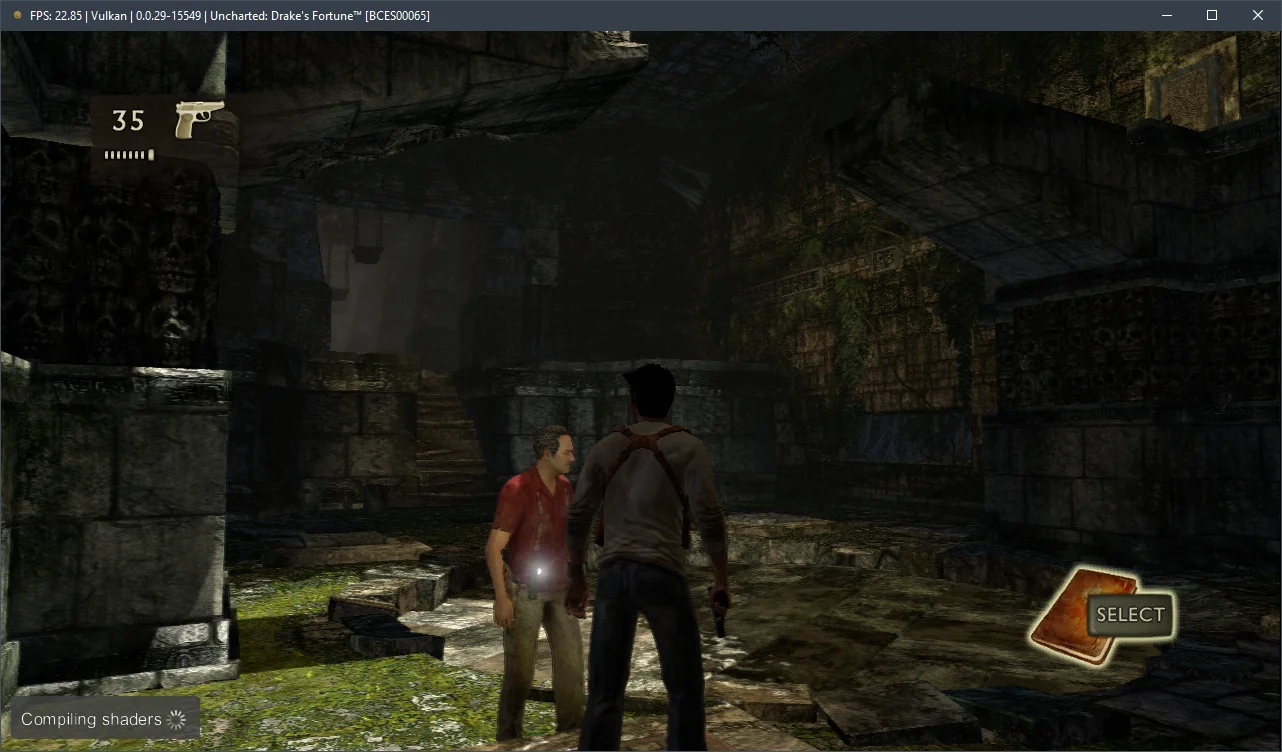
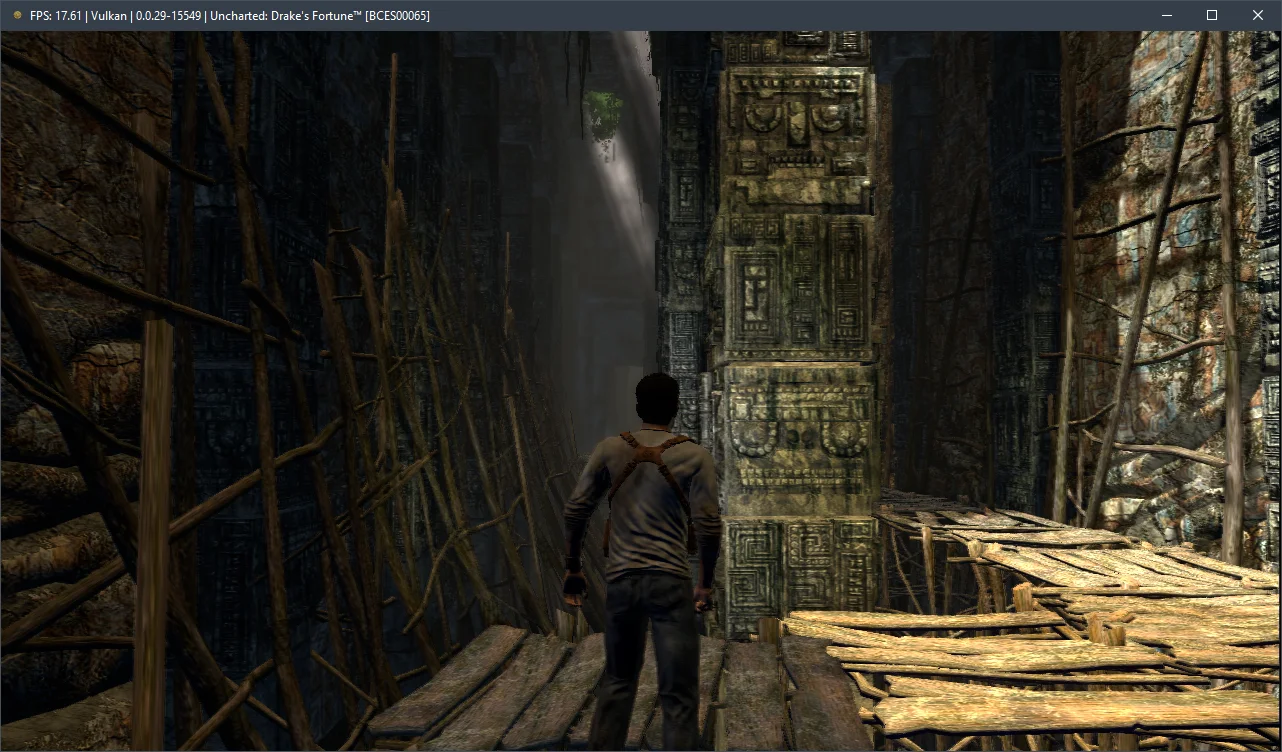
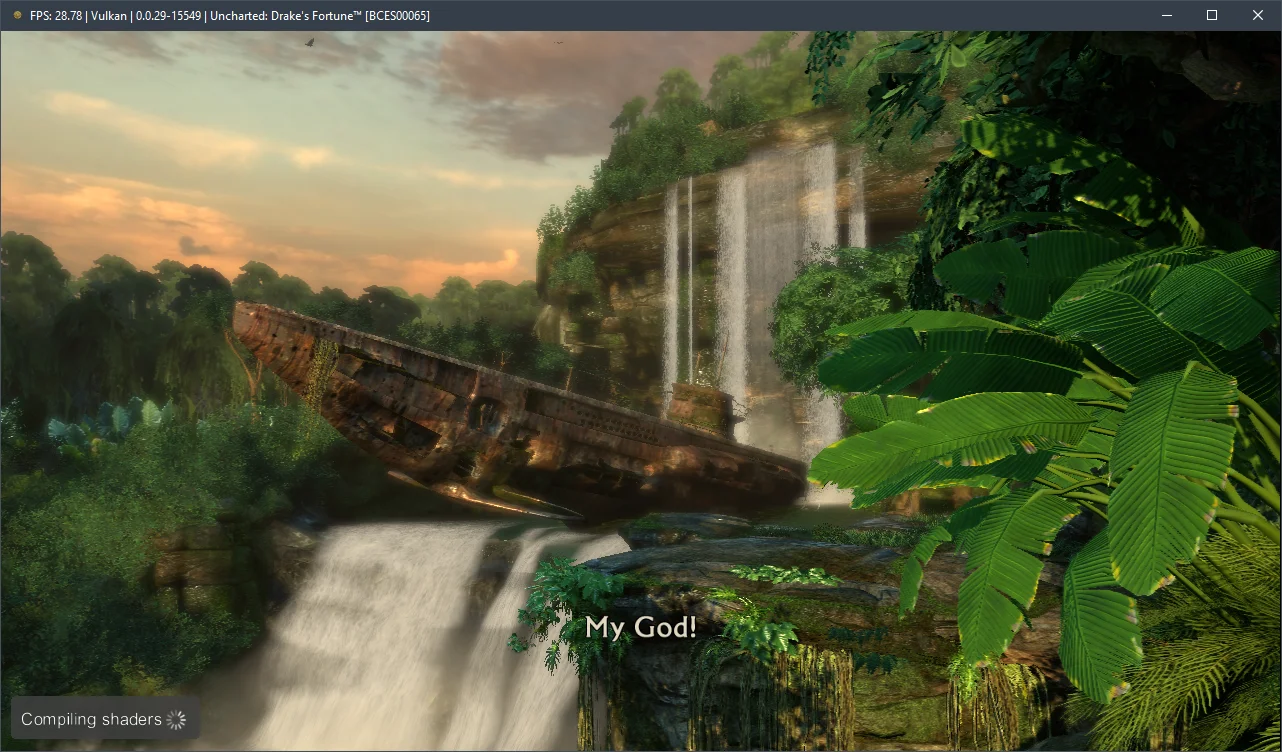
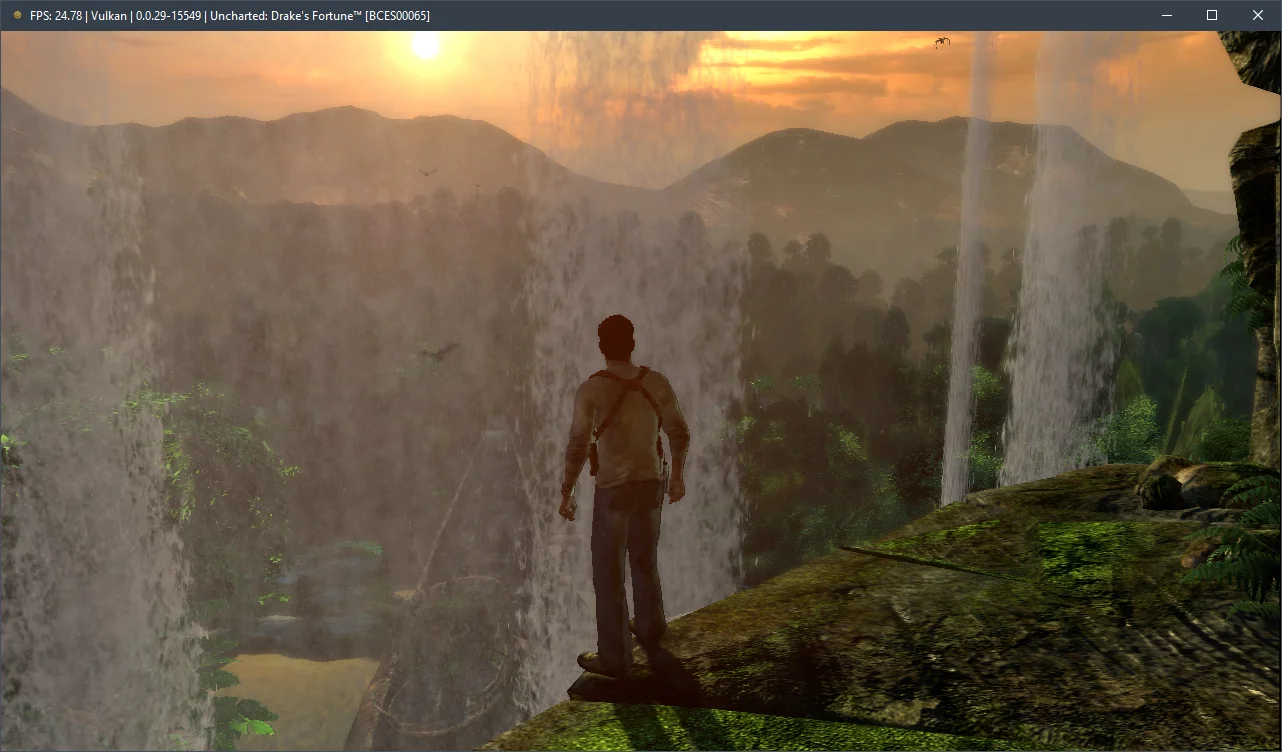

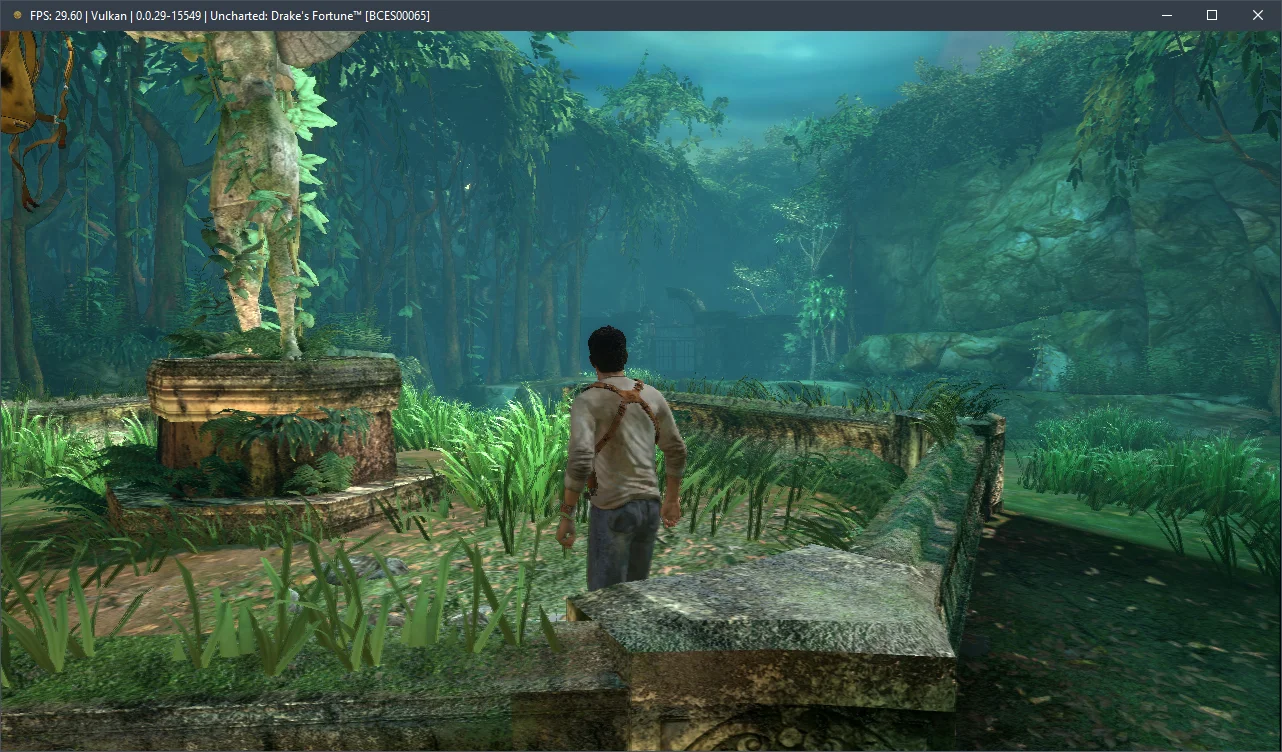
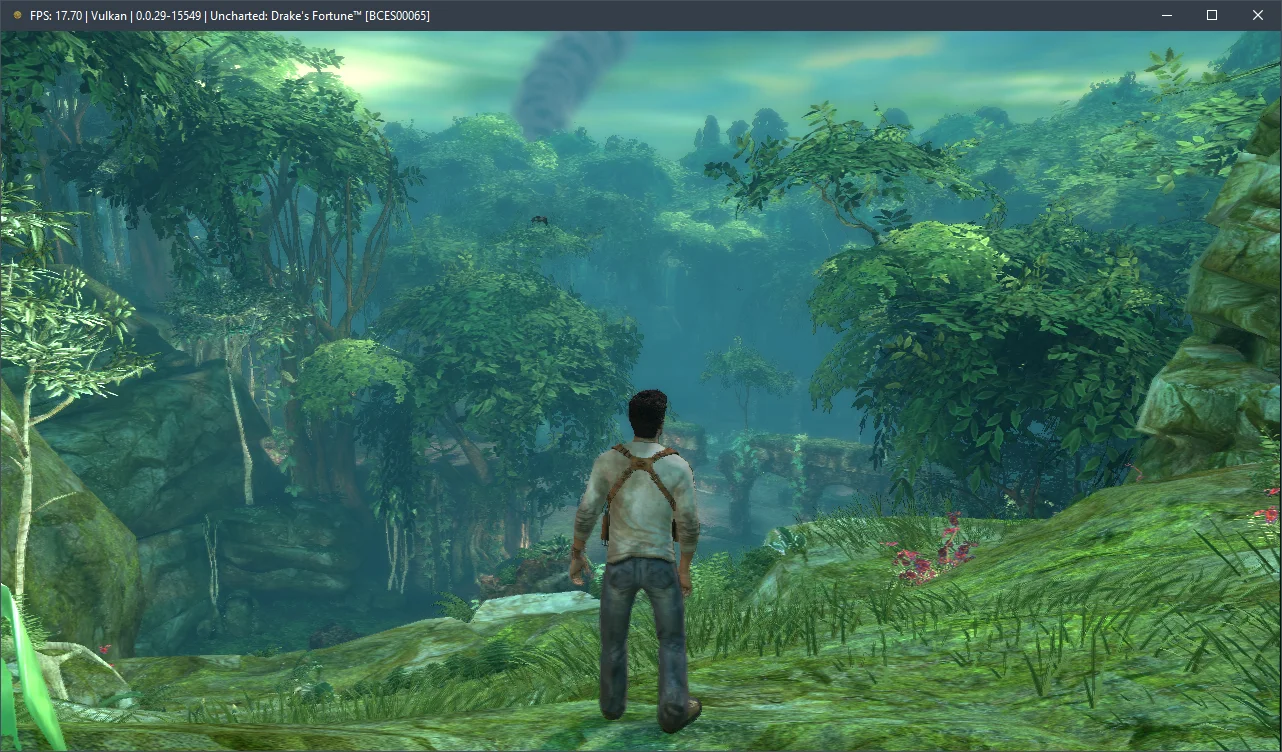
In summary, after spending over two hours with Uncharted: Drake's Fortune, it's clear the emulation isn't perfect. We encountered noticeable graphical artifacts, lighting issues, and texture flickering in several areas. Yet, to our surprise, the game never crashed once.
Our tests also suggest that Uncharted: Drake's Fortune only runs acceptably on 6-core CPUs from AMD Zen 2 / Intel Skylake generations or newer, combined with AMD Radeon RX 400 / NVIDIA GeForce GTX 1000 series GPUs. Without that hardware, it's hard to avoid significant performance problems.
Try out these settings and share your results in the comments below, or ask us any questions you might have.