BLOGS · GAME BLOGS
PUBLISHED
READING4 min
Setting up RPCS3 v0.0.29+ for Call of Duty 3
A guide to configuring the RPCS3 emulator for Call of Duty 3, a console-exclusive title. Learn how to optimize CPU and GPU settings for smooth performance.
Unfortunately, after the undeniably excellent Call of Duty 2, Activision, for reasons only known to them, decided to release the next mainline installment exclusively for Microsoft and Sony consoles. Because of this, many gamers missed out on Call of Duty 3. However, it's now perfectly comfortable to play the third installment of the great shooter thanks to the RPCS3 emulator.
First and foremost, make sure your copy of Call of Duty 3 is version 01.02. Older versions may not work correctly with the settings outlined below. That said, you can still try our settings with version 01.00.
Second, and just as important, check your emulator version. It should be at least RPCS3 v0.0.29 Alpha | master (main branch). Update if necessary. If your version is significantly newer, you might not need some of these settings. Try playing the game without additional changes. It's also possible that the game might refuse to launch with the settings provided below. If that happens, please let us know in the comments for this post, and we'll try to put together a new guide as soon as possible.
 ⤢ ВІДКРИТИ
RPCS3 configuration for Call of Duty 3
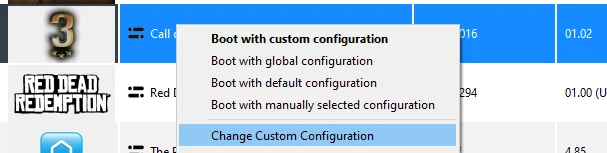
Launch the emulator and right-click on the 'Call of Duty 3' icon. Then, in the drop-down menu, select 'Change Custom Configuration':
 ⤢ ВІДКРИТИ
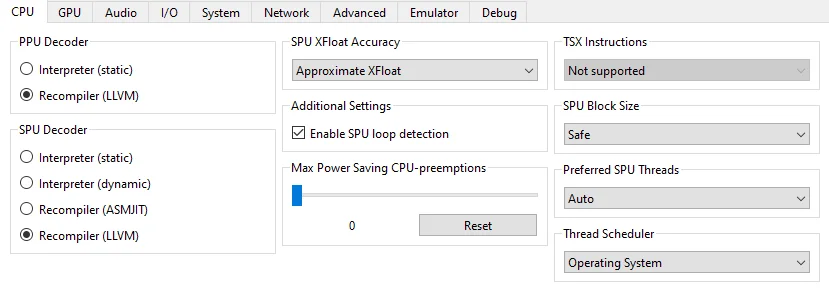
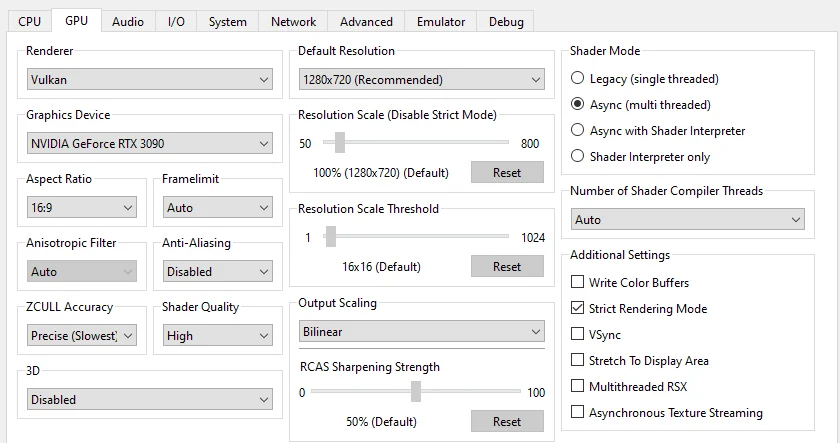
In this window, adjust the settings according to the selected options and the screenshots provided below.
CPU configuration
Setting | Option | Description |
|---|---|---|
Enable SPU loop detection | On | This can improve game stability on some configurations. However, it might also worsen performance, so experiment with this setting. |
 ⤢ ВІДКРИТИ
GPU configuration
 ⤢ ВІДКРИТИ
Setting | Option | Description |
|---|---|---|
Anti-aliasing | Disabled | Fixes graphical issues, particularly flickering. |
Strict Rendering Mode | On/Off | If everything's running smoothly, keep this off. However, it can help with graphical artifacts on older AMD graphics cards. |
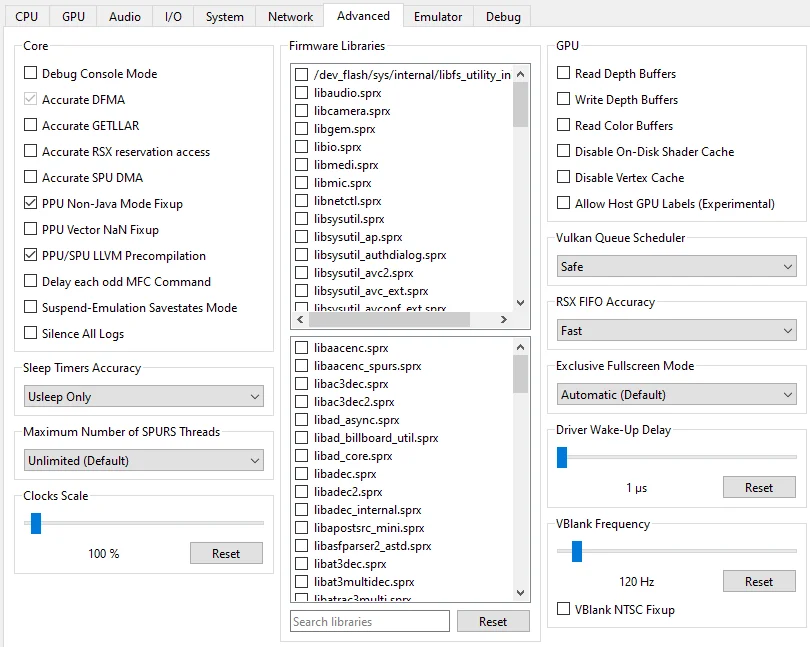
Additional settings (Advanced)
 ⤢ ВІДКРИТИ
Setting | Option | Description |
|---|---|---|
Vblank rate | 120 | Unlocks the frame rate from 30 to 60. BUT! All cutscenes will play at double speed! |
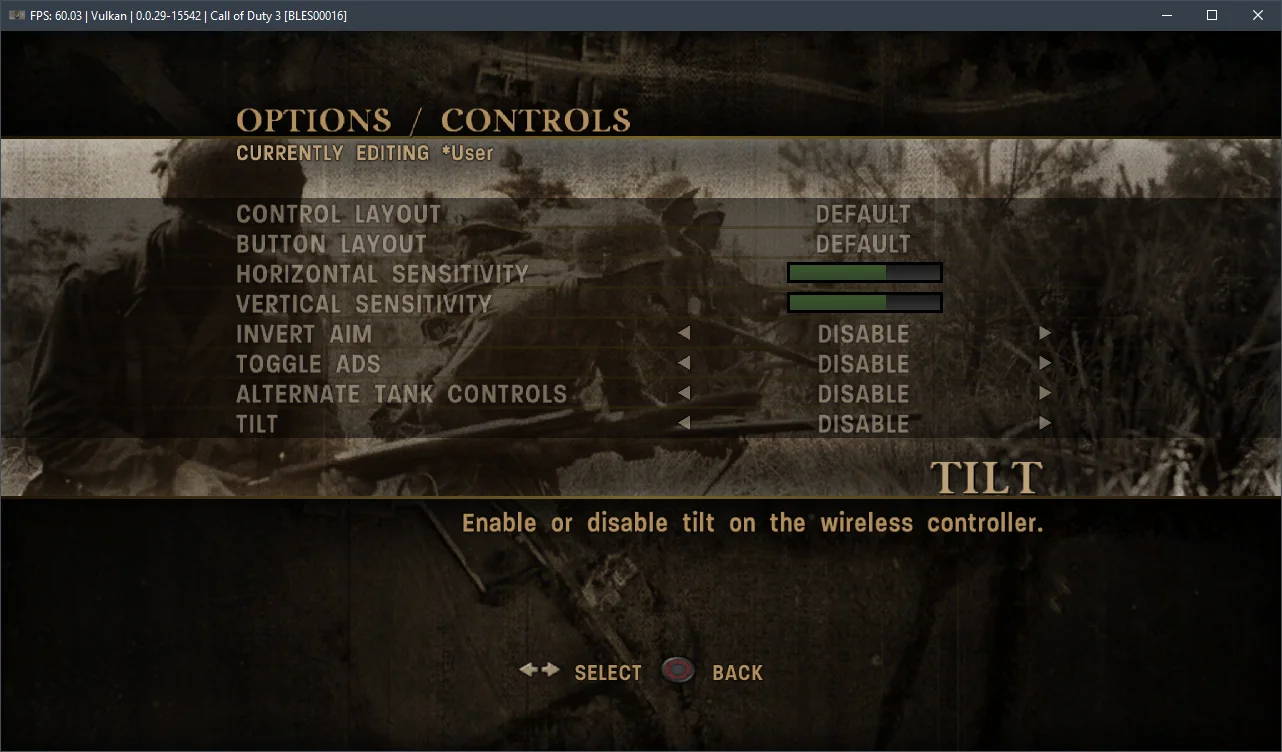
Disabling gyroscope requirement in Call of Duty 3 (Tilt)
This setting is only necessary for gamers who don't have a proprietary Sony SIXAXIS (DualShock 3) or DualShock 4 gamepad. If that's the case, before starting the first mission, go into the game settings and disable 'Tilt':
 ⤢ ВІДКРИТИ
After this, you'll be able to play through the entire game with any gamepad!
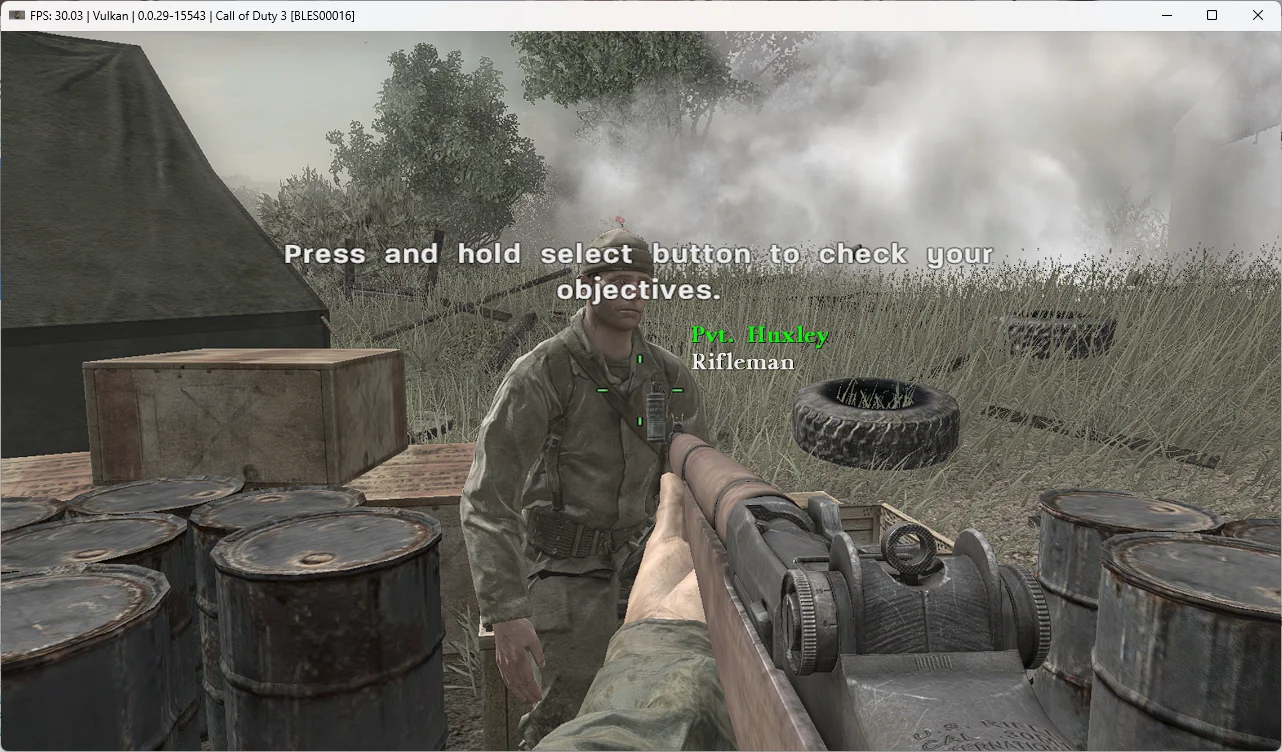
Now, let's look at the results. By configuring RPCS3 this way, we managed to achieve a relatively acceptable FPS of around 60 on an Intel Core i5-12400F processor. Of course, hitting a stable 60 frames per second will be much harder on chips weaker than our test setup (like a Ryzen 7 1800X or Xeon E5-2630v3). In those situations, just stick to 30 FPS and enjoy the game with console-like framerates.
That same Ryzen 7 1800X, for example, can hold a solid 30 frames per second in most game scenes without any significant issues:
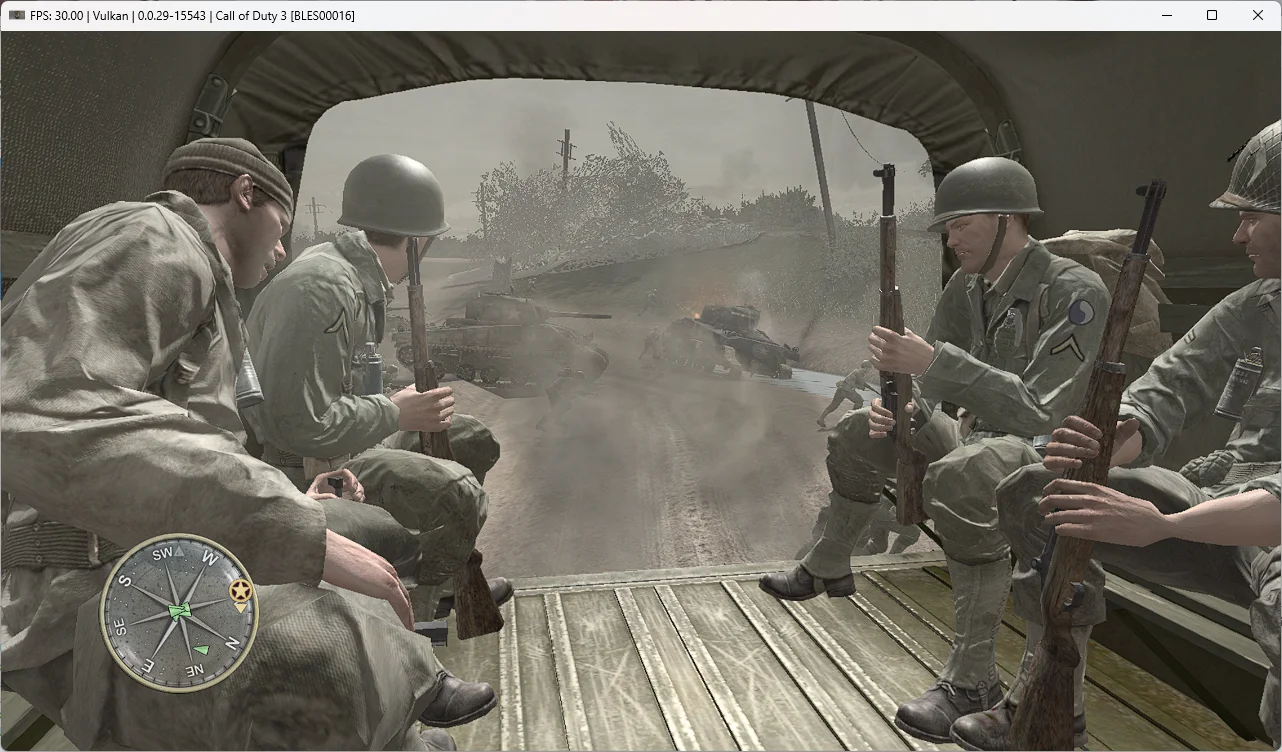
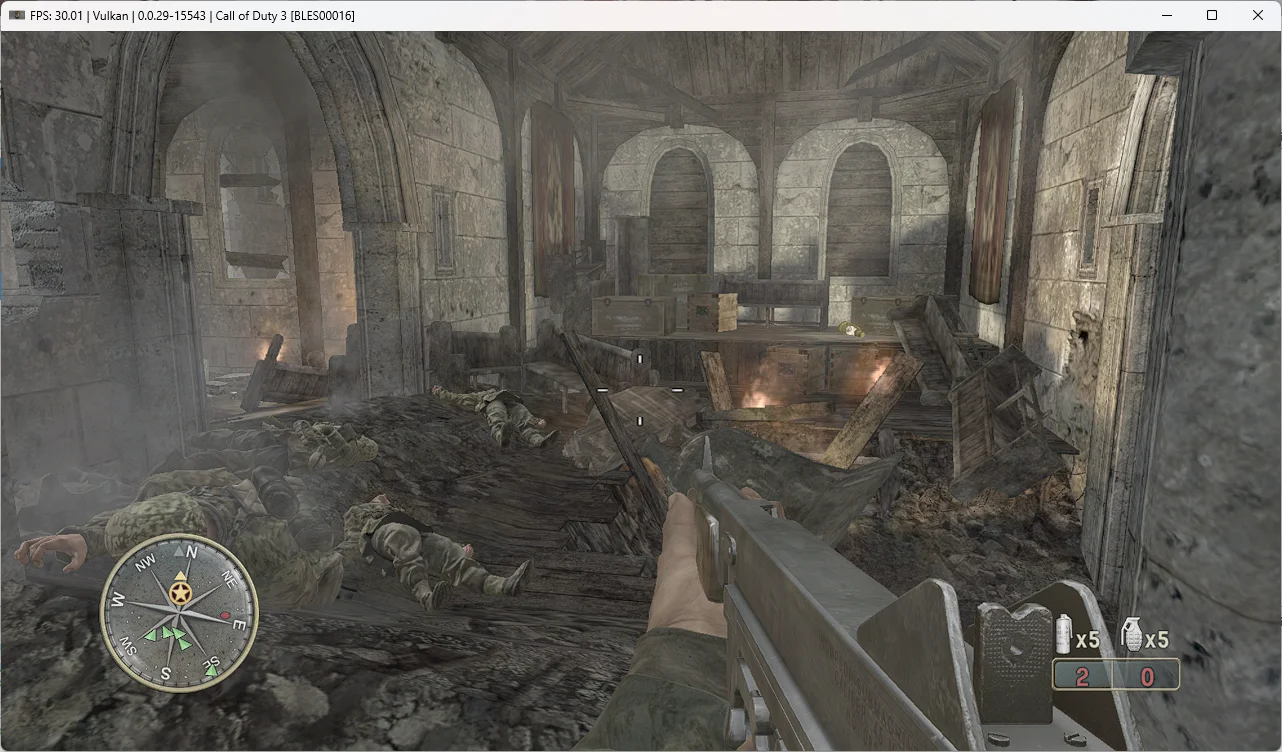
In summary, after spending over two hours with Call of Duty 3, we found that the emulation is certainly not perfect: we encountered subtle artifacts and LOD system issues in places. Despite this, the game never crashed once.
Also, according to our measurements, Call of Duty 3 emulates reasonably well starting with 6-core chips from the AMD Zen 1 / Intel Haswell generation and AMD Radeon RX 400 / NVIDIA GeForce GTX 1000 graphics cards. Otherwise, it will be difficult to avoid significant performance issues.
Test the settings outlined above and share your results in the comments, and feel free to ask any questions you have.