BLOGS · GAME BLOGS
PUBLISHED
READING3 min
Setting up the RPCS3 emulator for Skate 3
A guide to setting up the RPCS3 emulator for Skate 3. Optimize your CPU, GPU, and audio settings for better performance and smoother gameplay.
Guide updated May 27, 2021
To properly emulate the skateboarding simulator Skate 3, you'll need RPCS3 software version v0.0.16-12324-56f7359d or newer.
 ⤢ ВІДКРИТИ
You can download the latest emulator version from the developers' official website.
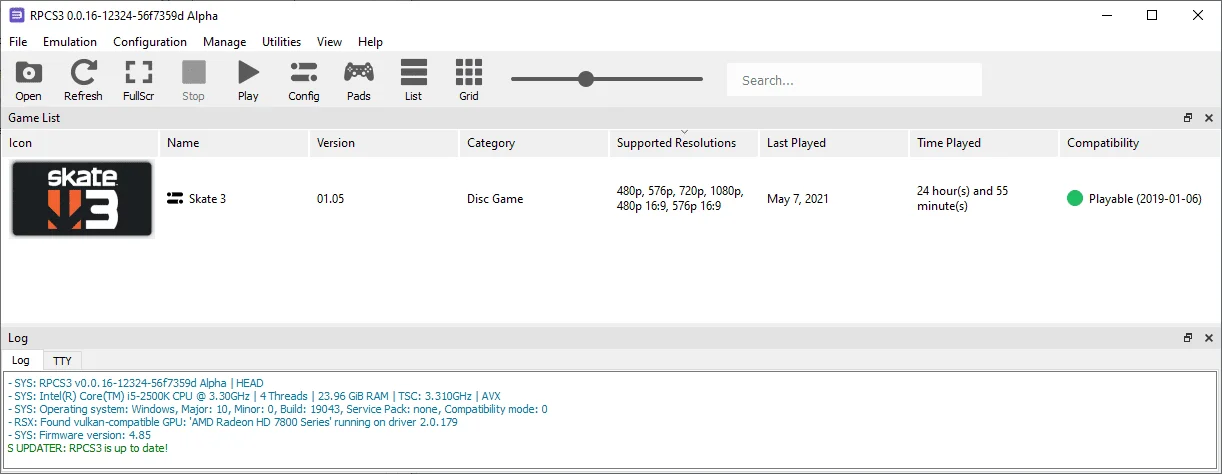
Add the game, then right-click it and configure the settings exactly as shown in the screenshots below:
 ⤢ ВІДКРИТИ
CPU
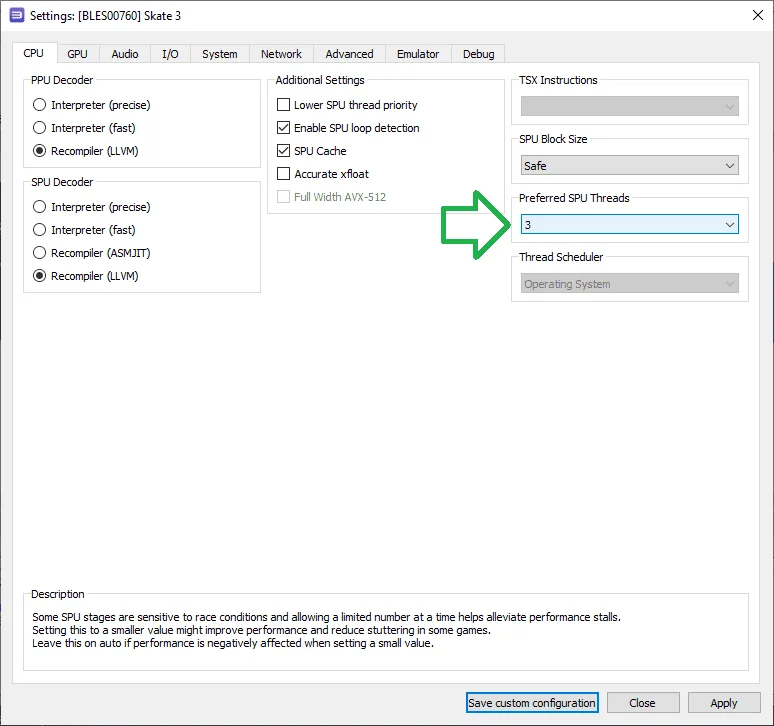
Generally, you shouldn't need to touch anything in the CPU section, especially if you have a powerful processor (8 cores or more). However, if your chip has 6 cores or fewer, or if you're experiencing stuttering, audio glitches, or physics problems in-game, you'll need to tweak the "Preferred SPU threads" parameter:
 ⤢ ВІДКРИТИ
Changing the "Preferred SPU threads" parameter from 1 to 3 can improve audio and game fluidity (not to be confused with FPS).
Additionally, on some older 1st, 2nd, and 3rd generation Core CPUs, you can achieve a slight performance boost by disabling Hyper-Threading in your motherboard's BIOS. In our test lab, disabling HT on a Xeon X5660 (a desktop equivalent and slightly faster than a Core i7-990) added 5-10 frames, depending on the in-game situation. On a Xeon E5-2620, it yielded 3-6 additional frames.
GPU
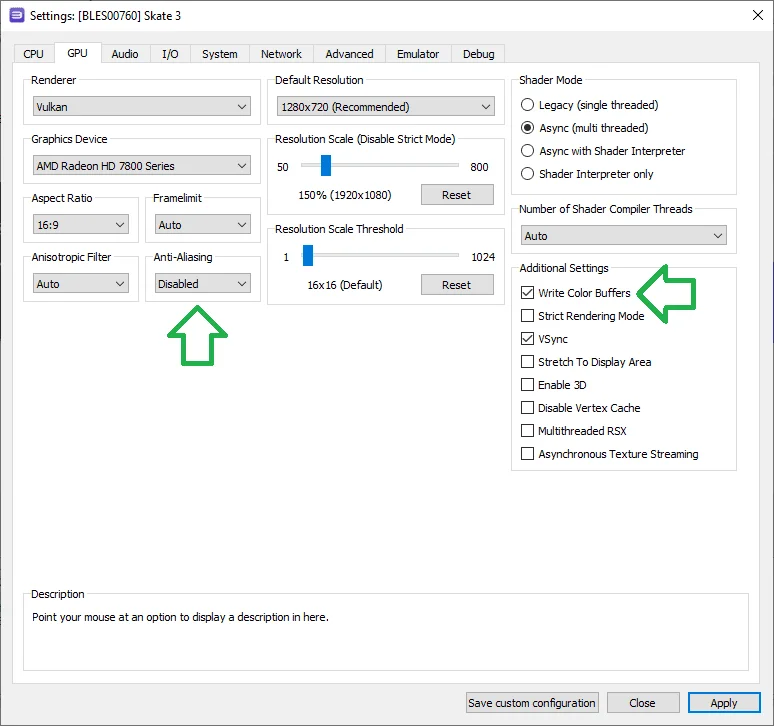
In the GPU settings, change the renderer type from OpenGL to Vulkan. If your graphics card is an NVIDIA GeForce GTX 1050 Ti or an AMD Radeon RX 560 (or better), increase the Resolution Scale to 150% (1920x1080 resolution) or higher.
If your graphics card doesn't support Vulkan, you likely won't achieve an acceptable FPS.
Next, set the "Anti-aliasing" parameter to "Disabled" (to boost frame rate) and enable "Write color buffers" (for proper rendering of certain effects):
 ⤢ ВІДКРИТИ
Also, if your graphics card is relatively weak (GeForce GTX 1030 or Radeon RX 550) and you're experiencing low in-game FPS because of it, try reducing the Resolution Scale to 75% (960x540 resolution).
AUDIO
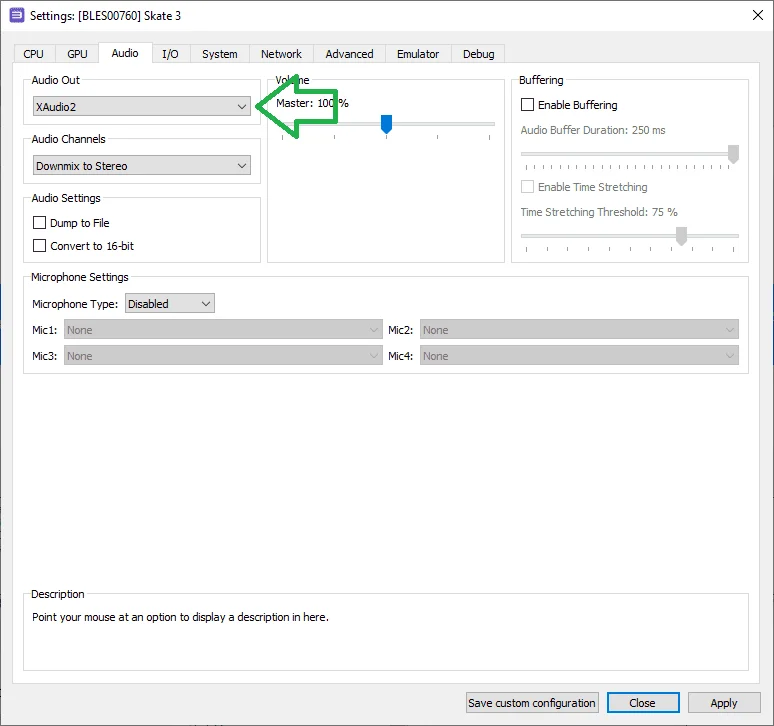
On our test chips (Xeon E5-2643/Core i5-2500K@4400MHz and Xeon E5-2620 v3), disabling in-game audio yielded about a 5-10% performance boost. However, if your processor supports TSX technology and has 6 or more cores, there's no need to disable audio.
In other words, leave the Audio tab untouched. If you have an older CPU, try setting 'Audio Out' to 'Disable Audio'.
 ⤢ ВІДКРИТИ
Advanced configuration
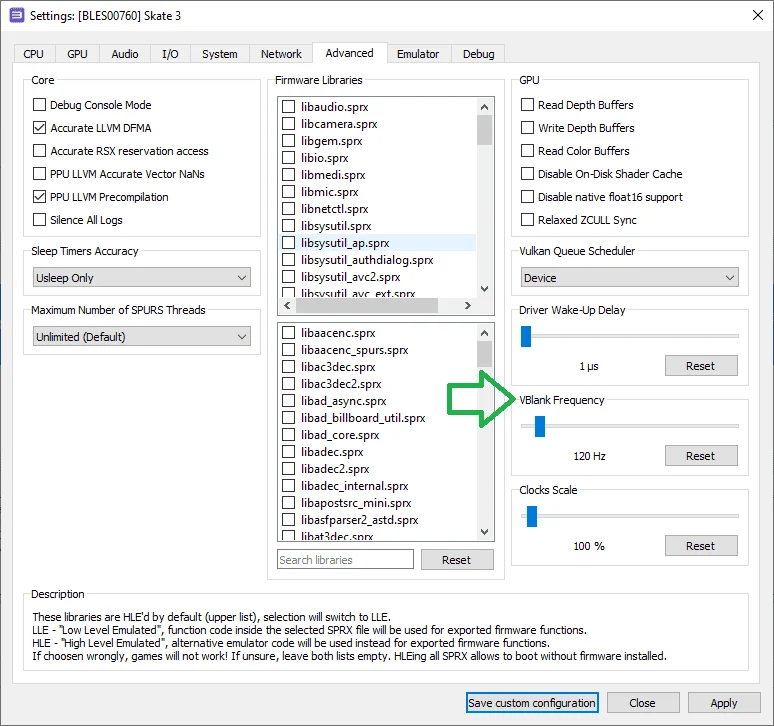
In the "Advanced configuration" tab, you can extend the frame rate limit to 120 FPS by changing the "Vblank rate" parameter from 60 to 120. If you don't need this, then you shouldn't touch anything else in this section.
 ⤢ ВІДКРИТИ
Test these settings and share your results in the comments below, along with any questions you might have.