BLOGS · AI
PUBLISHED
READING12 min
Running Stable Diffusion WebUI on older AMD RX 400/500/Vega, R9 200/300 GPUs (Windows)
Get Stable Diffusion WebUI DirectML running on older AMD RX 400/500/Vega, R9 200/300 GPUs (Windows). This guide covers requirements, installation, and tackling 4GB+ VRAM issues.
Before we dive in, let's make sure you're using the correct Stable Diffusion WebUI DirectML version. If you're on 1.8.0-RC, then this guide is for you. If you're running version 1.9.0 or newer, you might just need to delete the "venv" folder and then execute "webui-user.bat". This process will automatically redownload the correct files for that previously deleted folder. If that still doesn't resolve your issue, then, once again, welcome to this guide.
Next, and no less important, your AMD graphics card must support the DirectML low-level API for machine learning and have at least 4 GB of video memory. All AMD graphics adapters based on GCN 1.0, GCN 2.0, and GCN 4.0 architectures support DirectML. However, there's a nuance regarding the installed VRAM volume. The Radeon HD 7000 series, with rare exceptions, doesn't exceed 3 GB, which is insufficient for Stable Diffusion.
In short, cards with 4GB+ of VRAM will work, starting with the Radeon R9 270 (personally verified on the 4GB version, see below), 280, 285, 290X, 370, 380, 390X (the 6GB HD 7970 will also work, but it's a rare beast). And, of course, the ever-popular RX 470, 480, 570, 580, 590, Vega 56, and Vega 64. However, it's highly recommended to have 8GB of VRAM or more. Image generation speed with DirectML is noticeably faster and, more importantly, much more stable at this VRAM capacity.
That said, this doesn't mean owners of 4GB cards are severely limited. Nearly everything that works on 8GB graphics adapters also functions on these devices. For example, LoRA integration happens without issues, and generation with it performs more than acceptably.
The only caveat for 4GB GPUs is their rather substantial RAM requirements. You'll want more than 16GB of RAM for SD 1.5, and 32GB+ for SDXL checkpoints/models, especially if you plan to generate images at resolutions of 768x512 / 512x768 or higher.
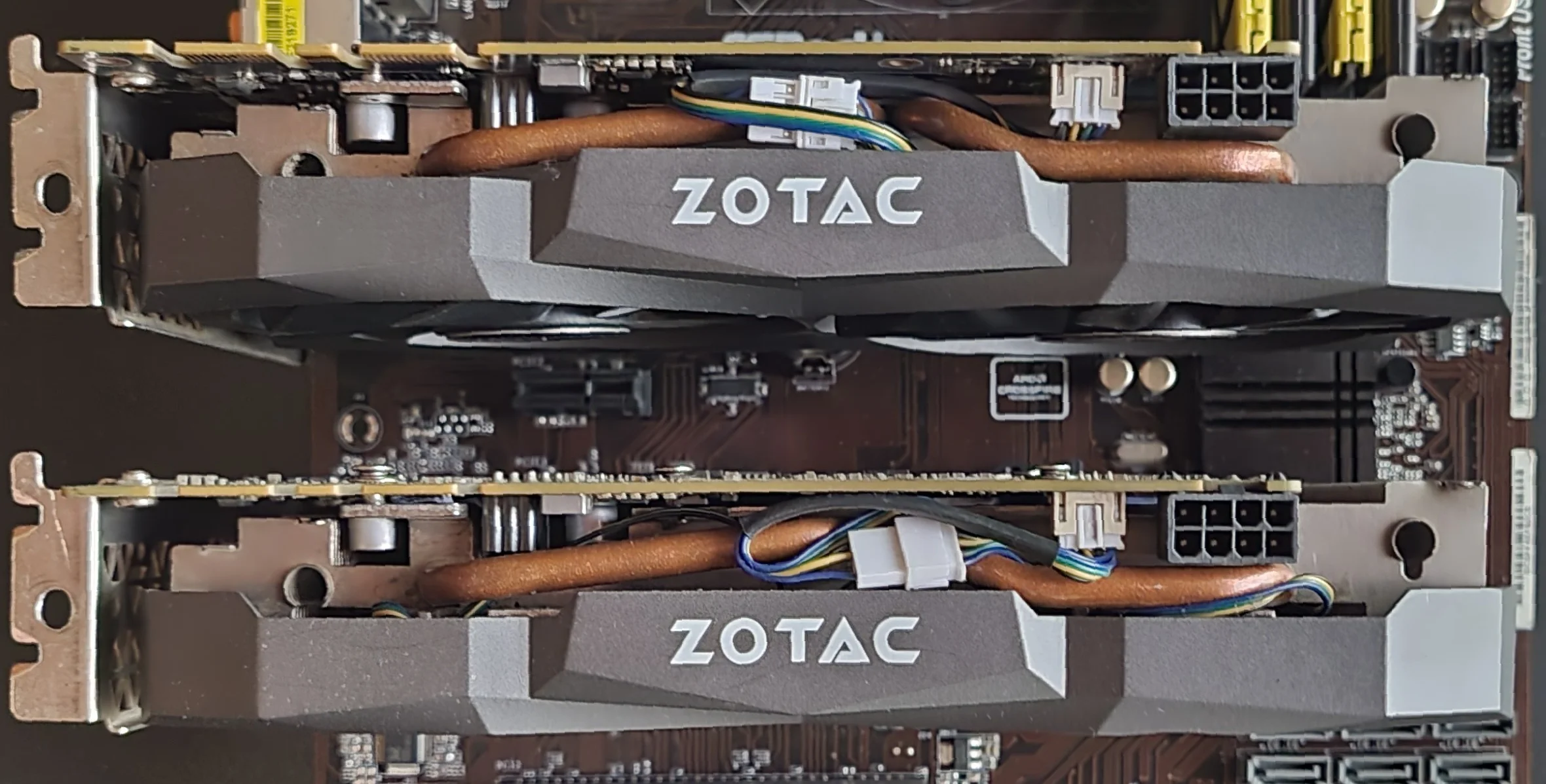
Disclaimer: All actions and settings described below proved helpful in my specific scenario (operating system: Windows 11, hardware: R9 270X 4 GB, RX 470 4 GB, and RX 470 8 GB). There's a non-negligible chance that my experience might not apply to your situation.
System requirements and necessary software
First, let's ensure you've met all the relevant requirements for successfully launching Stable Diffusion WebUI with the DirectML backend.
Minimum system requirements:
Operating system: Windows 10/11;
RAM capacity: 16 GB or more;
Processor: A 4-core Intel Core i5-2400, AMD FX-4300, or better;
Graphics card: Radeon R9 270 4 GB, Radeon RX 470 4 GB, or better;
Storage (SSD preferred, but a fast HDD will also work): about 10 GB of free space for installation, and up to a staggering 100 to 300 GB. The total depends on how many checkpoints/models you plan to use.
Required software:
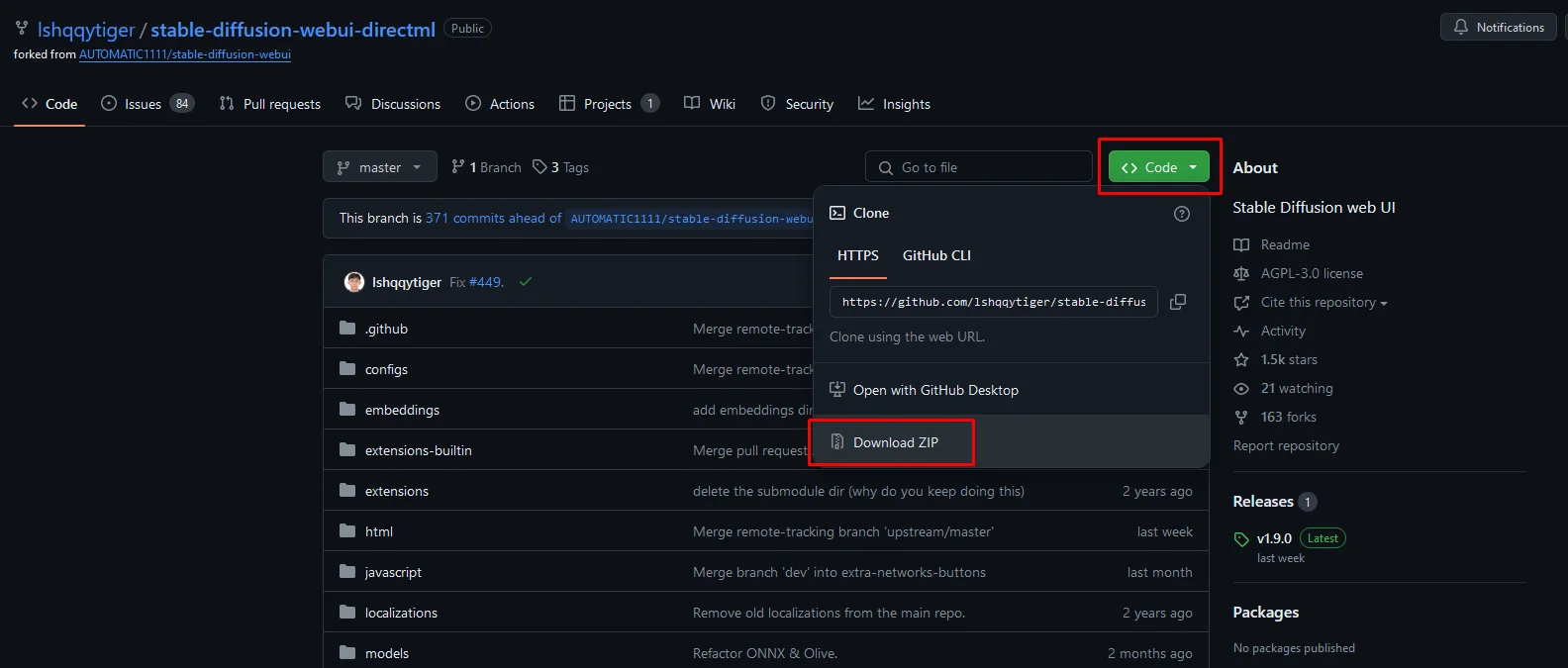
The current stable-diffusion-webui-directml build from the official source
 ⤢ ВІДКРИТИ
64-bit version of Git for Windows
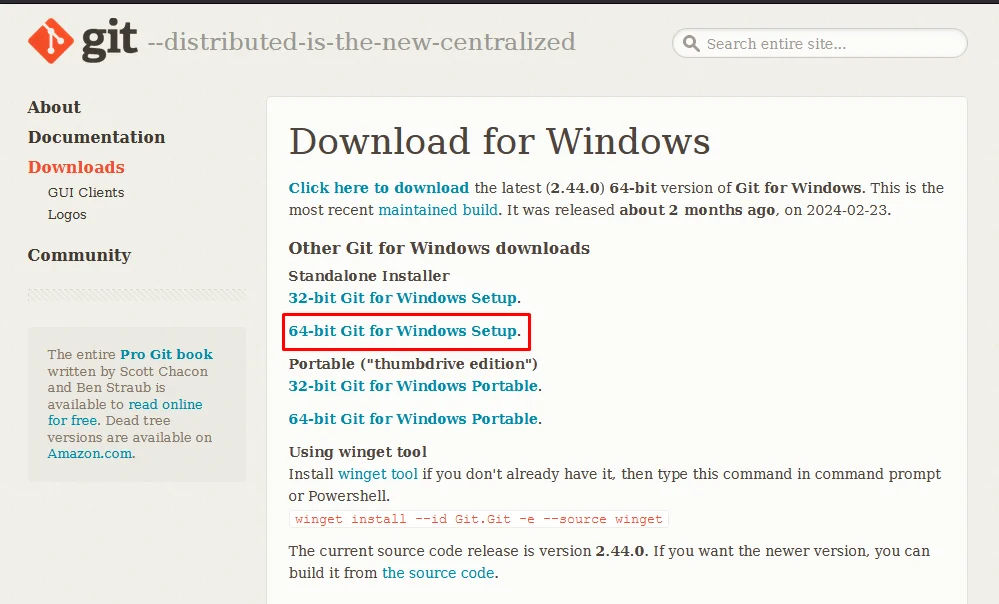 ⤢ ВІДКРИТИ
64-bit version of Python 3.10.6 (during installation, it's CRUCIAL to check the "Add Python 3.10 to PATH" option).
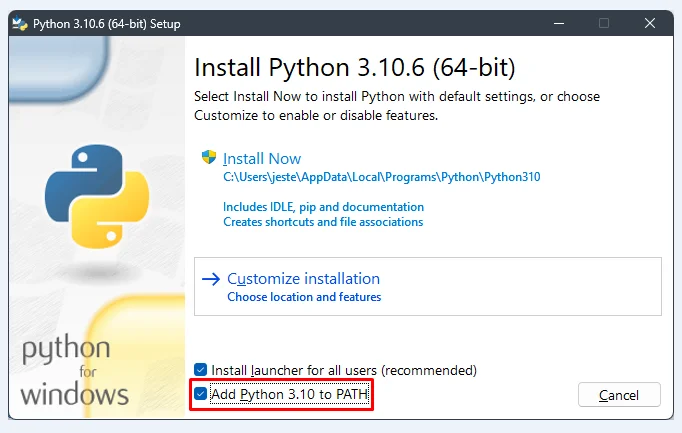 ⤢ ВІДКРИТИ
Installing and launching Stable Diffusion WebUI
All steps successfully completed? Great. Now, unpack the Stable Diffusion WebUI archive to the root of any drive. You can rename the archive and/or folder as needed without issues, but it's critical that the folder name contains no spaces. I've done this myself, as I maintain several test instances.
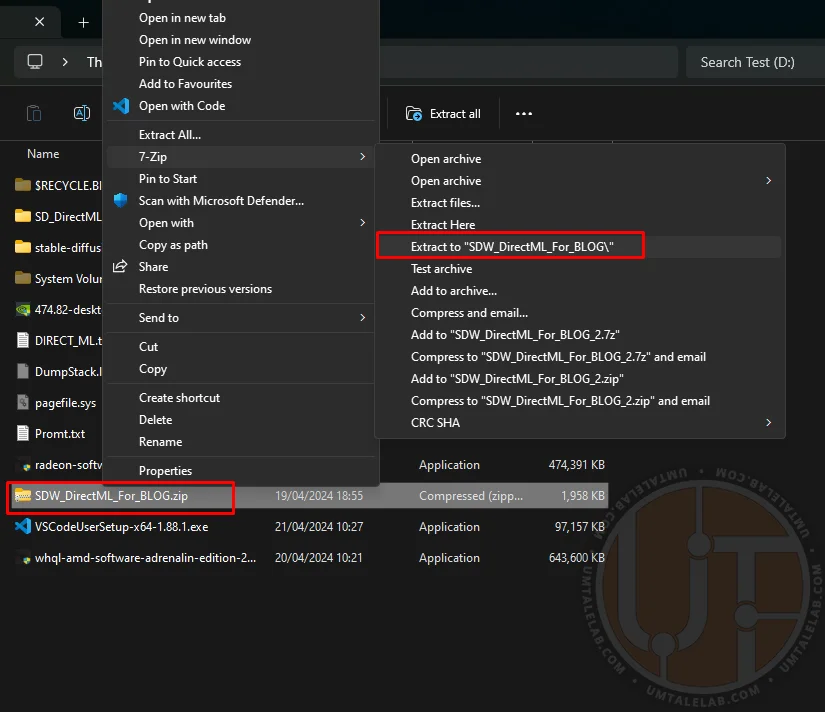 ⤢ ВІДКРИТИ
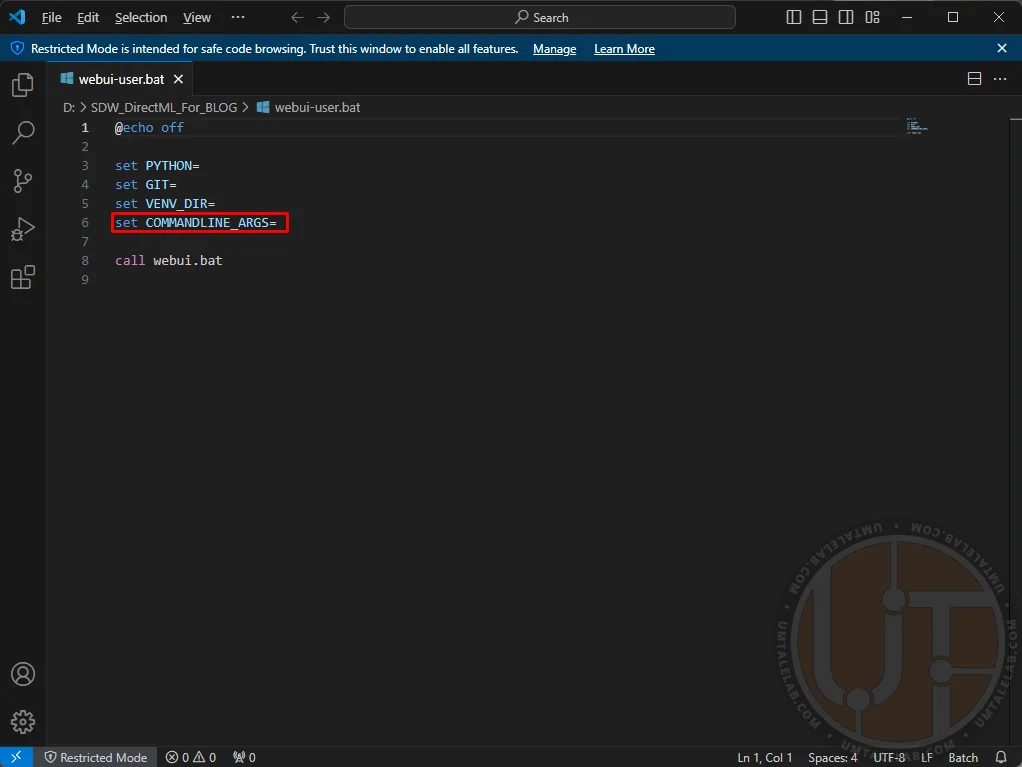
Navigate into the unpacked folder and right-click the "webui-user.bat" file. Then, select "edit/open with Code" (you can use either standard Notepad or Microsoft VS Code for editing):
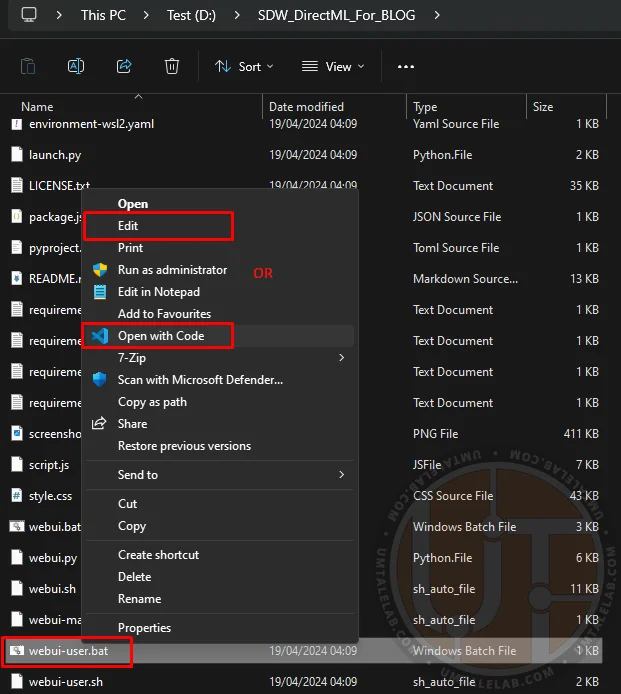 ⤢ ВІДКРИТИ
Here, you need to define the arguments for launching the neural network.
 ⤢ ВІДКРИТИ
For a successful initial launch of Stable Diffusion WebUI DirectML, it's best to avoid unnecessary parameters and stick to these:
For graphics cards with 4GB of VRAM:
Bash
set COMMANDLINE_ARGS= --use-directml --lowvramFor graphics cards with 8GB of VRAM:
Bash
set COMMANDLINE_ARGS= --use-directml --medvramFor graphics cards with 16GB of VRAM or more:
Bash
set COMMANDLINE_ARGS= --use-directml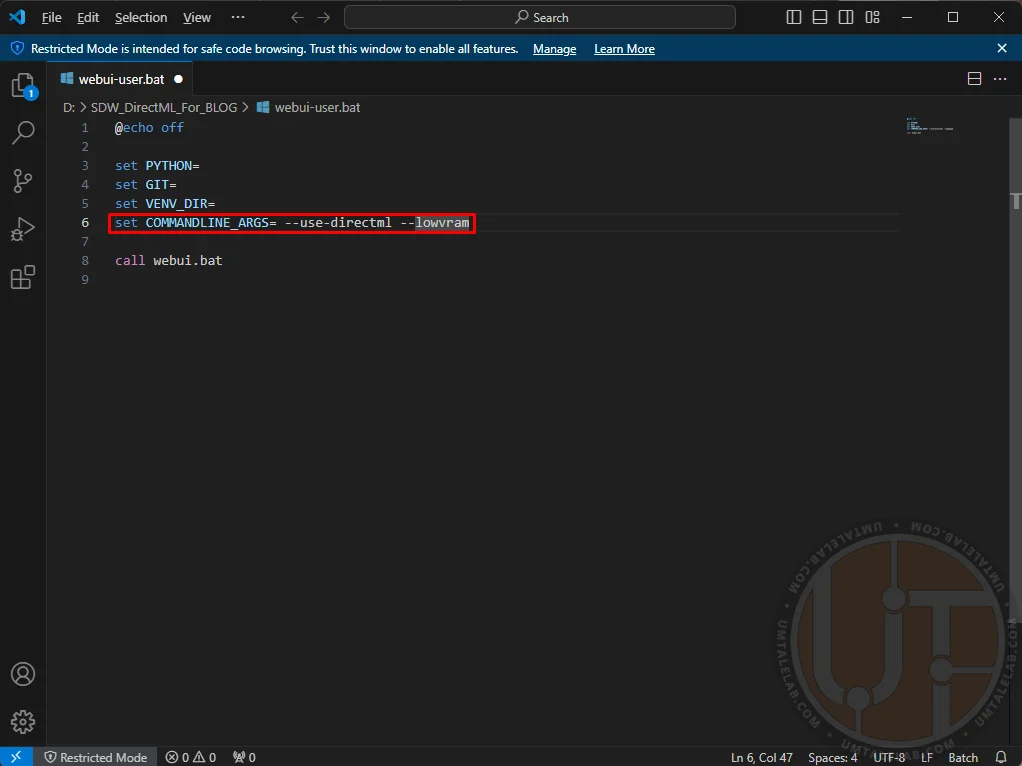 ⤢ ВІДКРИТИ
The argument--use-directml forces the build to switch to the corresponding backend and download compatible libraries to your PC.--lowvram aims to reduce VRAM consumption at the expense of generation speed (partially by using RAM).--medvram also slightly lowers generation speed, but not as significantly as--lowvram.
Save the file (File > Save, or by pressing CTRL + S) and launch the modified batch file. A command prompt window will open. You'll then face a lengthy installation of all necessary assets and libraries. This process can take anywhere from 10 minutes to an hour, depending on your PC's power and internet speed. At some point, the installation might appear to freeze, but that's likely not the case. Just wait a little longer.
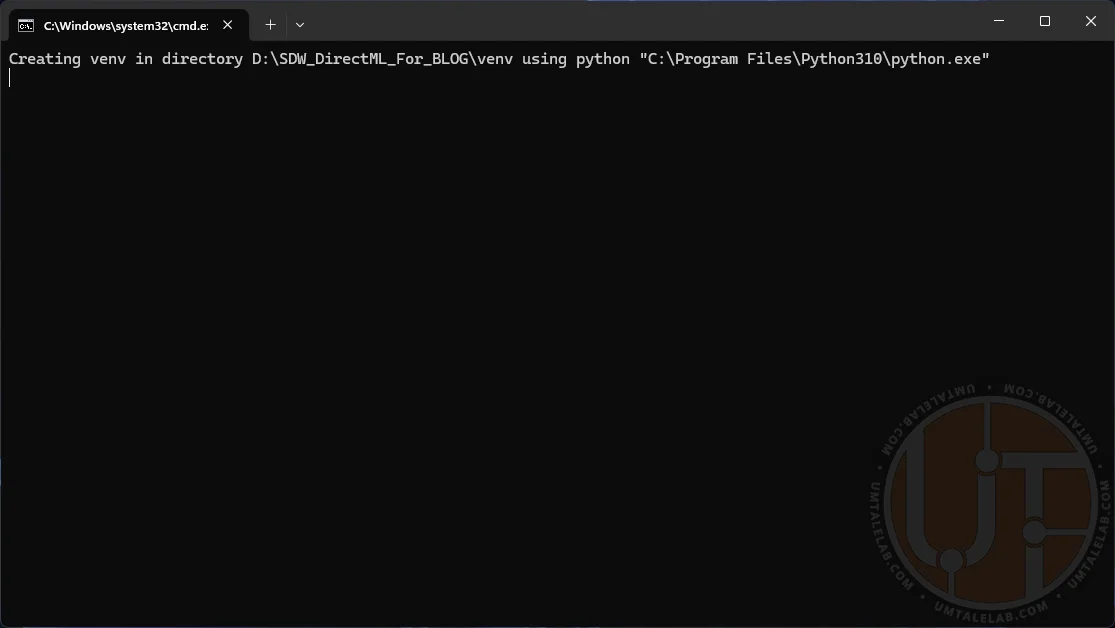
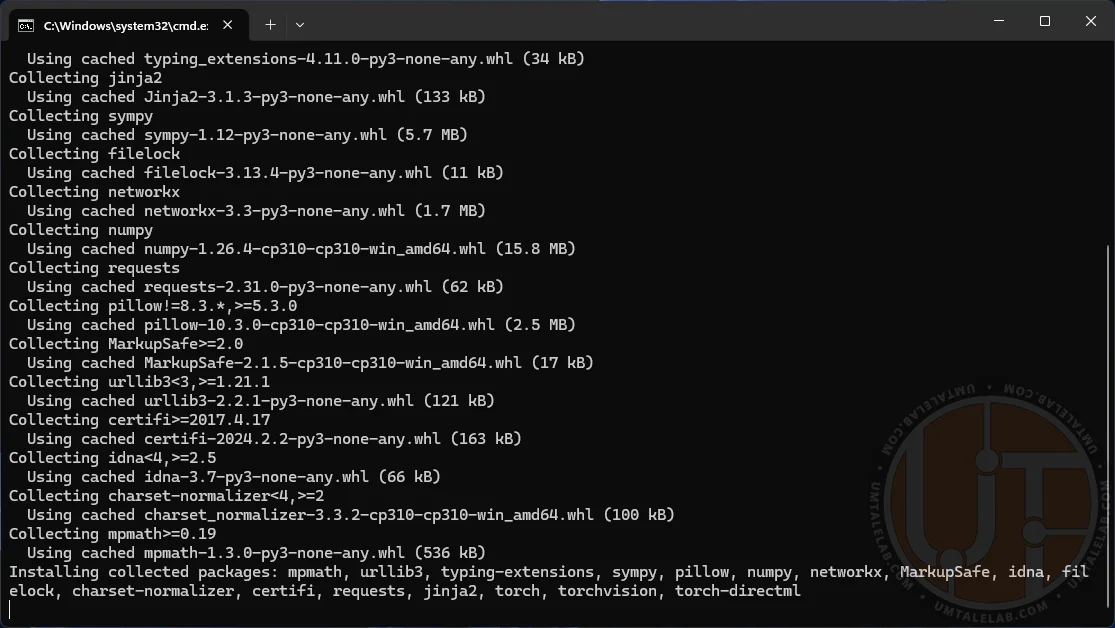

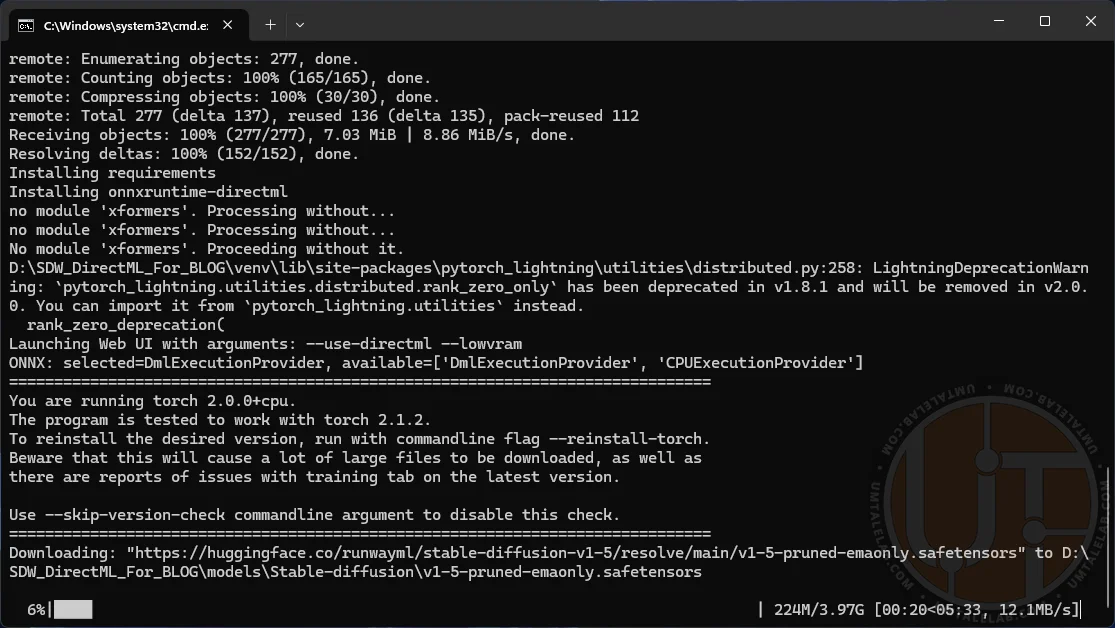
Once the installation is complete, the console will automatically launch your browser and open a tab at http://127.0.0.1:7860/. If this doesn't happen, simply copy the aforementioned link and paste it into your browser's address bar.
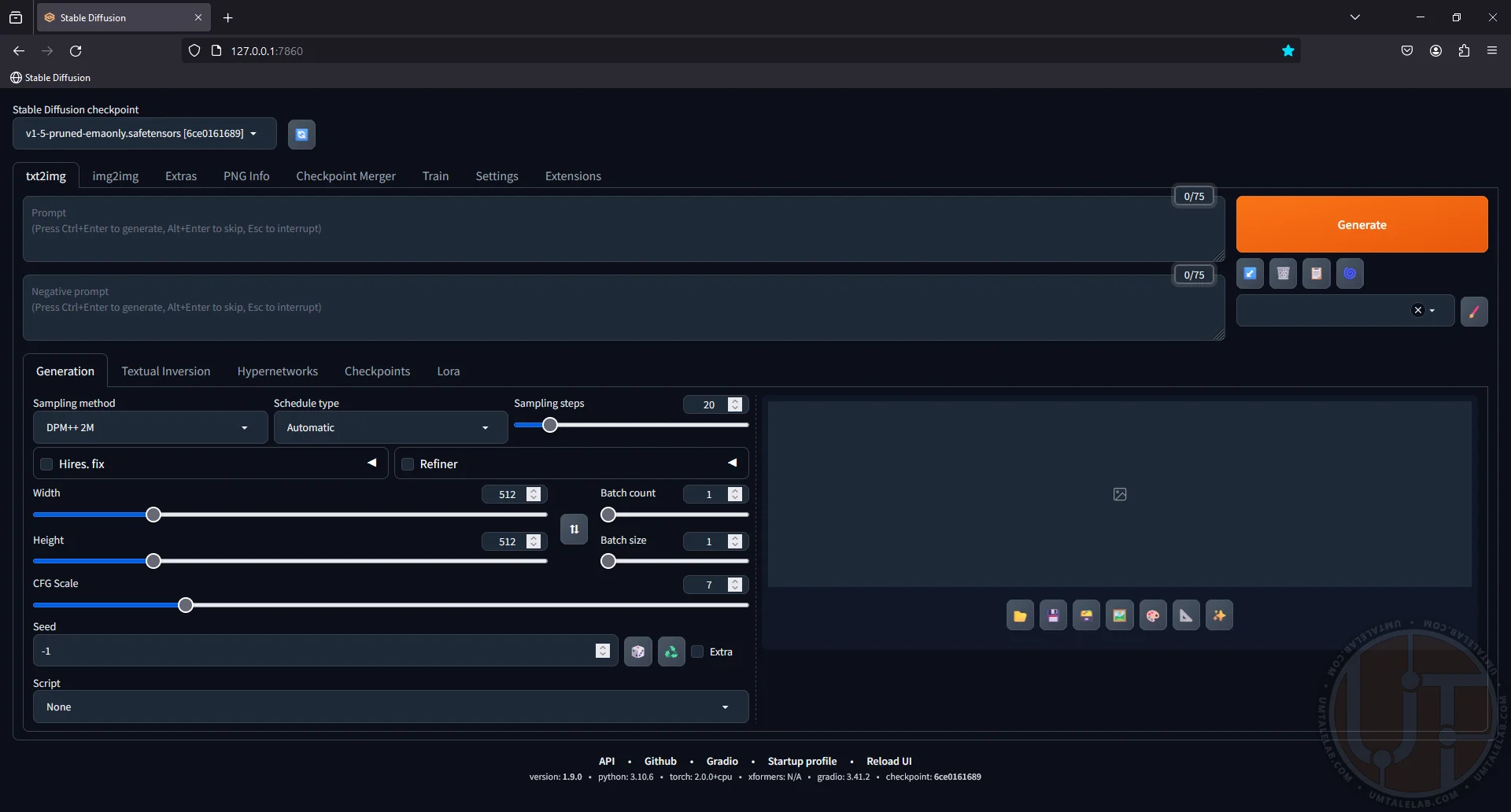 ⤢ ВІДКРИТИ
Extremely important: do not close the console under any circumstances! This is your personal neural network server, and the browser tab is simply the graphical interface for interacting with it.
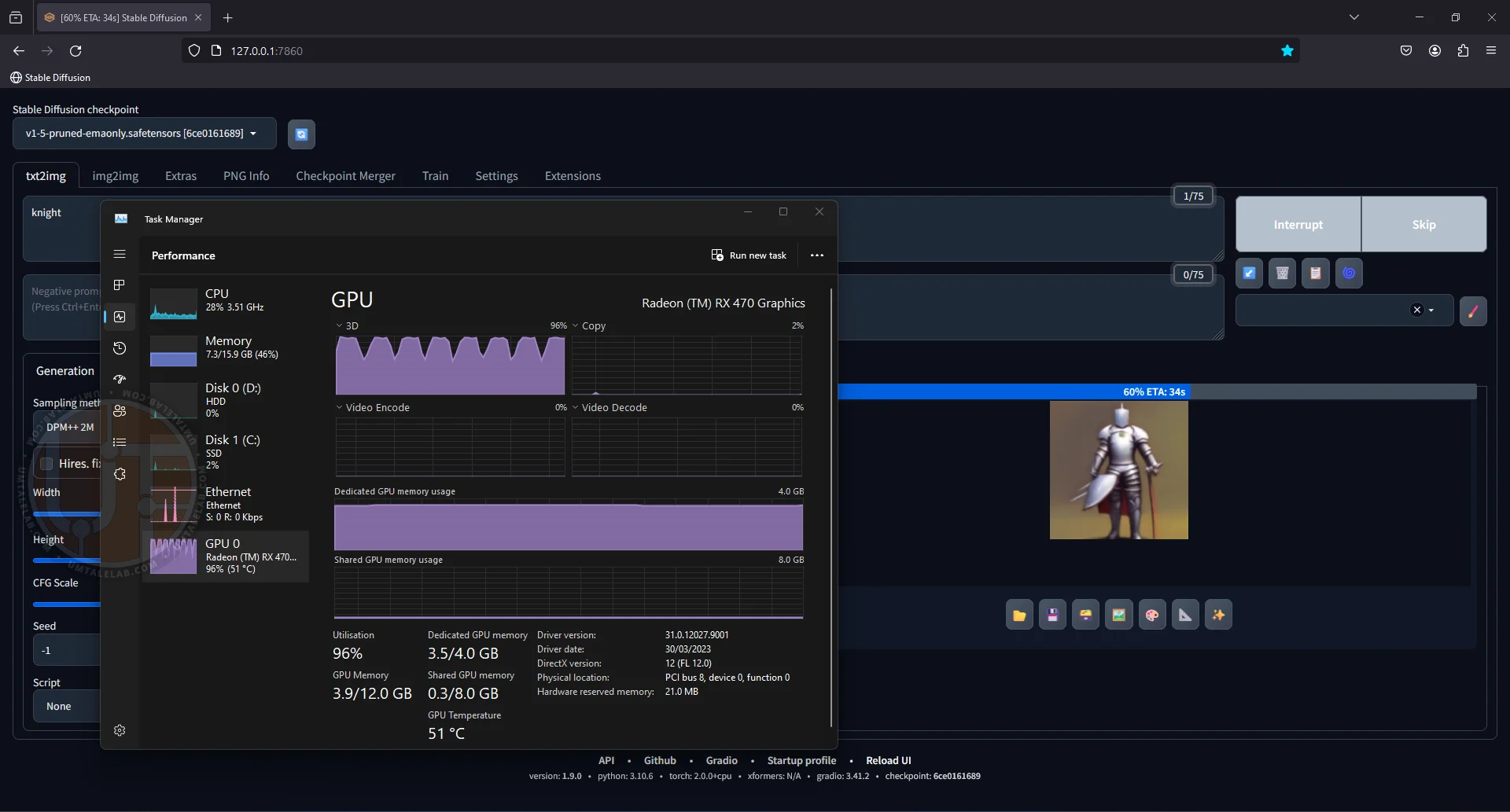
Now, let's check if our neural network is working. At this stage, I haven't downloaded any additional models, so I'll be using the base SD 1.5. I'll enter a simple prompt like "knight", and voilà: when generating our image, the GPU of the 4GB RX 470 graphics card is practically maxed out:
 ⤢ ВІДКРИТИ
 ⤢ ВІДКРИТИ
Even with a modest amount of VRAM, the generation speed on a graphics card is significantly higher than on a classic CPU.
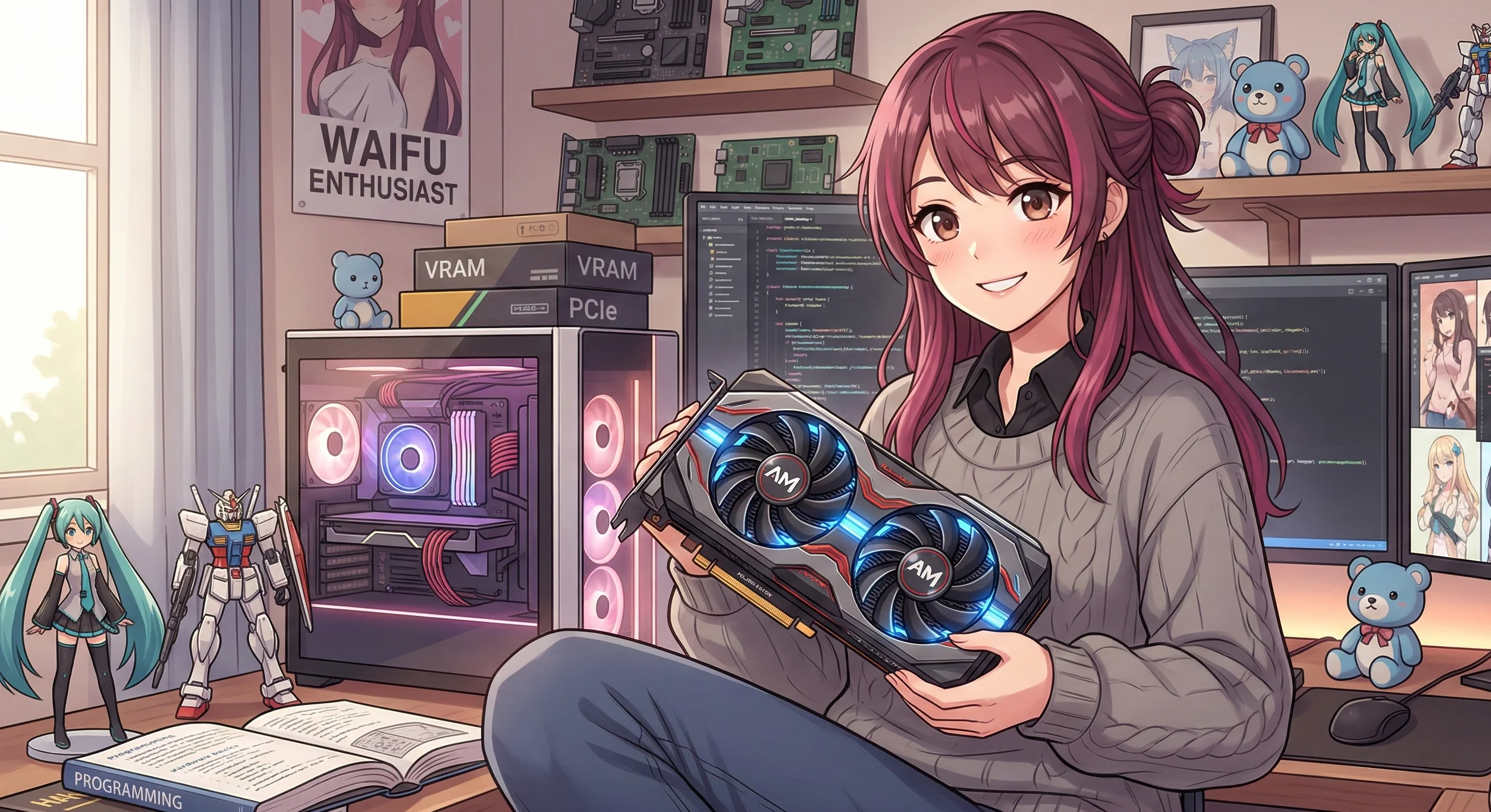
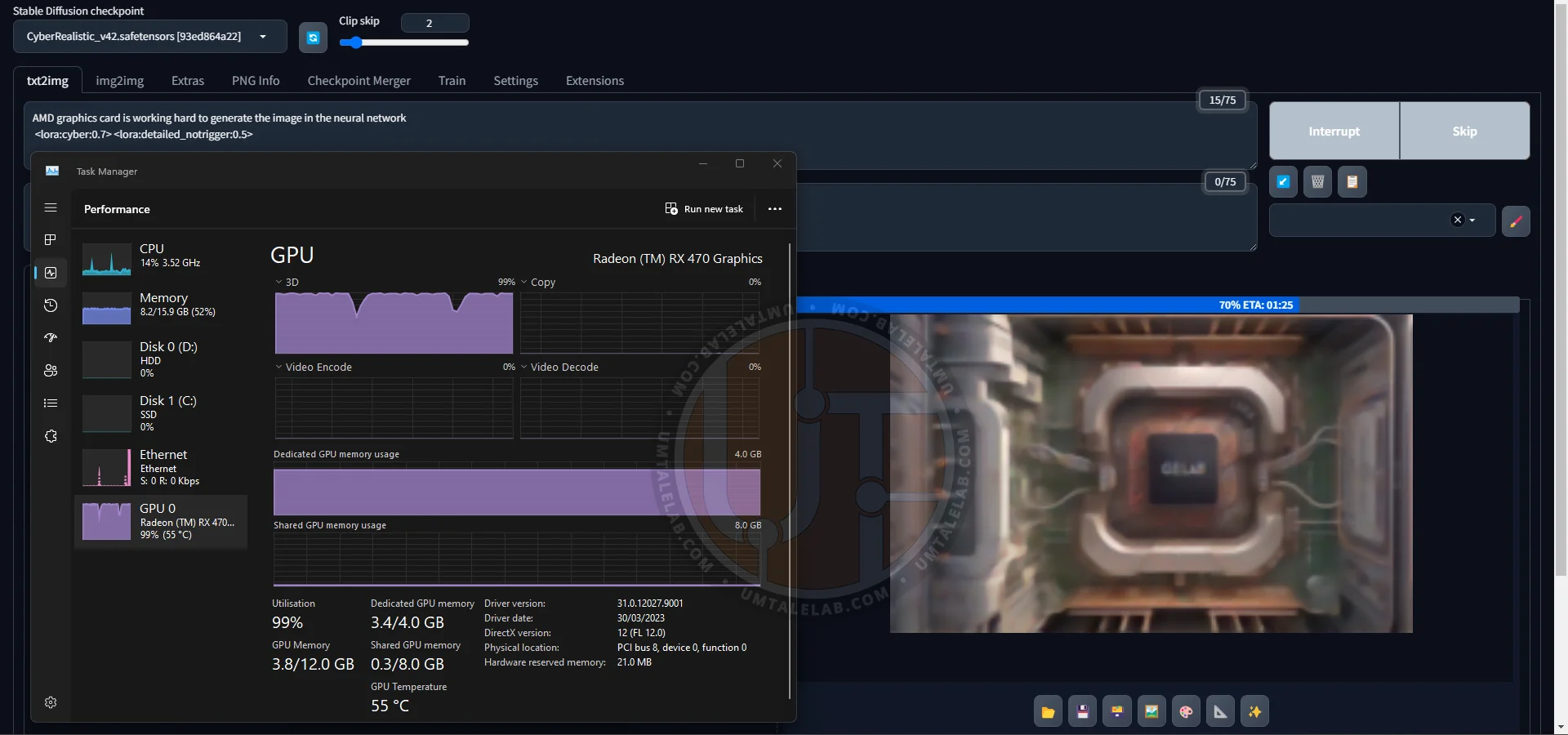
By the way, here's the title image for this article, generated by the 4GB RX 470. For this one, I'm using the third-party checkpoint CyberRealistic v4.2, in addition to two LoRAs:
 ⤢ ВІДКРИТИ
In the end, I only slightly adjusted the contrast and swapped out the logo for AMD in a raster image editor.
That's everything, in a nutshell. The server is running, the interface is accessible, and you can confidently start generating potential masterpieces! However, if you encounter any launch issues or generation errors, then welcome to the next section of this guide.
Troubleshooting potential issues after installing Stable Diffusion WebUI
If you encounter various errors during launch (like the infamous "Torch is not able to use GPU") or when attempting to generate images in Stable Diffusion WebUI DirectML, you should try the following:
Go to the neural network directory and delete the venv folder.
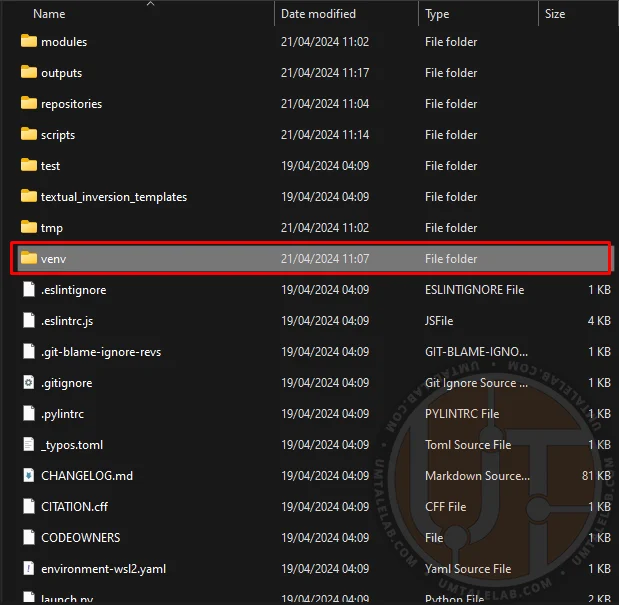 ⤢ ВІДКРИТИ
Next, locate the requirements_versions.txt file within the neural network's directory. Right-click on it, then select the option to "change/open with Code."
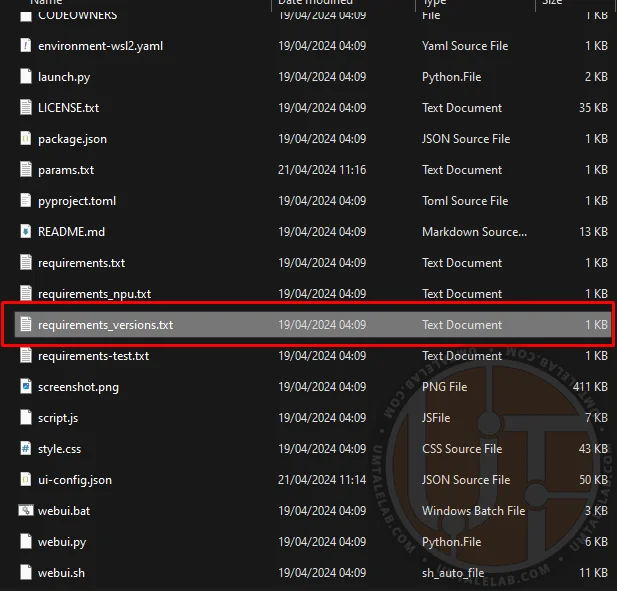 ⤢ ВІДКРИТИ
Within this file, you'll need to locate the entry for the torch library. It's usually found around lines 29-33, though this can vary slightly depending on your WebUI build:
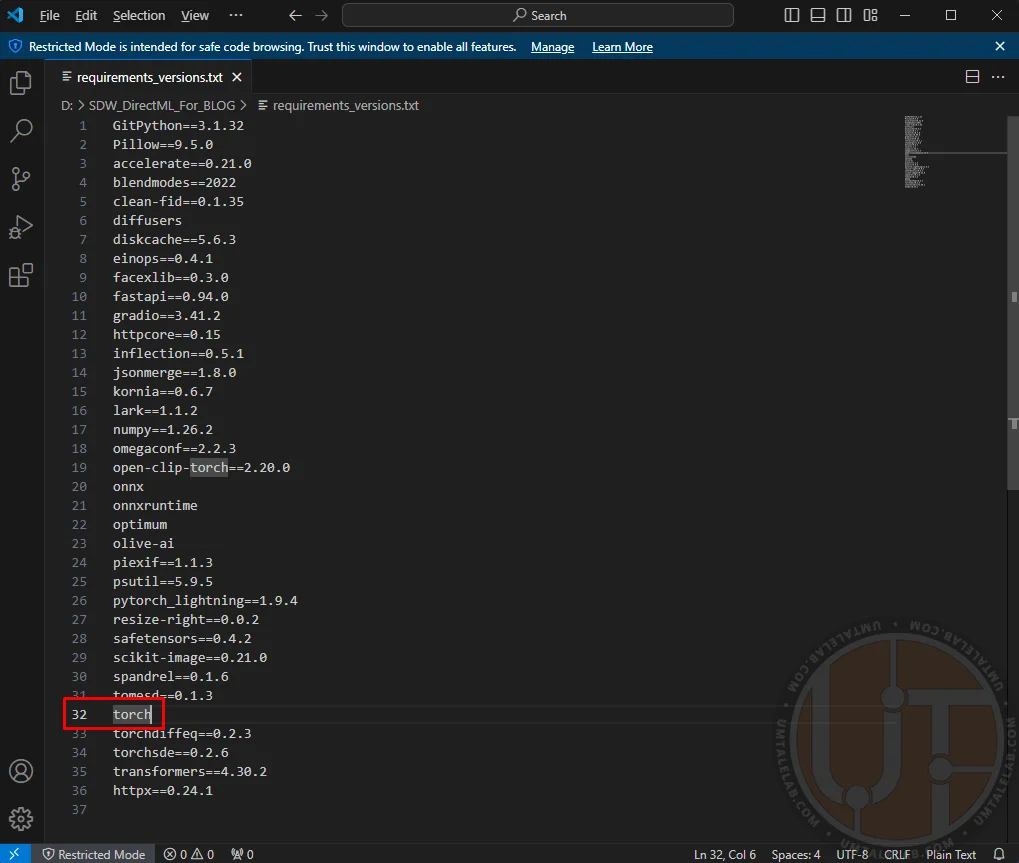 ⤢ ВІДКРИТИ
You'll need to change this entry to torch-directml
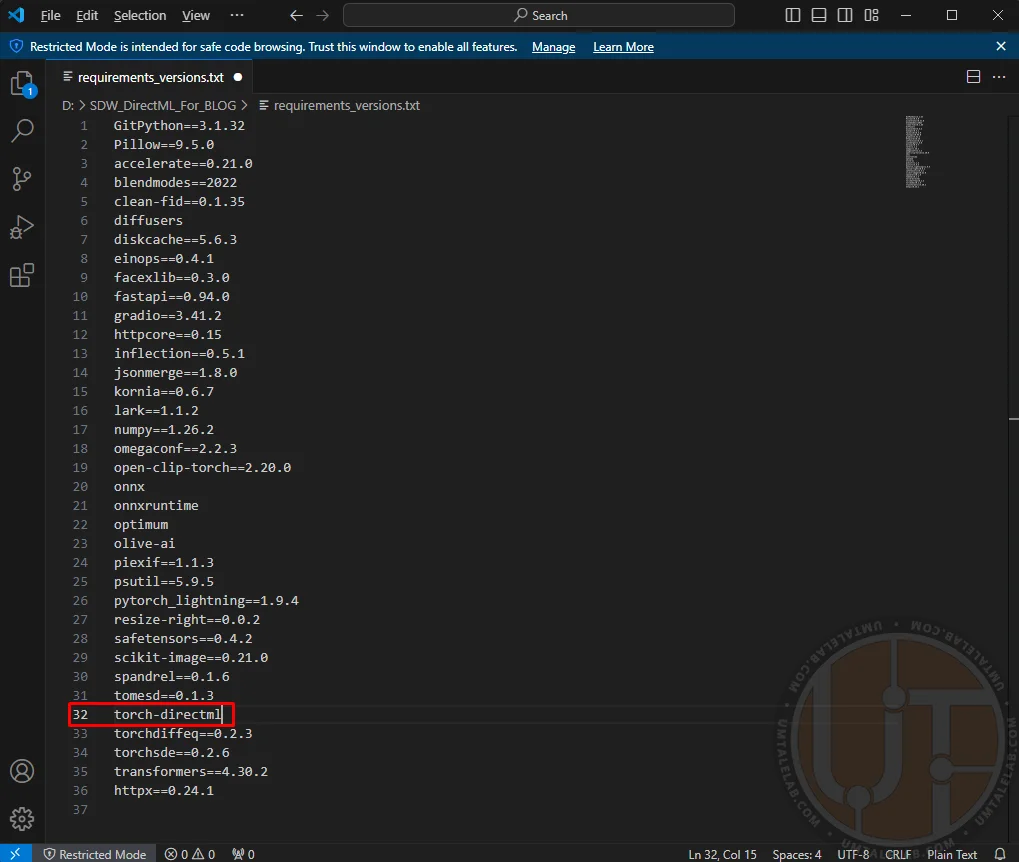 ⤢ ВІДКРИТИ
Once that's done, save and close the file. Next, right-click on the "webui-user.bat" file and select "change/open with Code." You'll then need to add the argument --reinstall-torch to the existing parameters.
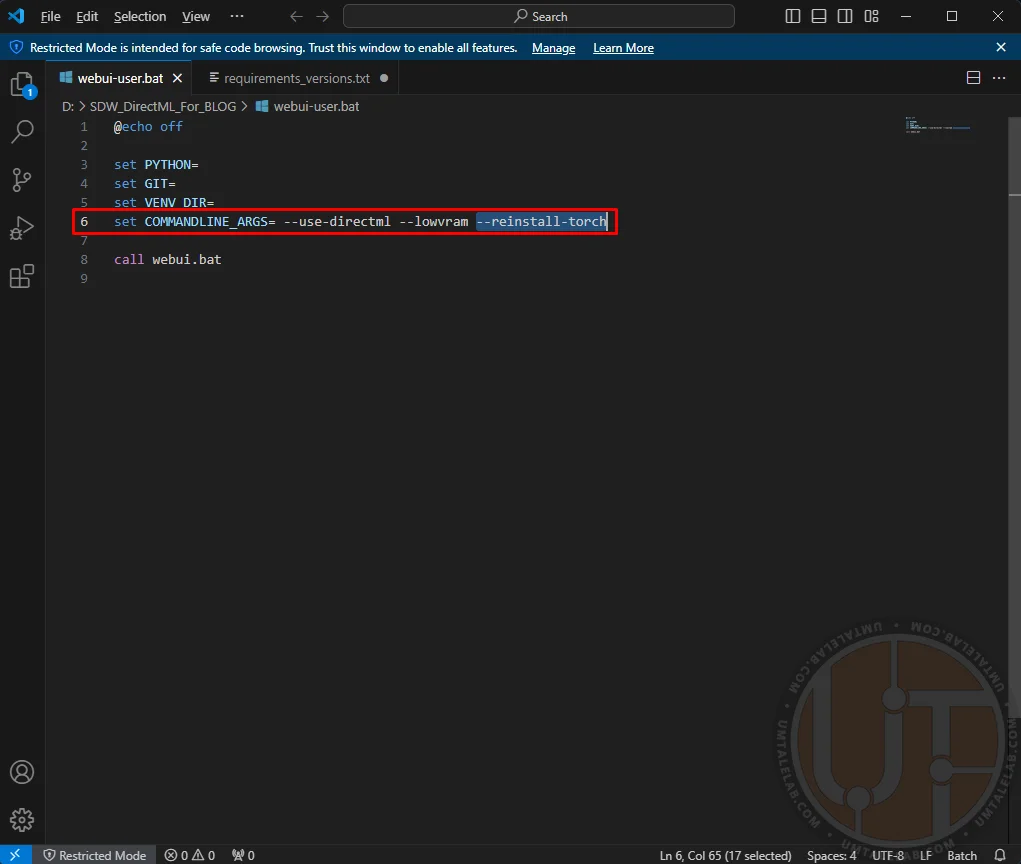 ⤢ ВІДКРИТИ
Now, save and run this file. This process will reinstall the torch libraries, specifically optimizing them for DirectML (and CPU, though we're not concerned with CPU usage here).
Once the console finishes downloading the necessary files and the Stable Diffusion web interface opens, you can remove the --reinstall-torch argument from the webui-user.bat file.
In my experience, this workaround fixed the "Torch is not able to use GPU" error in one Stable Diffusion WebUI DirectML build. With another build, it prevented the system from defaulting to the CPU instead of the AMD graphics card.
Additional settings and Stable Diffusion WebUI examples on 4GB and 8GB AMD graphics cards
In this section, I'll share my experience using the neural network on less powerful AMD graphics cards and provide several image generation examples using the R9 270X and RX 470 GPUs.
My research indicates that only two arguments offer a substantial performance boost on AMD graphics cards. The first is --opt-sdp-attention. Without diving into the specifics, it's essentially an xFormers equivalent for NVIDIA cards, but it also works with AMD GPUs. While --opt-sdp-attention undeniably accelerates image generation, this comes at a cost. The increased speed demands more VRAM, which is already a bottleneck with the DirectML backend.
The second argument is --upcast-sampling. While it only marginally speeds up generation, it slightly reduces VRAM consumption, which can be quite useful.
Stable Diffusion WebUI launch parameters for 4GB R9 270X and RX 470 cards:
Bash
set COMMANDLINE_ARGS= --use-directml --lowvramCuriously, the --upcast-sampling parameter actually harms cards with limited VRAM. When enabled, generation speed plummets by two or three times. This is despite documentation claiming it's meant to slightly optimize VRAM consumption and boost generation speed.
It's completely impossible to use --opt-sdp-attention on 4GB graphics cards. Generation won't even start, consistently crashing with a critical memory shortage error at virtually any resolution.
Unfortunately, these parameters didn't improve performance on 4GB cards in my tests. However, you should still experiment with them on your own software and hardware setup. It's possible that on your system, these settings might work adequately even with a modest amount of VRAM.
Here's the image generation process on a Radeon R9 270X at 512x768 pixels:
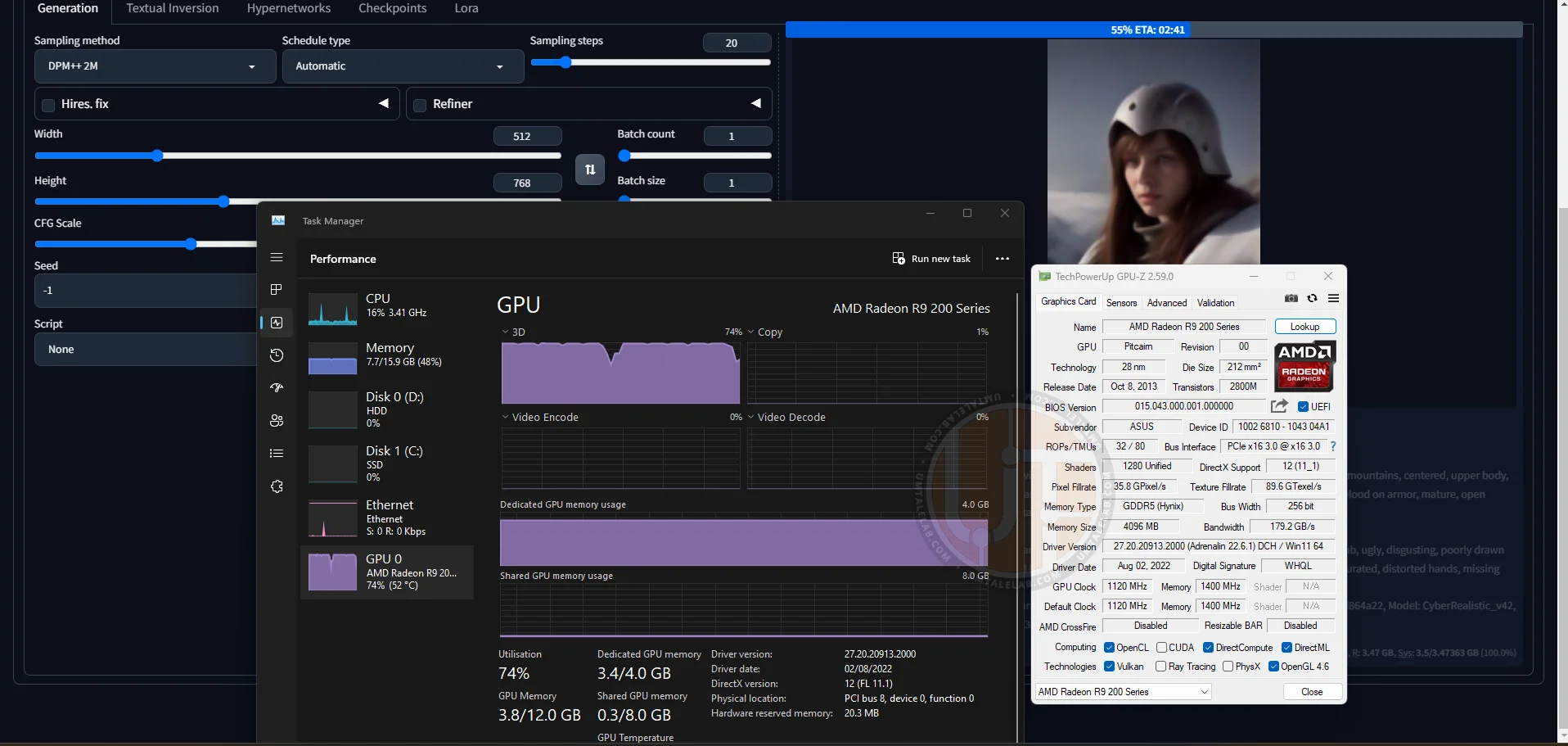 ⤢ ВІДКРИТИ
The final result:
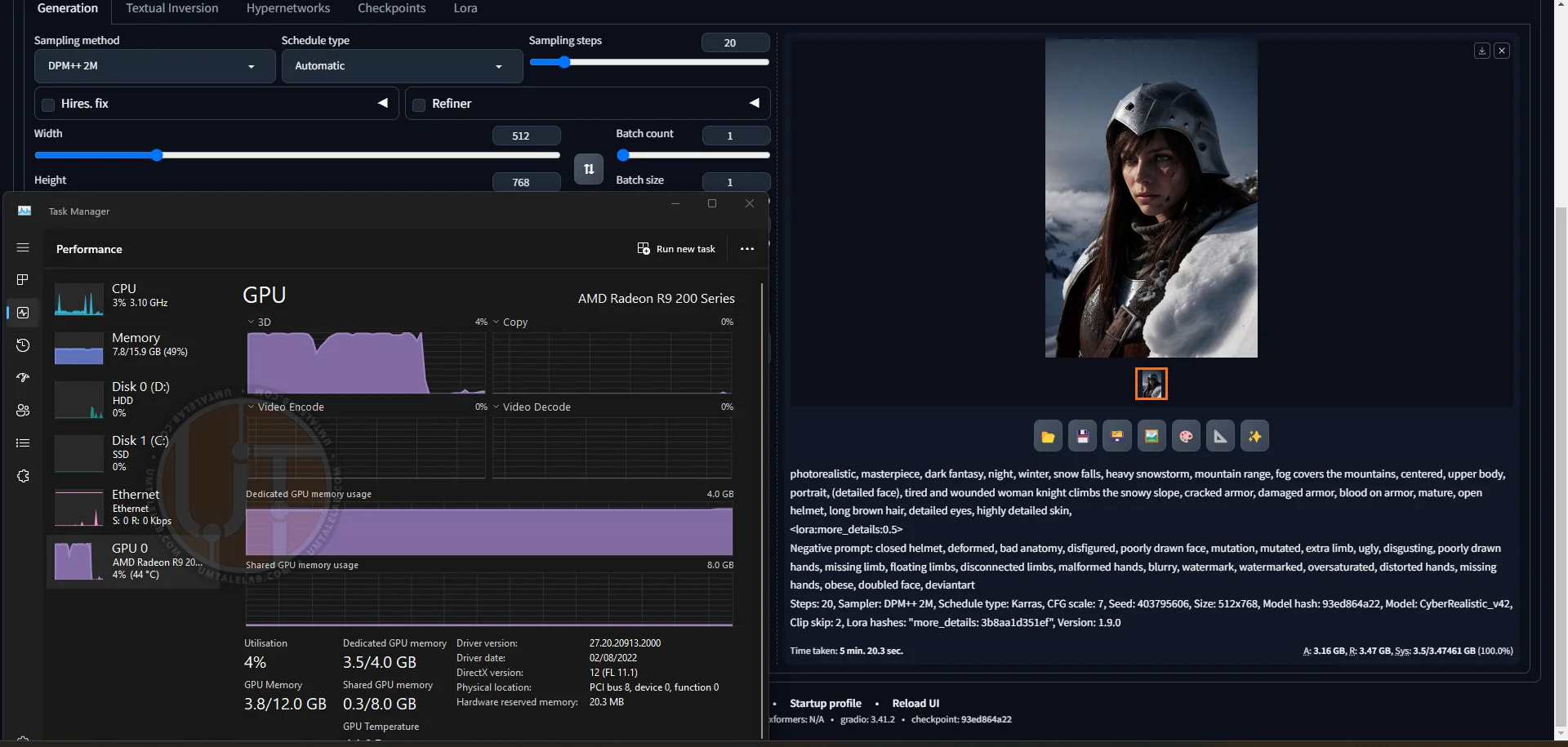 ⤢ ВІДКРИТИ
With 20 sampling steps and a single LoRA connected, generation took just over 5 minutes. For such an old graphics card, that's an excellent result.
Here's another final result:
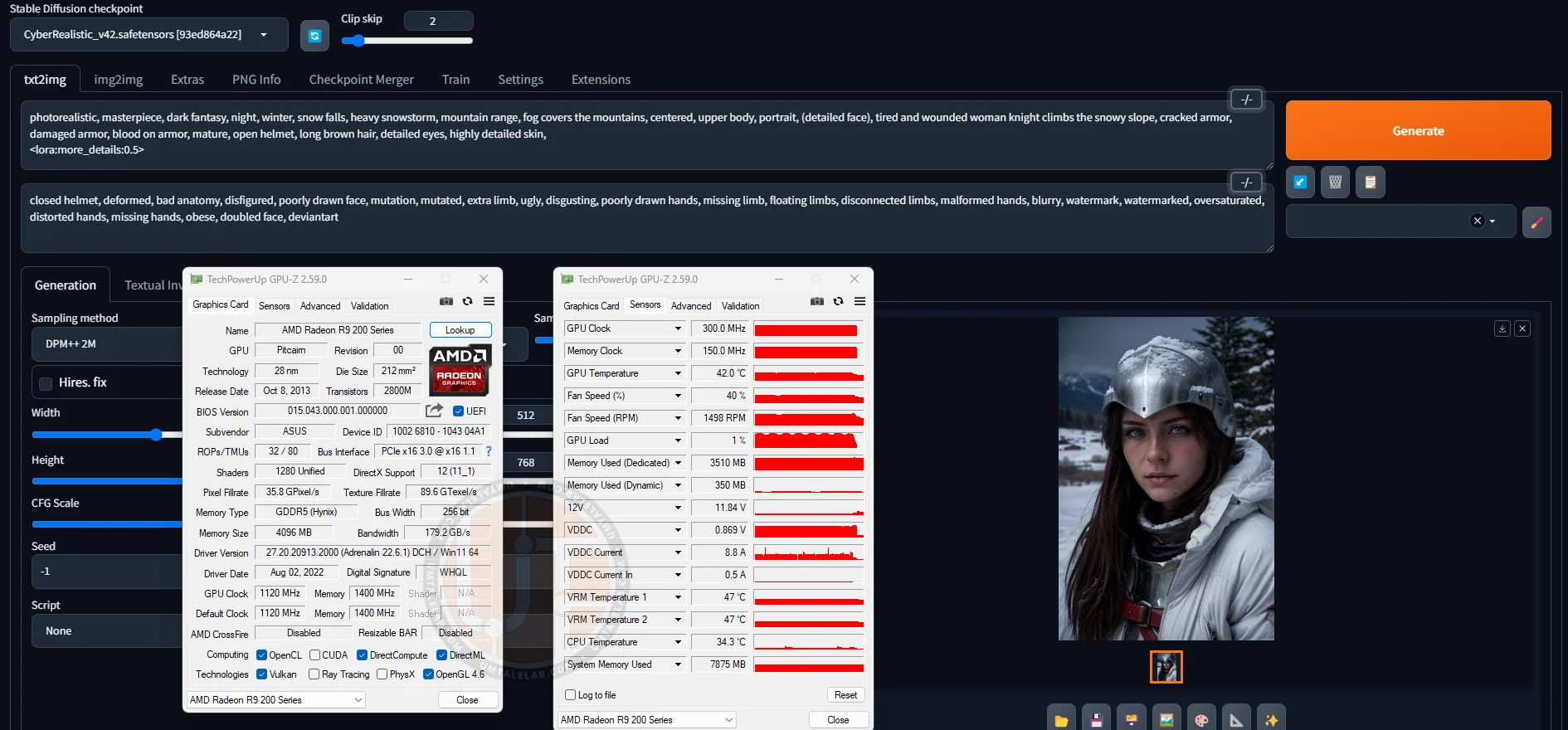 ⤢ ВІДКРИТИ
Let's see how the RX 470 4GB performs with identical settings and resolution:
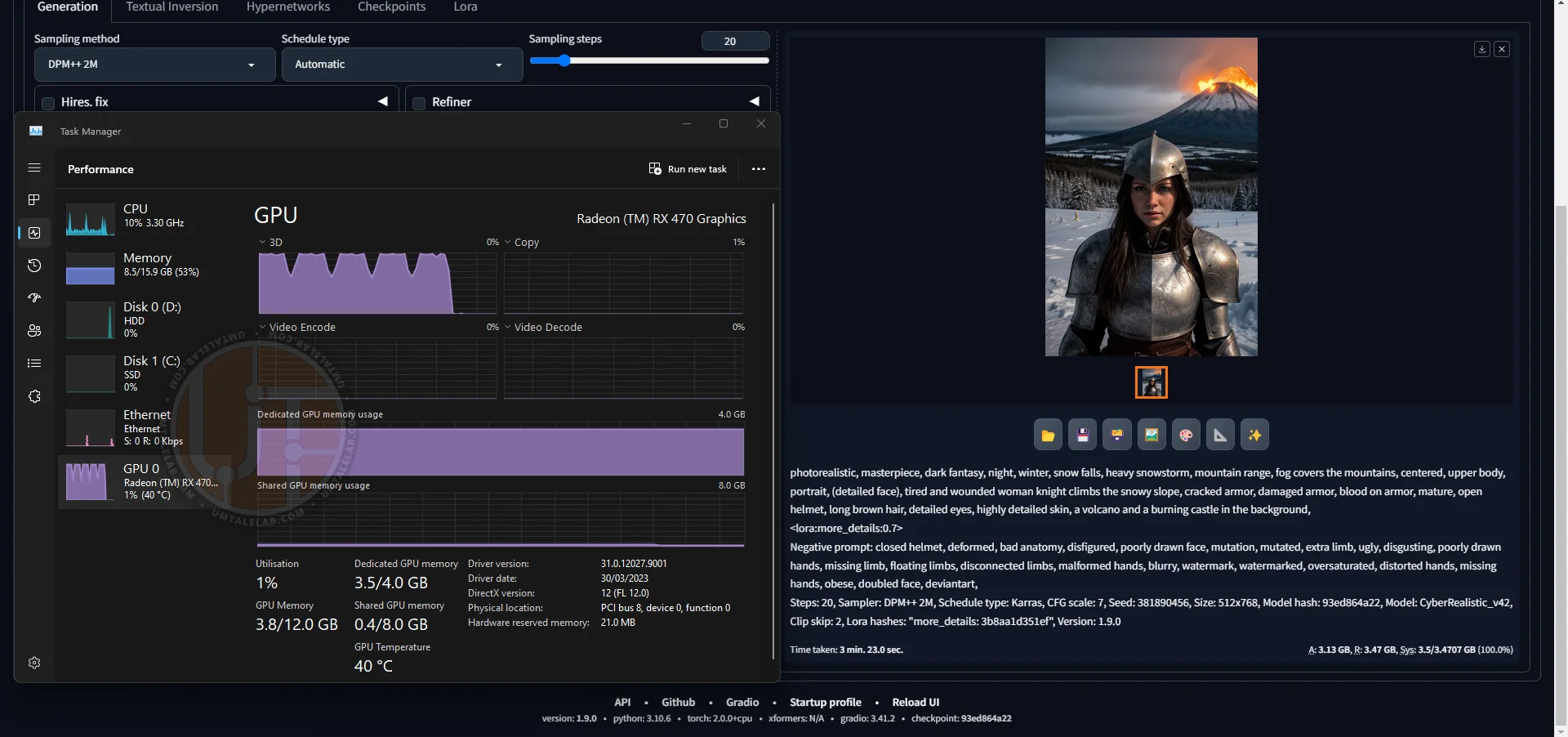 ⤢ ВІДКРИТИ
That's an improvement: 3 minutes and 23 seconds.
I saved the most interesting part for last. The test bench uses an 8GB RX 470.
Stable Diffusion WebUI launch parameters for 8GB cards:
Bash
set COMMANDLINE_ARGS= --use-directml --medvram --opt-sdp-attention --upcast-samplingWith a relatively sufficient amount of video memory, the --opt-sdp-attention and --upcast-sampling parameters function as described in the documentation. They significantly accelerate image generation and slightly reduce VRAM usage.
Without --opt-sdp-attention and --upcast-sampling:
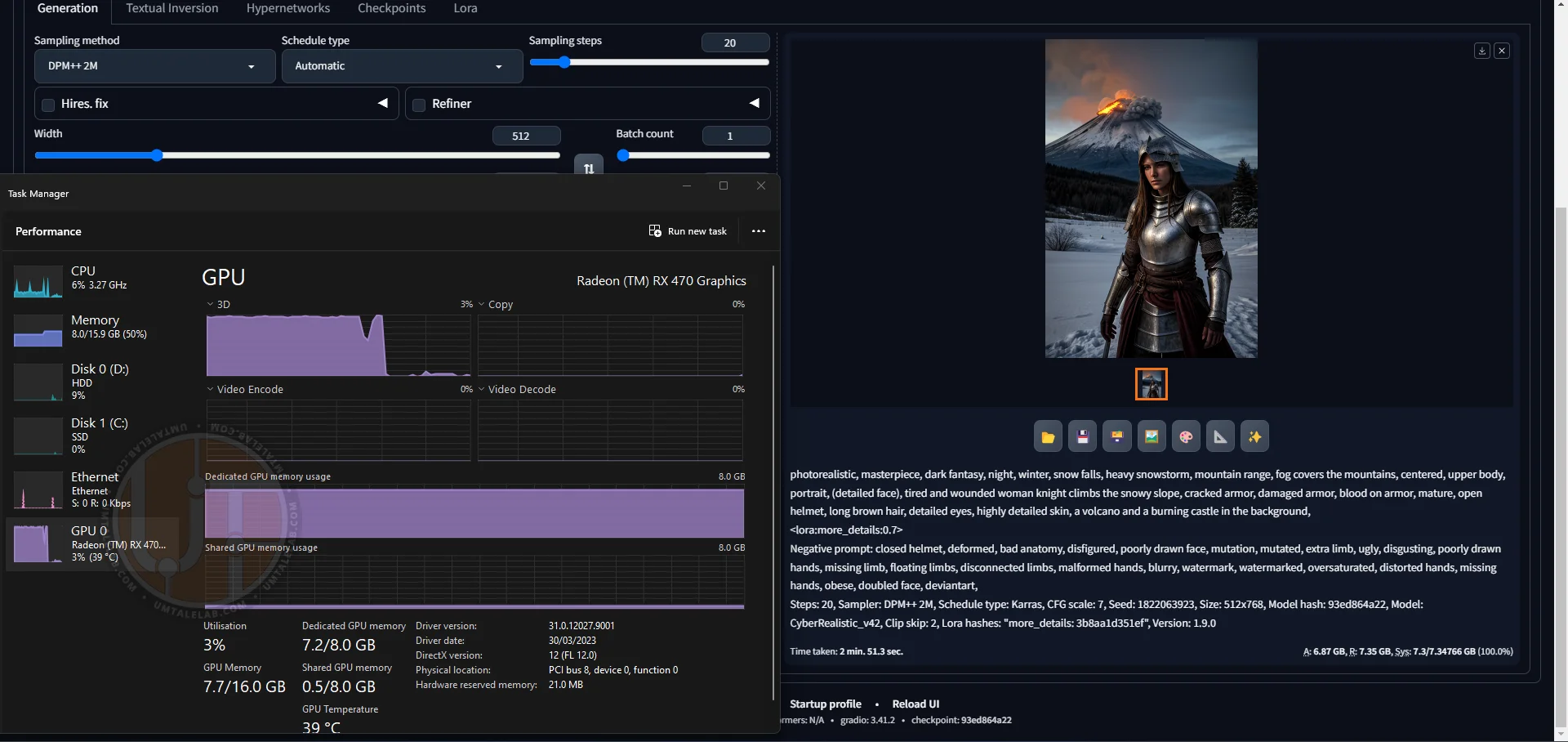 ⤢ ВІДКРИТИ
Generation took 2 minutes and 53 seconds. The improvement over the 4GB version is negligible.
With --opt-sdp-attention and --upcast-sampling:
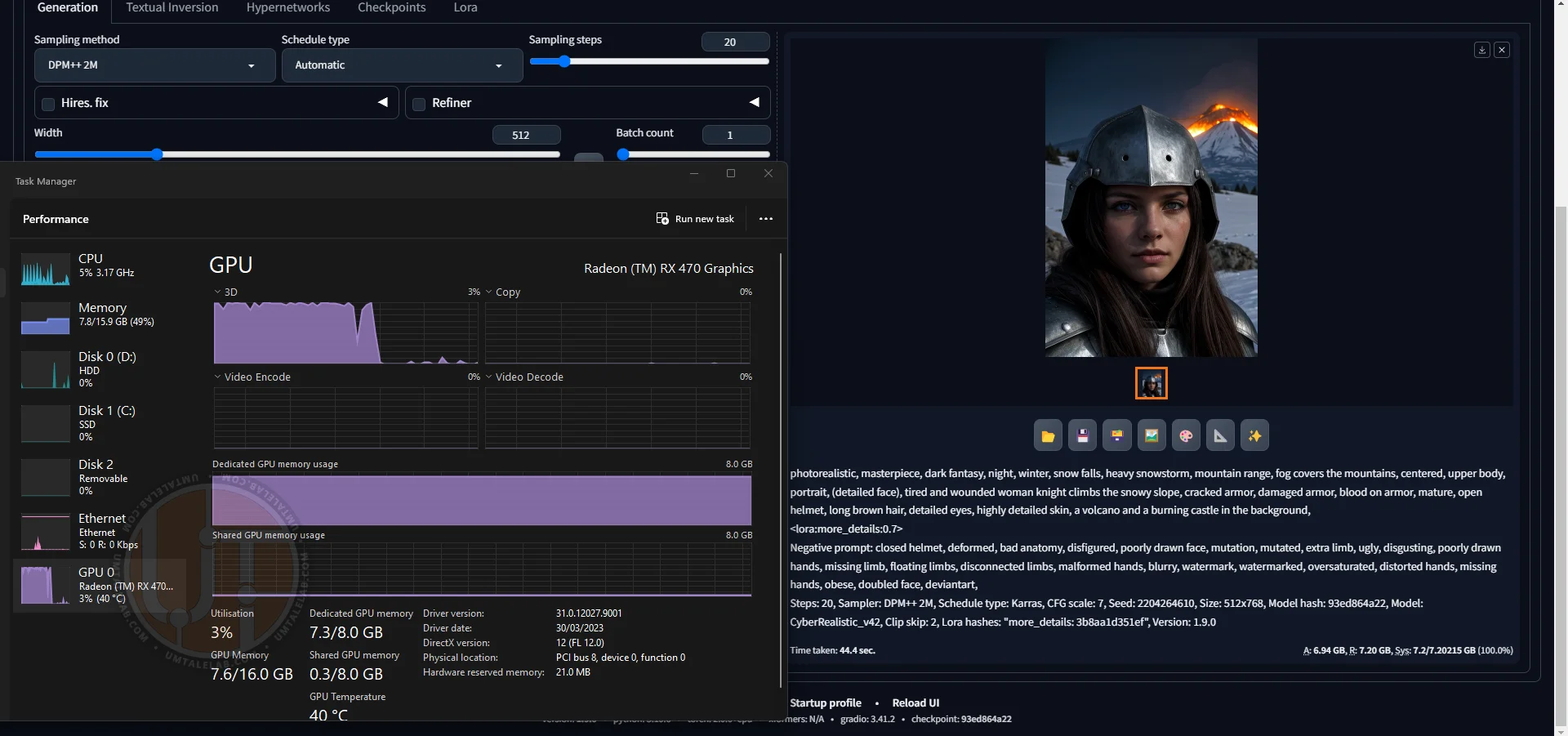 ⤢ ВІДКРИТИ
Now this is more like it – only 44 seconds! Just as I wrote at the beginning of this article, the 8GB versions of the RX 470/480/570/580/590 will generate images significantly faster than their 4GB counterparts.
Let's try slightly increasing the resolution to 512 by 900:
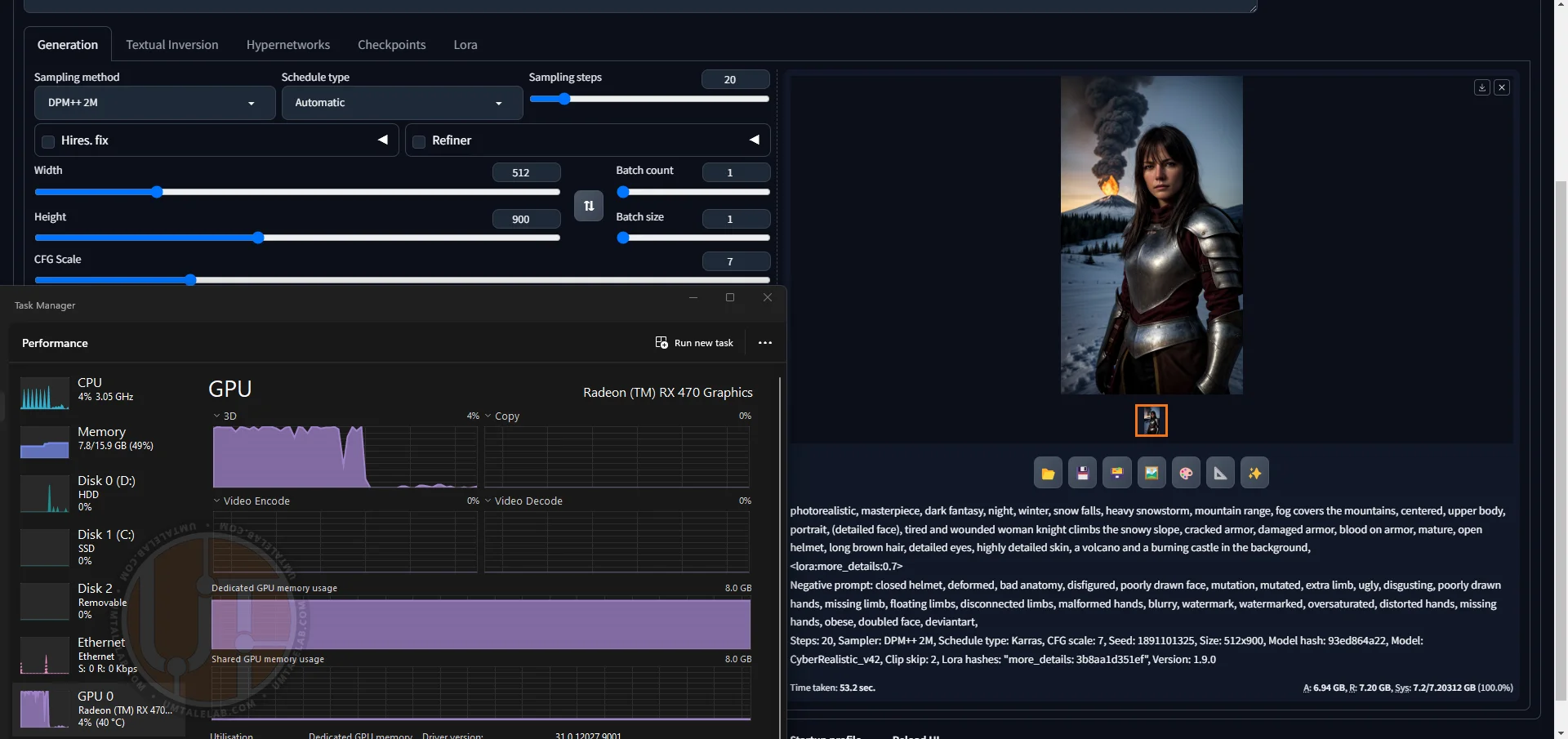 ⤢ ВІДКРИТИ
That's an excellent 53-second result! But we've reached the limit for 8GB graphics cards here. To generate higher-resolution images, you'll need to use the --lowvram argument, even with this amount of VRAM.
Now, a quick note on minor errors that generally don't hinder Stable Diffusion's operation.
Periodically, when generating images at 512x768 / 768x512 resolution – high for AMD cards – you might encounter a "RuntimeError: Could not allocate tensor with 1207959552 bytes (or any other byte count). There is not enough GPU video memory available!" error. This seems to be typical for the Stable Diffusion WebUI branch with the DirectML backend. It's pointless to change settings or resolution; generation might simply restart and produce 50 images in a row (in a batch or not, it doesn't matter), only to hit the same "RuntimeError" on the very first image again.
This looks like a "VRAM leak" issue, but I can't confirm it since I haven't been able to determine the cause of this behavior in WebUI DirectML.
Summary
Undeniably, image generation speed on AMD graphics cards still lags behind NVIDIA's offerings. However, if your system uses a GPU from the red team, it's far from a death sentence. My research shows that AMD GPUs (especially those with relatively large VRAM capacities) can generate images quite quickly, even when using multiple LoRAs. And if you're lucky enough to own a card with 16 or 24 gigabytes of VRAM, you gain access to higher resolutions, up to Full HD, and possibly even beyond. I don't currently have any AMD graphics cards with that much VRAM on hand to test.
I'd appreciate hearing about your image generation results on AMD graphics cards. Additionally, if you have any information on extra settings or libraries that could accelerate Stable Diffusion on red team GPUs, please feel free to share your experience in the comments below this article!