
BLOGS · GAME BLOGS
PUBLISHED
READING4 min
How to set up RPCS3 for Gran Turismo 6: fixing flickering screens and desync
A guide to optimizing RPCS3 for Gran Turismo 6, tackling flickering screens and desynchronization by tweaking CPU and GPU settings. This guide is current for game versions 1.0 and 1.05.
RPCS3 developers have made incredible progress recently, squashing bugs and optimizing their emulator. PC gamers can now enjoy countless PlayStation 3 titles right from their desktops.
 ⤢ ВІДКРИТИ
You can download the latest emulator version directly from the official developer website.
Today, I'll walk you through how to get the intricate and polished racing simulator Gran Turismo 6 running on the PlayStation 3 emulator, RPCS3.
First off, it's important to note that, as of emulator version RPCS3 v0.0.10-10464-d47d597b Alpha, Gran Turismo 6 is still quite unstable. The game frequently crashes and delivers relatively low frame rates. Also, this guide specifically targets game versions 1.0 and 1.05. Higher versions might not launch at all, regardless of your settings. Keep that in mind if you plan on emulating Gran Turismo 6.
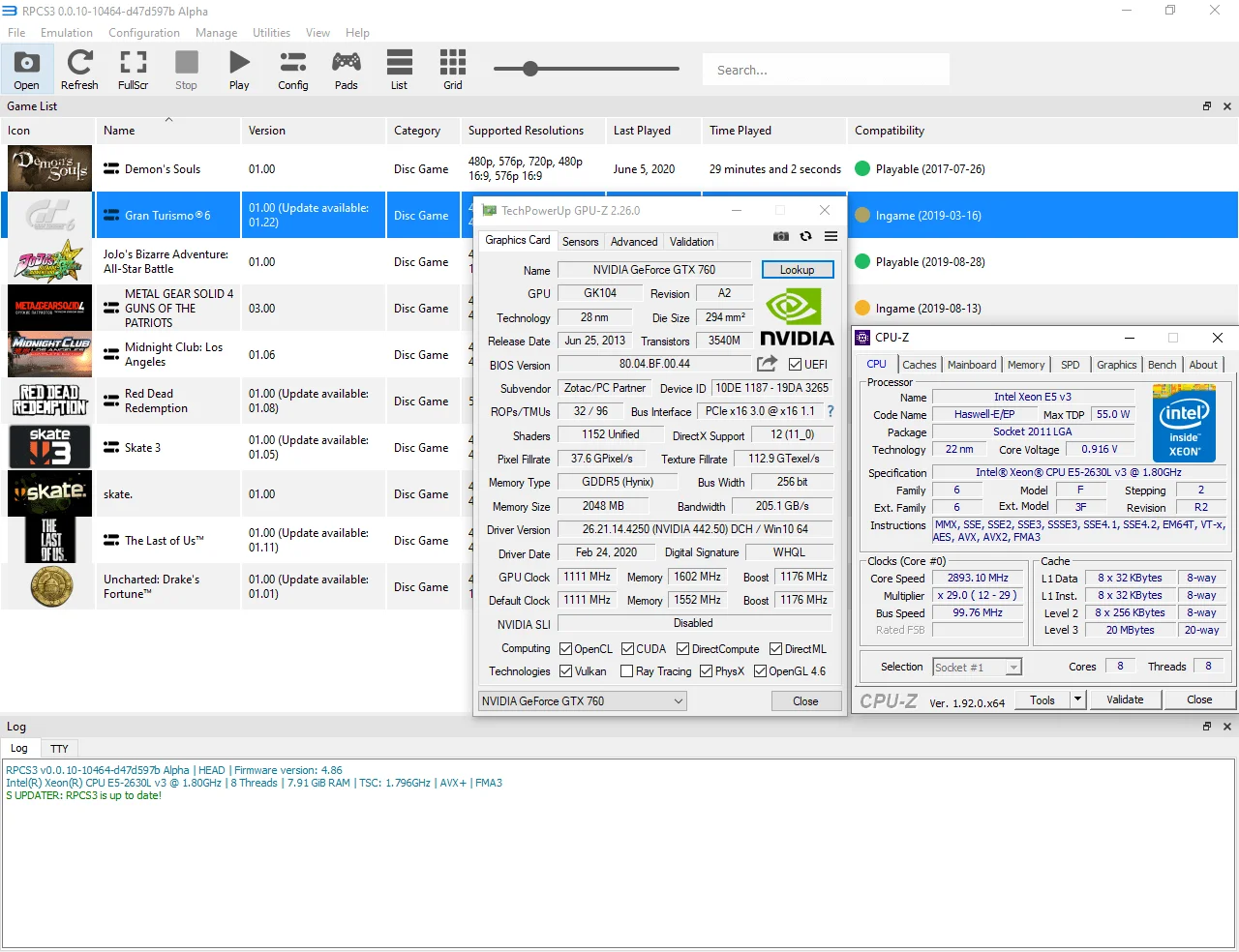
Despite these caveats, you can still get a sense of how Gran Turismo 6 performs on your current rig. I tested the game on an 8-core Xeon E5-2630L v3 processor with Hyper-Threading disabled (disabling HT can sometimes boost performance on older CPUs in specific games, and it might help with newer chips too, though that's less certain) and a GeForce GTX 760 graphics card.
 ⤢ ВІДКРИТИ
Settings
First, you need to enable the hidden "Debug" tab within the game's custom settings. Don't worry, it only takes a couple of minutes:
To enable the "Debug" tab in the game settings, navigate to your "RPCS3" folder, then into "GuiConfigs", and open the "CurrentSettings.ini" file. Locate the "showDebugTab" parameter and change its value from false to true.
The line should then read:
showDebugTab=true
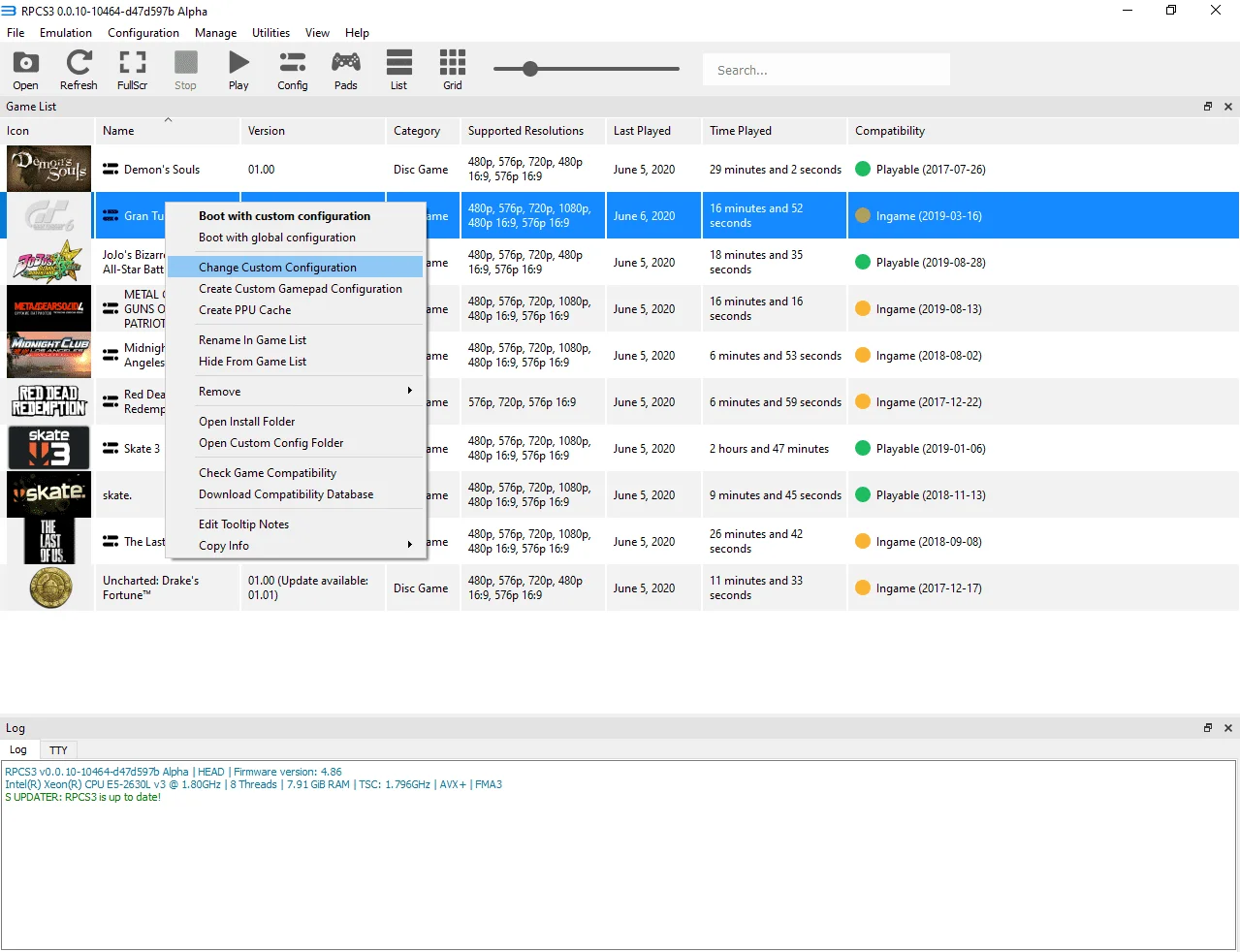
Now, launch the emulator, right-click the GT6 icon, and select "Change Custom Configuration":
 ⤢ ВІДКРИТИ
Then, switch to the final tab, "Debug".
Debug
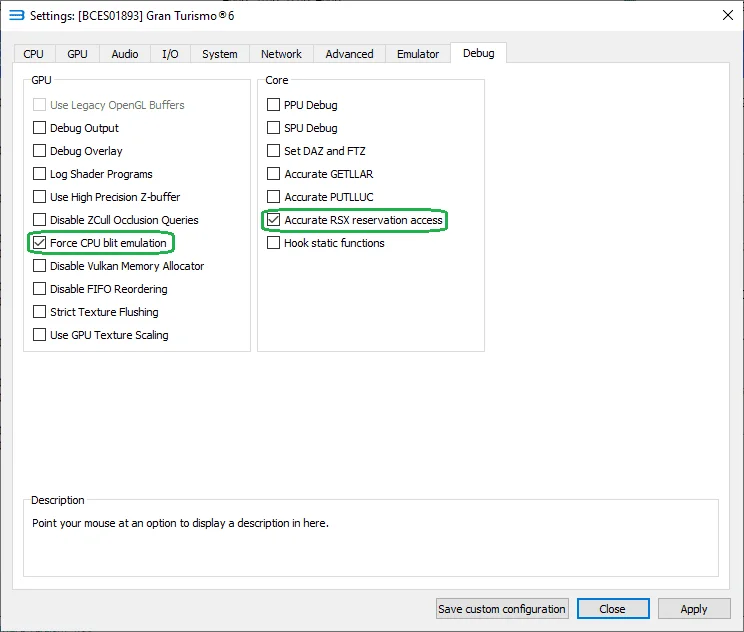
Within the "Debug" tab, you'll need to check the boxes for "Force CPU blit emulation" and "Accurate RSX reservation access."
 ⤢ ВІДКРИТИ
These core settings should allow the game to launch and run with relative stability. At the very least, they should eliminate screen flickering and desynchronization.
Now, let's move on to the standard, but equally crucial, settings:
CPU
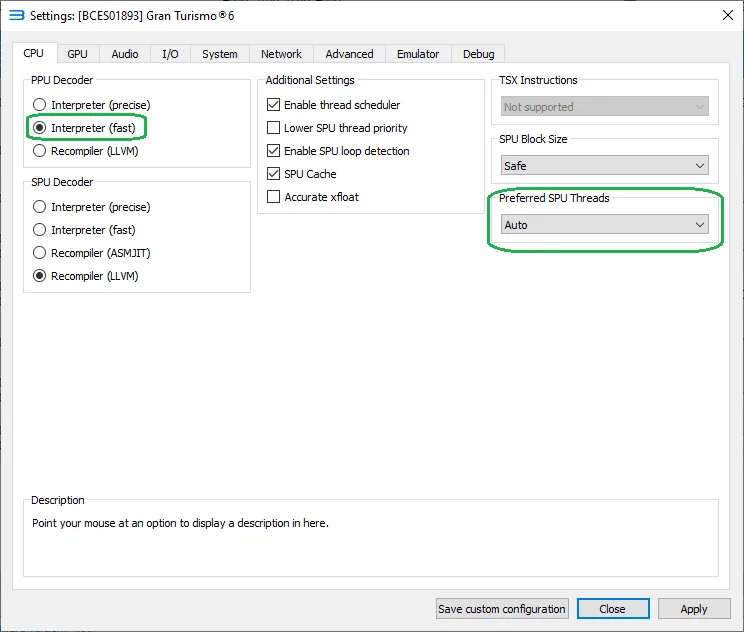
In the CPU tab, make sure to change "CPU Decoder" from "Recompiler (LLVM)" to "Interpreter (fast)". Also, if you're experiencing audio stuttering or lag in-game, try experimenting with the "Preferred SPU Threads" setting, toggling between 1-4. If that doesn't resolve the issue, simply revert "Preferred SPU Threads" back to "Auto":
 ⤢ ВІДКРИТИ
GPU
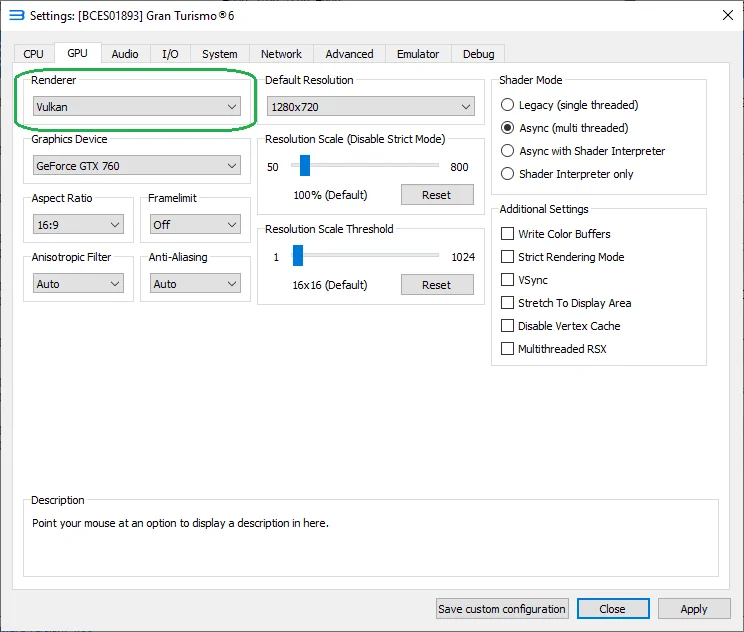
For the GPU tab, simply select "Vulkan" as your renderer type:
 ⤢ ВІДКРИТИ
And that's it! Your Gran Turismo 6 setup on RPCS3 emulator version v0.0.10-10464-d47d597b Alpha is complete. (The emulator version is crucial: if yours is older, update it; if it's newer, some of these specific settings might not even be necessary anymore!)
The beauty of GT6 optimization lies in its consistent framerate: if your CPU can hit 30 FPS, it'll largely stick to that throughout the race, with only +/- 2 frames of deviation. That's an impressive result, in my opinion!
Admittedly, I'm only getting 18-22 FPS. But crucially, even at those frame rates, the game is generally playable, though the frequent crashes are definitely irritating.
Once RPCS3 receives a newer, more importantly, GT6-optimized update, I'll definitely publish an updated guide and link it in the comments. And if a patch for Gran Turismo 6 emulation drops, similar to what happened with Demon's Souls, I'll write a separate installation guide for that too.
Give these settings a try and share your results in the comments below, along with any questions you might have.
I'm also planning some RPCS3 hardware benchmarks. If you're interested in seeing how various CPUs perform emulating this game, let me know in the comments below.
Thanks for reading.