BLOGS · HARDWARE BLOGS
PUBLISHED
READING8 min
Undervolting a mobile AMD processor: the HP G62-b51SR laptop with an Athlon II N350
Learn how to undervolt a mobile AMD Athlon II N350 in an HP G62-b51SR laptop. With AMD Overdrive, we slashed CPU temps from 75°C to 62°C and cut down on fan noise.
At some point, almost every laptop owner wonders, "Can my device run cooler?" Fortunately, the answer to that question is almost always yes.
Modern laptops offer numerous ways to reduce heat, from limiting the TDP of various components to fine-tuning voltage-to-frequency curves. However, these methods often compromise overall performance, especially in newer devices. Older laptops, on the other hand, don't suffer from this limitation; they're relatively easy to undervolt without any noticeable performance impact. To achieve this, we'll need to undervolt — lowering the CPU's power voltage to significantly reduce the 'machine's' heat.
In this guide, we'll show you how to easily undervolt an Athlon II N350 processor, thereby reducing both noise and heat in an HP G62-b51SR laptop.
First, let's quickly go over the main technical specifications of the G62-b51SR laptop for completeness:
The G62-b51SR features a 15.6-inch glossy LED display with a resolution of 1366x768. Powering the laptop's compute package is an AMD Athlon II Dual-Core N350 chip, 2GB of DDR3 RAM, a 320GB Seagate hard drive, and a discrete ATI (AMD) Radeon HD5470 graphics card with 512MB of GDDR3 VRAM (which can switch to the integrated HD4250 in the chipset).
All the specifications listed above are for the device's base configuration. In our specific case, the discrete graphics card failed, leaving the integrated HD 4250 GPU to handle graphics, and the RAM was upgraded to 4GB. However, these changes won't play a significant role in the upcoming operation.
Processor
 ⤢ ВІДКРИТИ
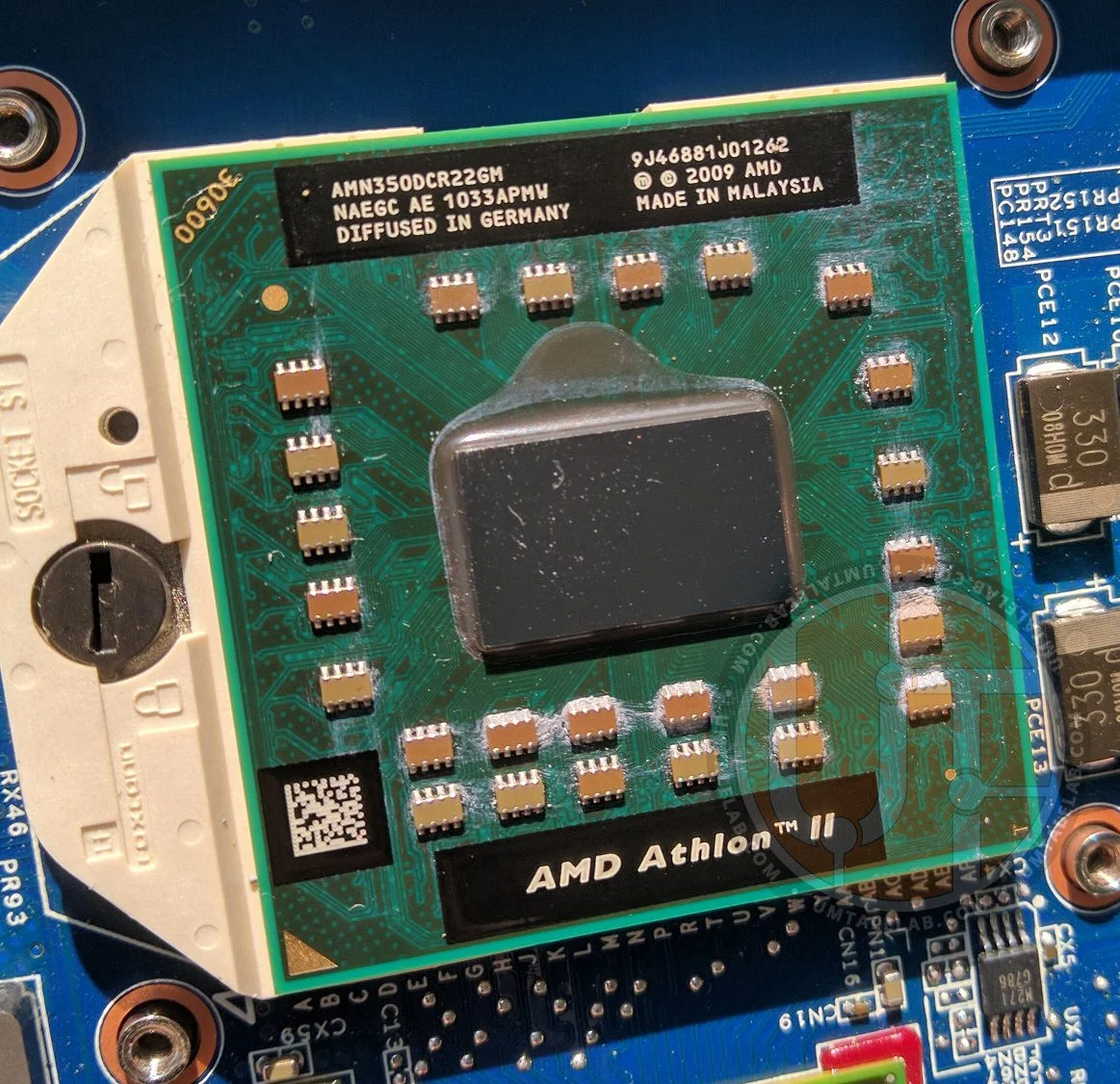
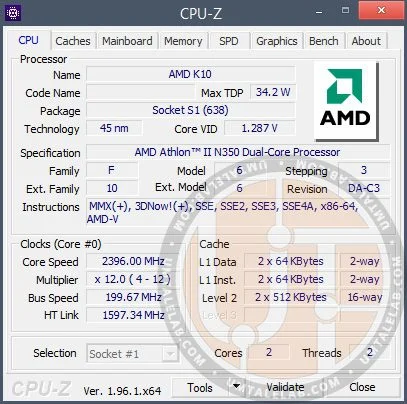
The Hewlett-Packard G62-b51SR laptop uses a dual-core AMD Athlon II N350 CPU, clocked at 2400MHz with 512KB of L2 cache per core.
Our specific unit is marked AMN350DCR22GM NAEGS. This is a mobile-only processor, so its die doesn't feature an integrated heat spreader (IHS). Exercise extreme caution when removing or installing the cooler.
 ⤢ ВІДКРИТИ
There's not much more to say about the N350: it's a classic example of the K10 architecture, complete with its inherent pros (relatively low heat generation) and cons (a lack of essential SSE4.1/4.2 instructions).
Undervolting
The Athlon II N350 chip's stock voltage is a substantial 1.287 volts. That's incredibly high, not just for a mobile processor, but even for many desktop chips with similar clock speeds.
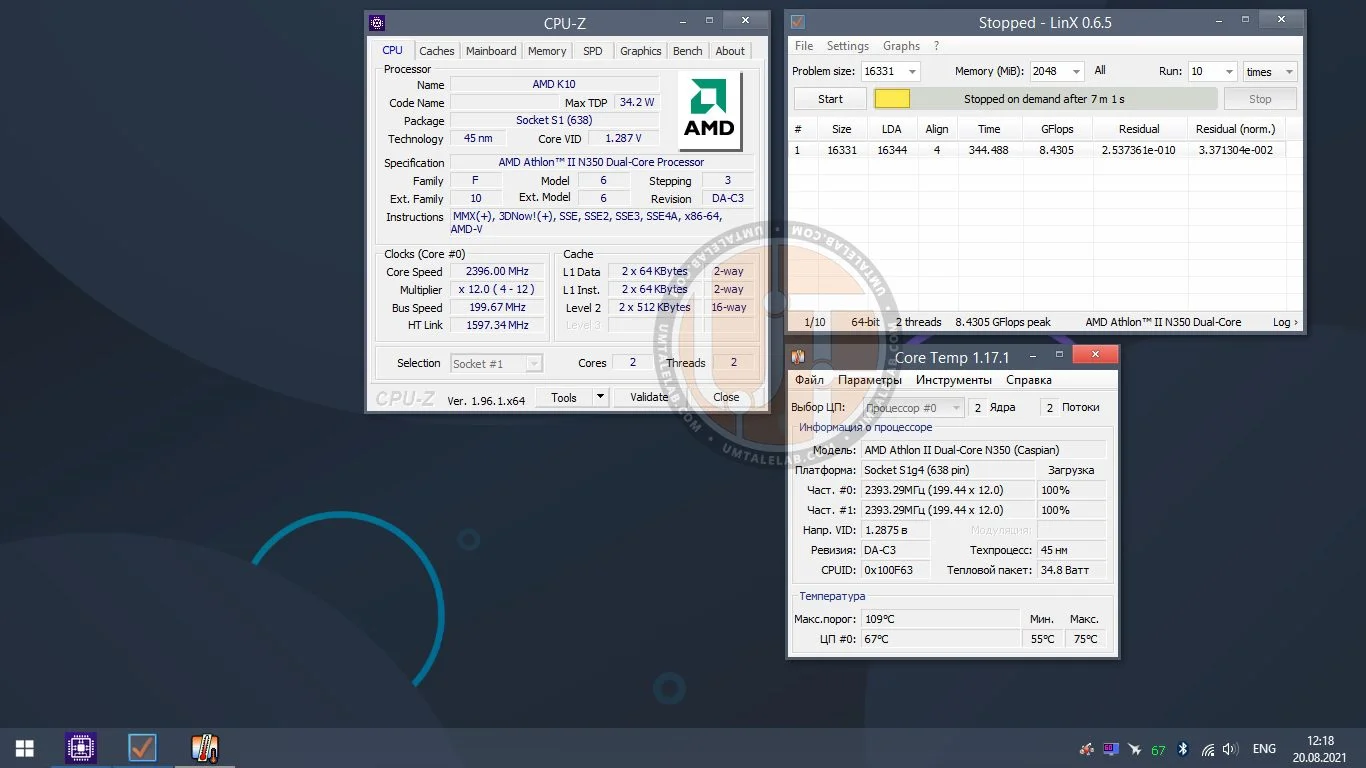
Let's run a LinX stability test to see what temperature the CPU reaches at 1.287 volts:
 ⤢ ВІДКРИТИ
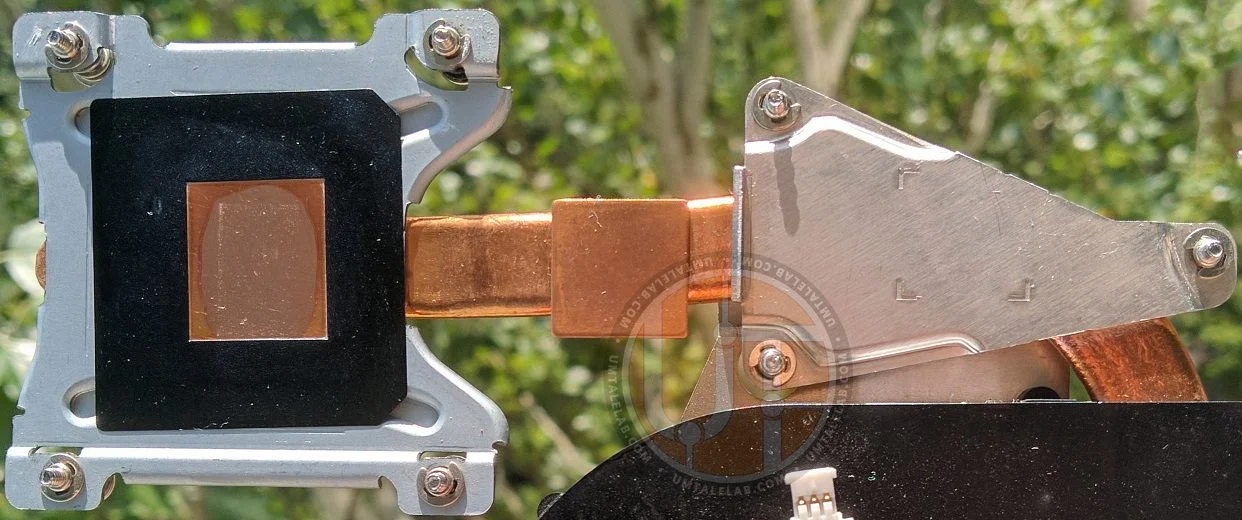
75 degrees Celsius. While not excessive, it's enough to make the laptop uncomfortable to keep on your lap. Furthermore, if the fan's airflow is restricted (e.g., the device is on a couch), the CPU temperature can exceed 85 degrees. Again, this is still not critical, as the N350 processor's maximum operating temperature is 105 degrees. However, such prolonged overheating can significantly decrease the chip's lifespan. What's more, the heat pipe cooling the CPU also contacts the chipset (and GPU), heating them beyond acceptable levels.
 ⤢ ВІДКРИТИ
The logical next step here is to lower the power voltage. However, it's not quite that straightforward.
First, it's important to note that neither RightMark CPU Clock Utility (RMClock), Clock Gen, nor any other amateur software could properly function with the HP G62-b51SR, meaning they couldn't affect the CPU or GPU voltage/frequency parameters.
The solution came from an unexpected source: it was an overclocking utility from the CPU manufacturer itself that came to our rescue. The only utility that worked on the HP G62-b51SR was AMD Overdrive.
You can download AMD Overdrive 4.0.4 viathis link from our Google Drive.
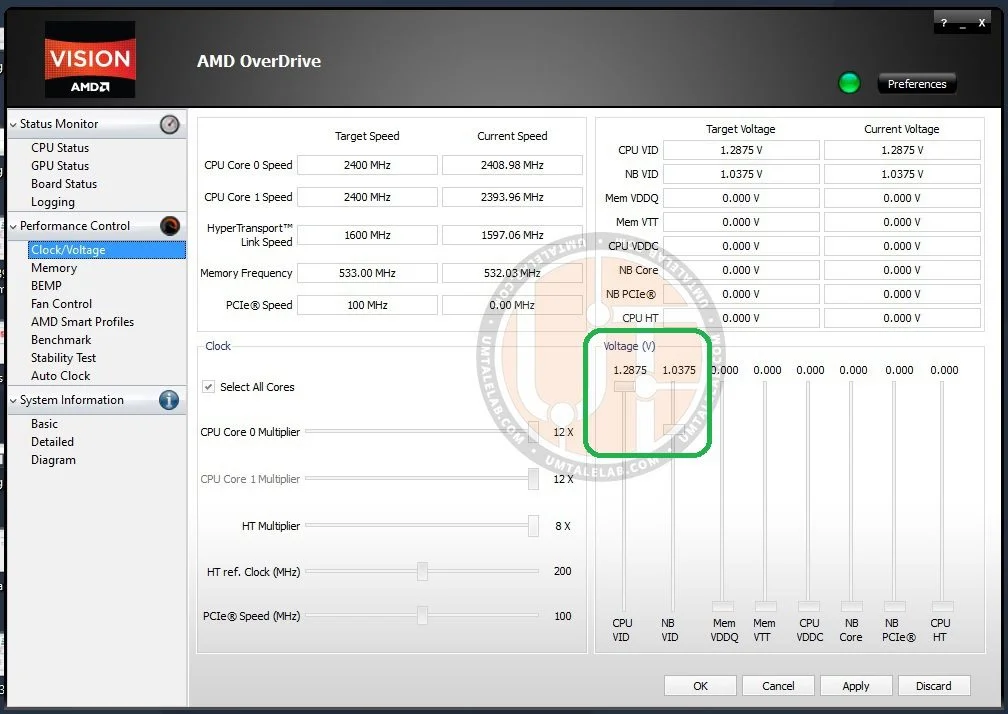
Launch the utility and navigate directly to thePerformance Control tab. From there, open the sub-sectionClock/Voltage and check if the sliders are active forCPU VID (core voltage) andNB VID (integrated memory controller voltage).
 ⤢ ВІДКРИТИ
If they're active, you're in luck, so let's move directly to the setup process.
The following steps, while theoretical, could potentially damage your laptop. Therefore, if you decide to proceed with undervolting, you do so entirely at your own risk. Neither the author of this guide nor UmTale Lab bears any responsibility for hardware damaged during your experiments!
First, you'll need to run a stress test. If you don't have one, AMD Overdrive itself includes a "Stability Test" section. While not the most robust, it's generally adequate. For "rock-solid stability," however, we recommend using utilities like LinX or Prime95. Just be careful: these benchmarks can significantly heat up your CPU and potentially damage your device!
After launching the Stability Test (LinX in our case), return to the Clock/Voltage section. Now, gradually reduce the CPU VID by 0.025 volts every 30 minutes of the stress test. Continue until you encounter a blue screen or the machine completely freezes. Once instability appears, reboot your system, increase the voltage back by 0.025 volts, and then run the stress test for an hour or more. You should get the idea.
That said, we'd actually recommend dropping the CPU voltage immediately to 1.100 volts and then incrementally lowering it by 0.025 volts from there. Most 45nm AMD processors clocked up to 2500MHz should be able to function stably at this voltage without major issues. Ultimately, though, it's your call.
If your laptop freezes while lowering the voltage, don't worry: by default, the utility doesn't save its settings. All voltages will reset to standard values on the next OS boot. To make AMD Overdrive save your settings permanently, you need to click the Preferences button in the top right corner and select the Settings submenu.
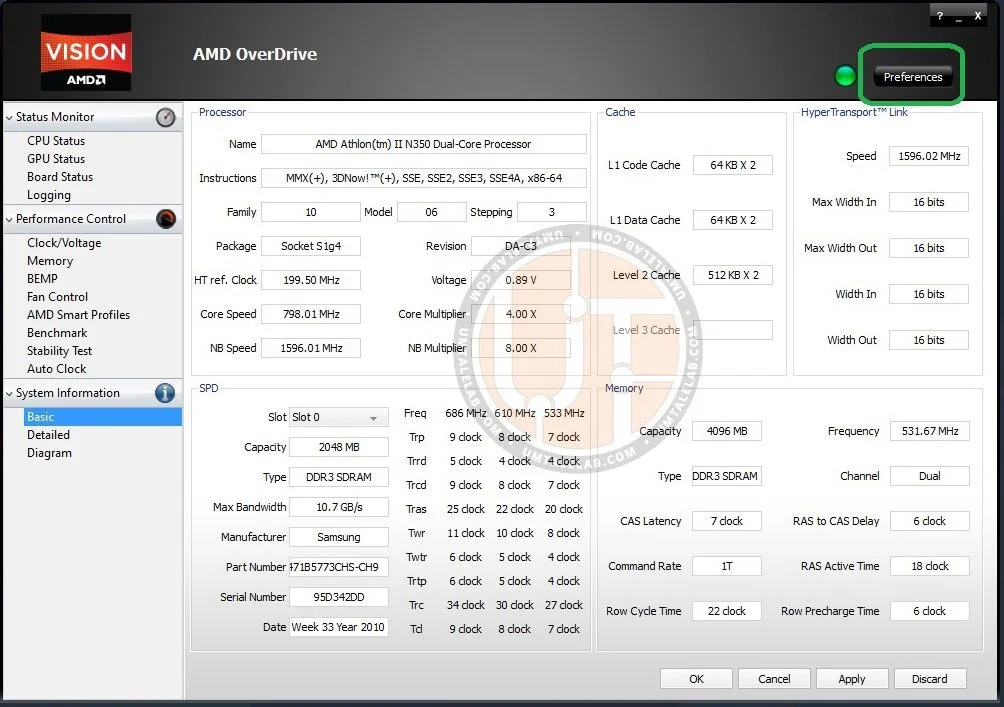 ⤢ ВІДКРИТИ
Then, check the box next to the Apply my last settings when system boots option.
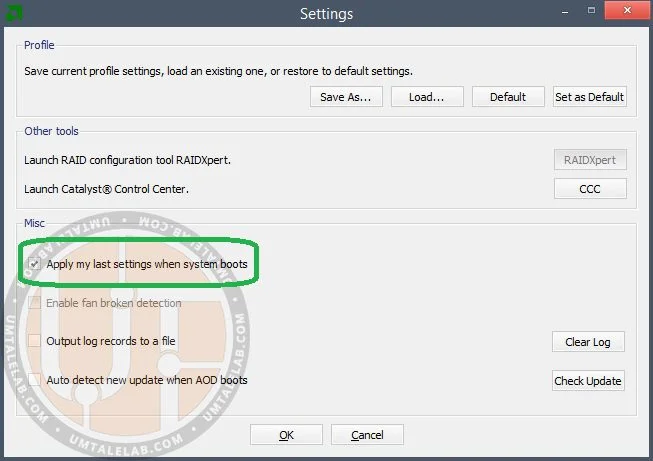 ⤢ ВІДКРИТИ
After completing these steps, all your undervolting settings will be saved and applied automatically after your laptop reboots, even without launching the AMD Overdrive utility itself.
But let's get back to the process.
In our case, the Athlon II N350 chip remained completely stable at 1.000 volts. That's a pretty good result, actually. However, it's worth noting that in an ideal scenario, you might aim for 0.950 volts, but don't count on it. Over long periods of use, the silicon could have degraded significantly and might not tolerate a substantial voltage reduction without stability loss.
After you've found the minimum stable CPU VID, repeat the process to find the minimum stable NB VID. Here, however, you'll need to be a bit more cautious and reduce the voltage by 0.010 volts every 30 minutes instead of 0.025.
Our undervolting of the Athlon II N350 chip yielded the following result: 1.000 volts for the CPU cores and 0.975 volts for the integrated memory controller.
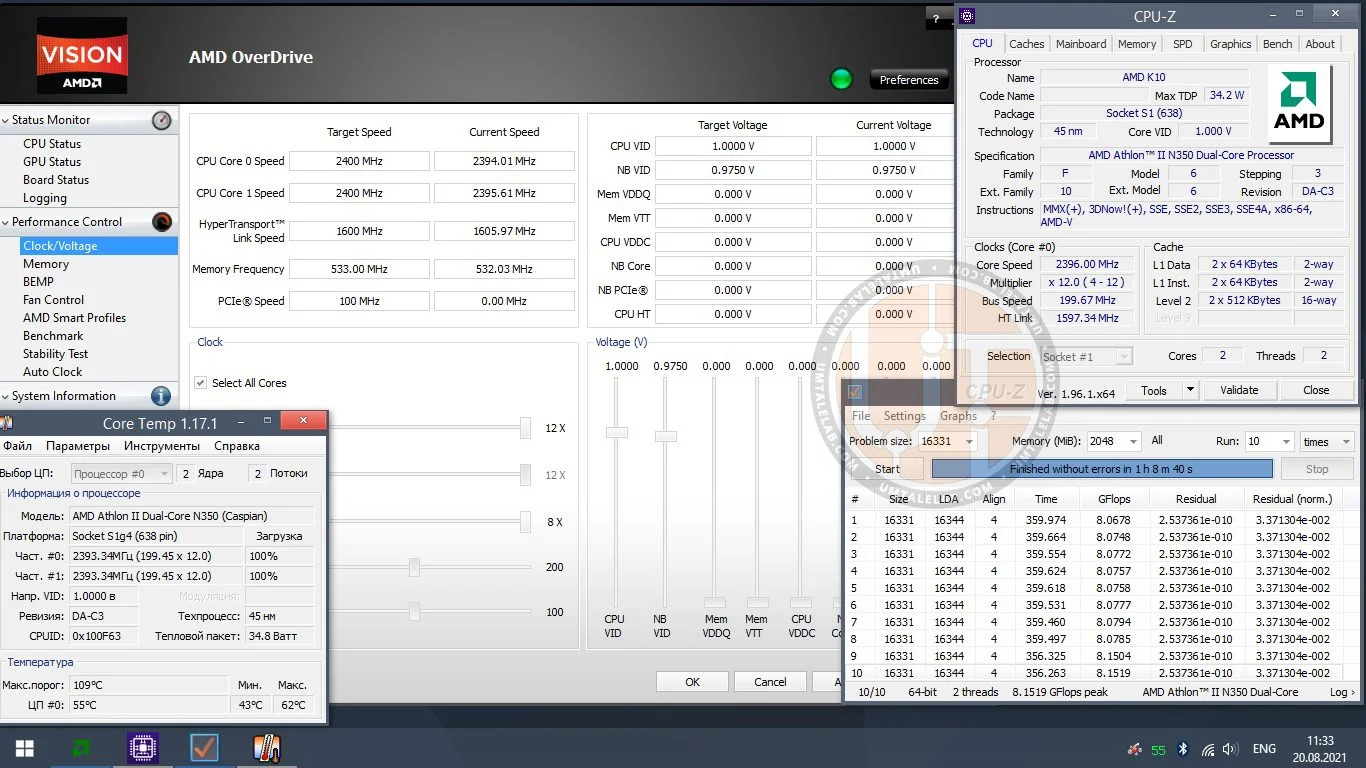 ⤢ ВІДКРИТИ
With this voltage reduction, peak temperature dropped from 75 to 62 degrees Celsius. That's an excellent result, no exaggeration!
The method described above can cool not only mobile Athlon II chips, but also Phenom II and Turion II.
If you have any questions, please feel free to ask them in the comments section below this blog.
Thanks for reading, and stay tuned for new content!
If you found this material useful and would like to see more articles like it on this resource, please consider supporting our site on Patreon! The main goal of fundraising is to expand our component inventory and improve testing quality: replacing HDDs with high-capacity SSDs, purchasing a capture card to reduce the impact of gameplay recording with ShadowPlay on final results, and so on. We'd also like to express our special thanks to our current patrons! Your support is extremely important to us!