BLOGS · GAME BLOGS
PUBLISHED
READING3 min
Setting up RPCS3 emulator for Asura's Wrath
Asura's Wrath runs great on the RPCS3 emulator, even on older PCs. Here's a detailed guide on how to configure the game for stable performance and various resolutions.
Currently, the console exclusive Asura's Wrath runs almost flawlessly on the RPCS3 emulator. You can play it from start to finish without encountering virtually any bugs or crashes. Most systems won't struggle with performance either; the game delivers acceptable frame rates even on CPUs and graphics cards 7-9 years old. This means even gamers with relatively modest PCs can dive into the world of Asura's Wrath.
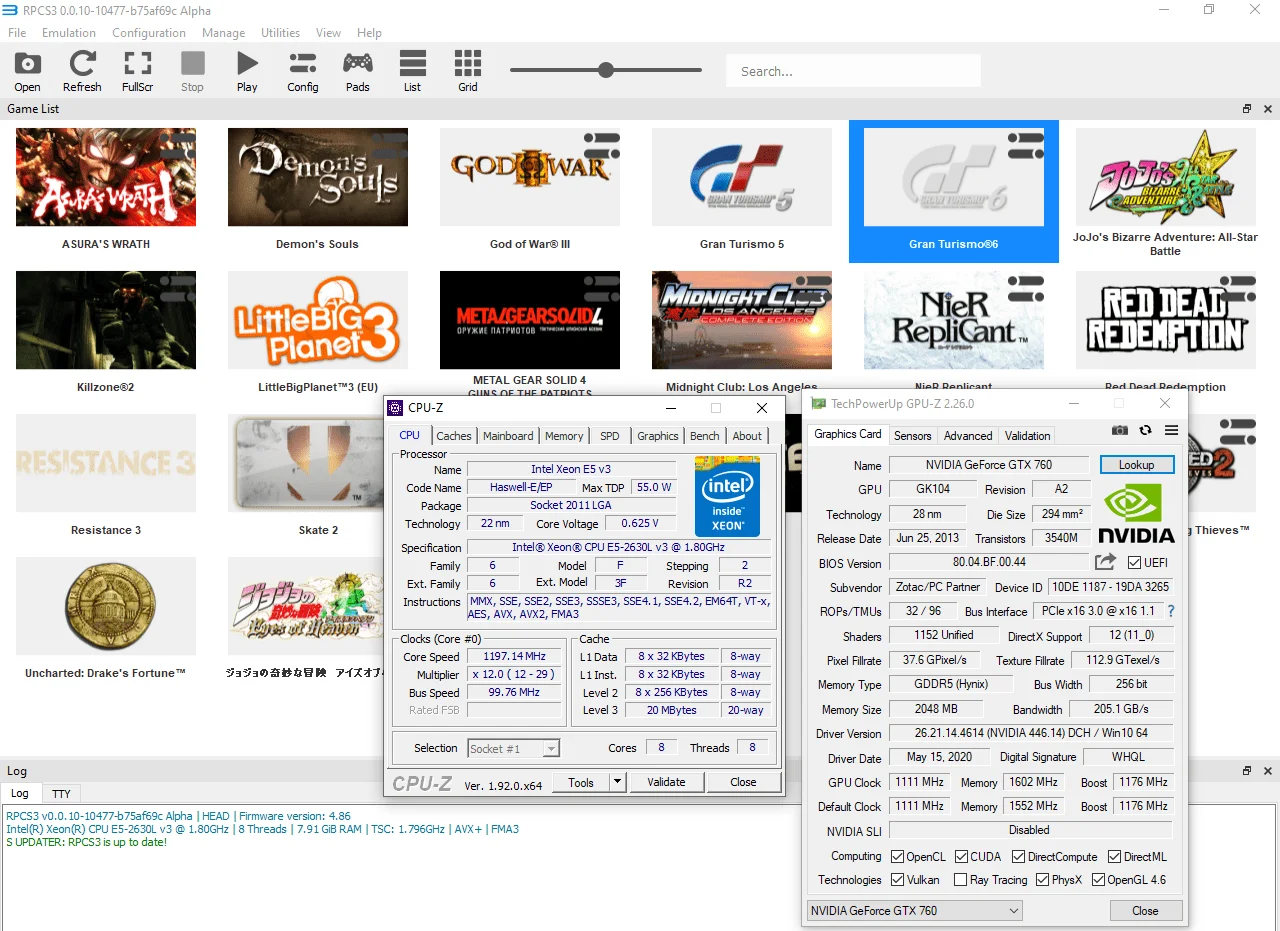
For example, on a test chip like the Xeon E5-2630L v3 (22nm, Haswell, 8 cores, 8 threads, ~2600MHz clock speed), the game consistently delivered a stable 26-30 frames per second. If your processor is more modern (Ryzen 1000, Core 8000, or higher-frequency Xeon E5s), you can easily expect a solid 30 FPS everywhere, all the time.
 ⤢ ВІДКРИТИ
Setup
First, I'll show you how to set up the game for stable performance at the standard 720p resolution.
First and foremost, make sure your emulator version is at least RPCS3 v0.0.10-10477-b75af69c Alpha. Update if necessary. If you're running a significantly newer version, some of these settings might already be unnecessary. Try playing the game without additional changes.
 ⤢ ВІДКРИТИ
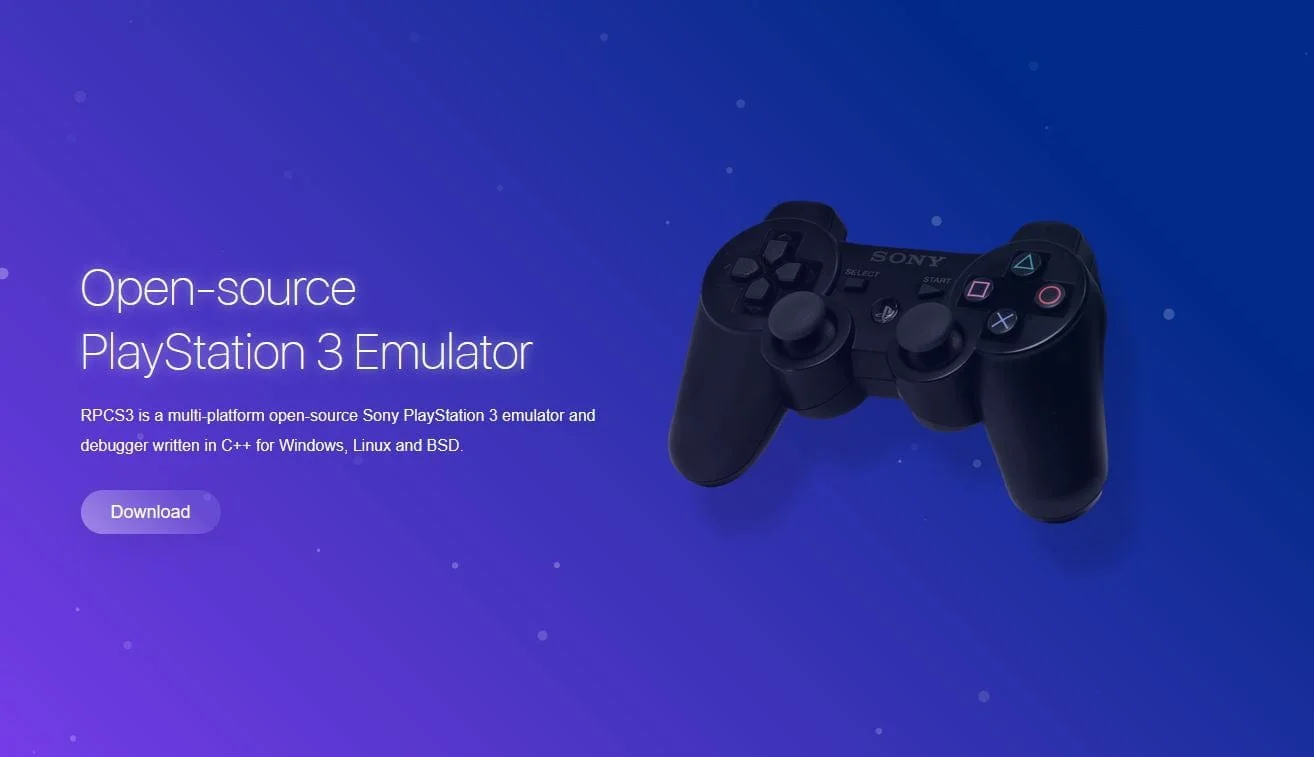
You can download the latest version of the emulator from the official developer website.
Let's dive directly into the configuration settings:
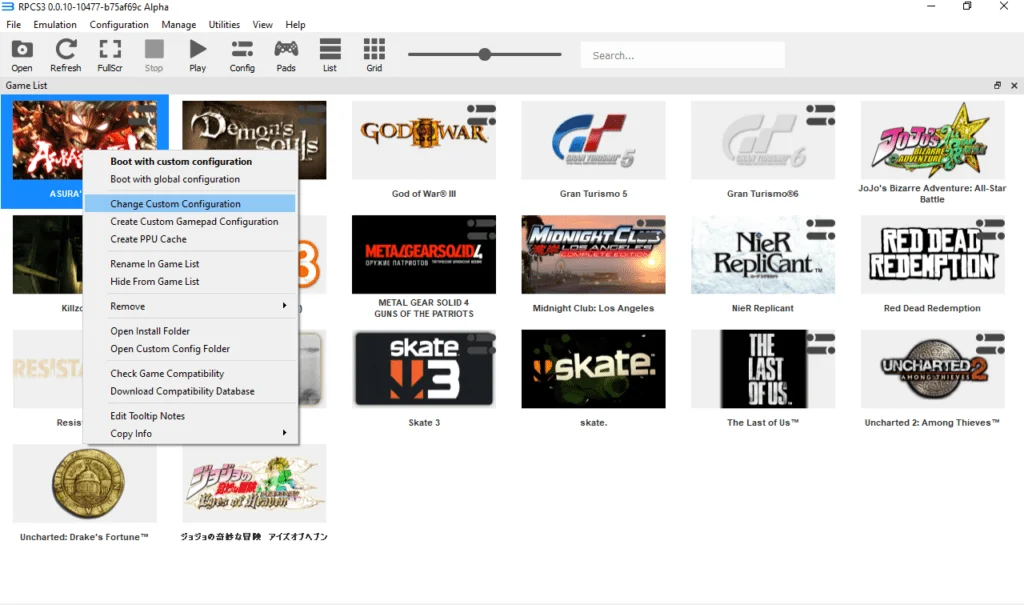
Launch the emulator and right-click on the Asura's Wrath icon, then select «Change Custom Configuration»:
 ⤢ ВІДКРИТИ
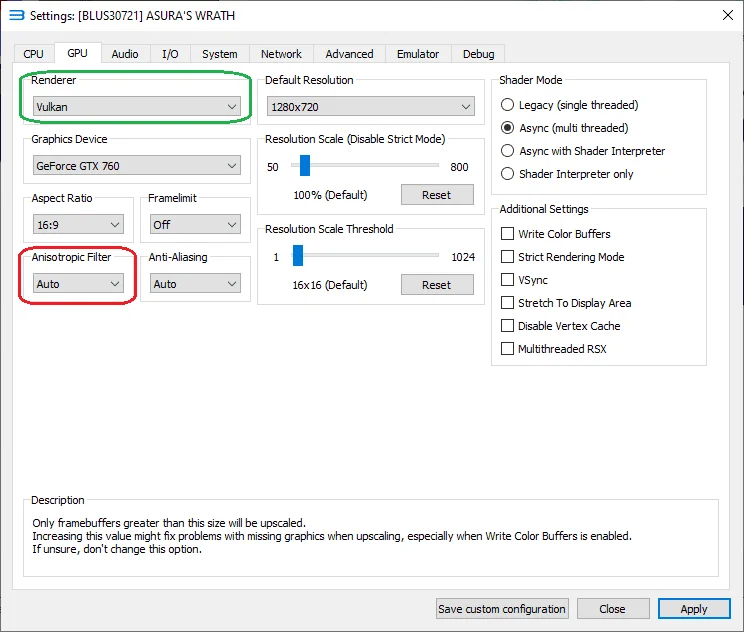
Next, go to the «GPU» tab and change the «Renderer» parameter from «OpenGL» to «Vulkan». Under no circumstances should you touch the "Anisotropic filter" setting. It must remain on "Auto", otherwise you might see graphical artifacts in the game:
 ⤢ ВІДКРИТИ
That's it, the game is now ready to run at the base 1280x720 resolution! Now, let's move on to higher resolutions: 1920x1080, 2560x1440, and, of course, 3840x2160.
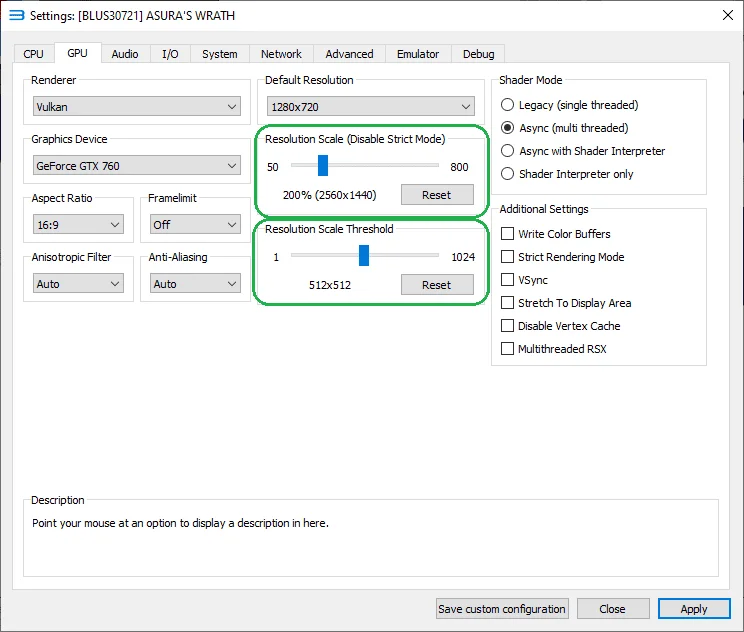
To ensure the game displays correctly at 1920x1080, you'll need to go back to the «GPU» tab and set the «Resolution Scale (Disable Strict Mode)» slider to "150%". Additionally, be sure to move the «Resolution Scale Threshold» slider to 512×512!
For 2560x1440 resolution, set the «Resolution Scale (Disable Strict Mode)» slider to "200%" and likewise be sure to move the «Resolution Scale Threshold» slider to 512×512!
 ⤢ ВІДКРИТИ
You can similarly boost the render resolution to 4K. Just move the «Resolution Scale (Disable Strict Mode)» slider to "300%". And, of course, don't forget the «Resolution Scale Threshold». For any resolution other than "100%", it must be set to "512×512"!
That concludes the game's setup.
Below are gameplay screenshots rendered at 1920x1080 (if my memory serves, this is Act 3, so if you're worried about spoilers, don't read the subtitles):
Unfortunately, the test GPU, a GTX 760, couldn't handle 2K, let alone 4K resolutions.
Test out the settings mentioned above and share your results in the comments, along with any questions you might have.
I also plan to test hardware with RPCS3. If you're interested in detailed CPU benchmark results for this game's emulation, please let me know in the comments below.
Thanks for reading.