BLOGS · GAME BLOGS
PUBLISHED
READING3 min
RPCS3 v0.0.27+ emulator setup guide for Battlefield: Bad Company
This guide walks you through setting up the RPCS3 emulator for Battlefield: Bad Company. Discover how to get decent performance even with its current emulation quirks.
Every Battlefield fan surely wanted to play the first classic game in the series, Battlefield: Bad Company, but Electronic Arts never released it on PC. Years went by, and the publisher never announced a remake, remaster, or reboot of DICE's legendary shooter.
Fortunately for "Bad Company" fans, the developers of the RPCS3 emulator are steadily improving their creation, bringing it closer to perfectly replicating PlayStation 3 games. The original Bad Company is no exception. While emulating such a large project currently presents certain challenges, this first Frostbite-powered shooter is still completable from beginning to end, despite numerous issues.
First and most importantly, ensure your copy of Battlefield: Bad Company is version 01.00. Newer editions might not work correctly with the settings detailed below. Still, you can always try our configurations with version 01.20.
Second, and just as important, check your emulator version: it needs to be at least RPCS3 v0.0.27 Alpha | master (the main branch). Update if necessary. If you're running a significantly newer version, you might not even need some of these settings, so try playing the game without any extra changes first. It's also possible that the game won't launch at all with the settings we provide. If that happens, please let us know in the comments, and we'll work to compile a new guide as quickly as possible.
And third, right now, running Battlefield: Bad Company on the RPCS3 emulator still presents some issues. These range from occasional visual artifacts during shader compilation to equally rare crashes and critical bugs. Despite this, it doesn't stop you from playing the game all the way through.
Beyond that, remember that this title still hasn't earned a "Playable" status. So, there are no 100% guarantees you'll get through the entire game without hitting some critical bug.
 ⤢ ВІДКРИТИ
RPSC3 Configuration for Battlefield: Bad Company
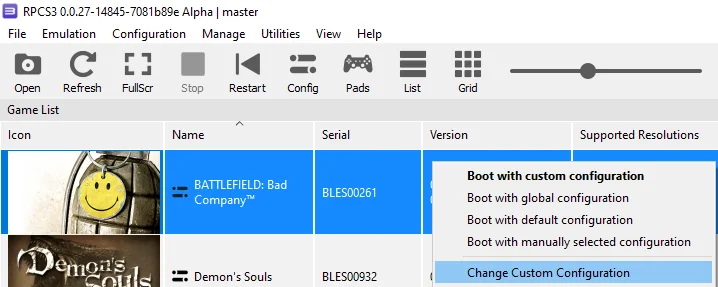
Right-click the "Battlefield: Bad Company" icon, then select "Change Custom Configuration":
 ⤢ ВІДКРИТИ
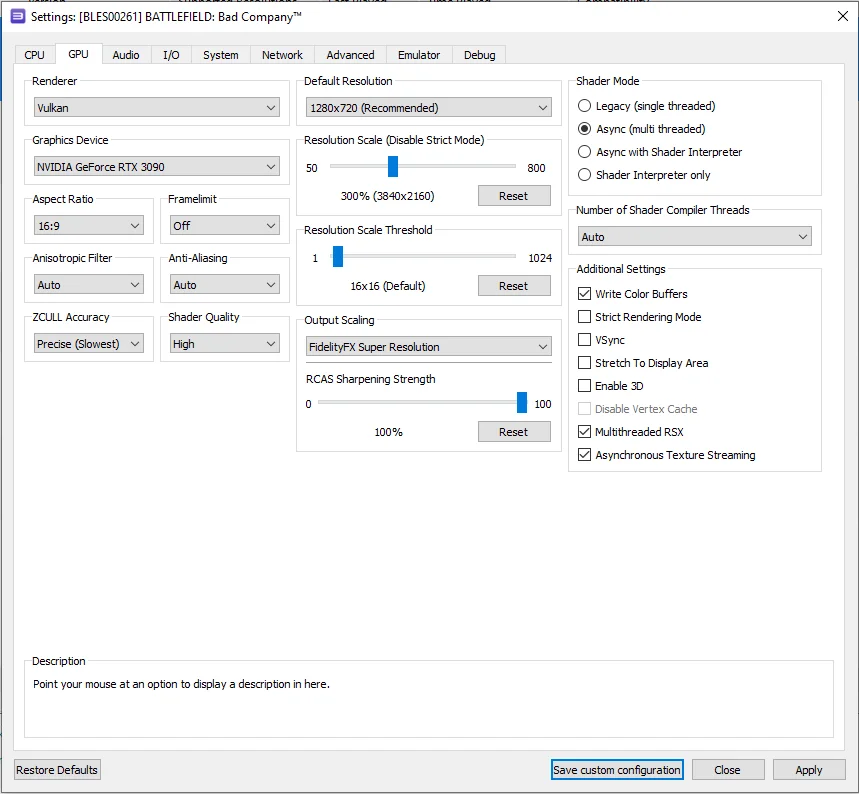
Graphics Card (GPU) Configuration
Setting | Option | Description |
|---|---|---|
Write color buffers | On | Fixes broken lighting issues in the game (KEY OPTION). |
Multithreaded RSX | On | Improves performance on multi-core processors (6+ cores). |
Asynchronous texture streaming | On | Improves performance on powerful graphics cards (RTX 2000 / RX 5000). Only works ifMultithreaded RSX is enabled. |
 ⤢ ВІДКРИТИ
Beyond the 'GPU' tab, you can also tinker with the RSX FIFO accuracy parameter in the 'Advanced configuration' tab, setting it to Atomic. Be warned, though, as this can sometimes cause the emulator to freeze frequently.
With RPCS3 configured like this, we managed to achieve a relatively stable, and crucially, acceptable FPS of around 26-30 on an Intel Core i5-12400F processor. Naturally, weaker chips will see more significant frame rate drops, but it's worth remembering the game didn't run any better on the original PS3 console.
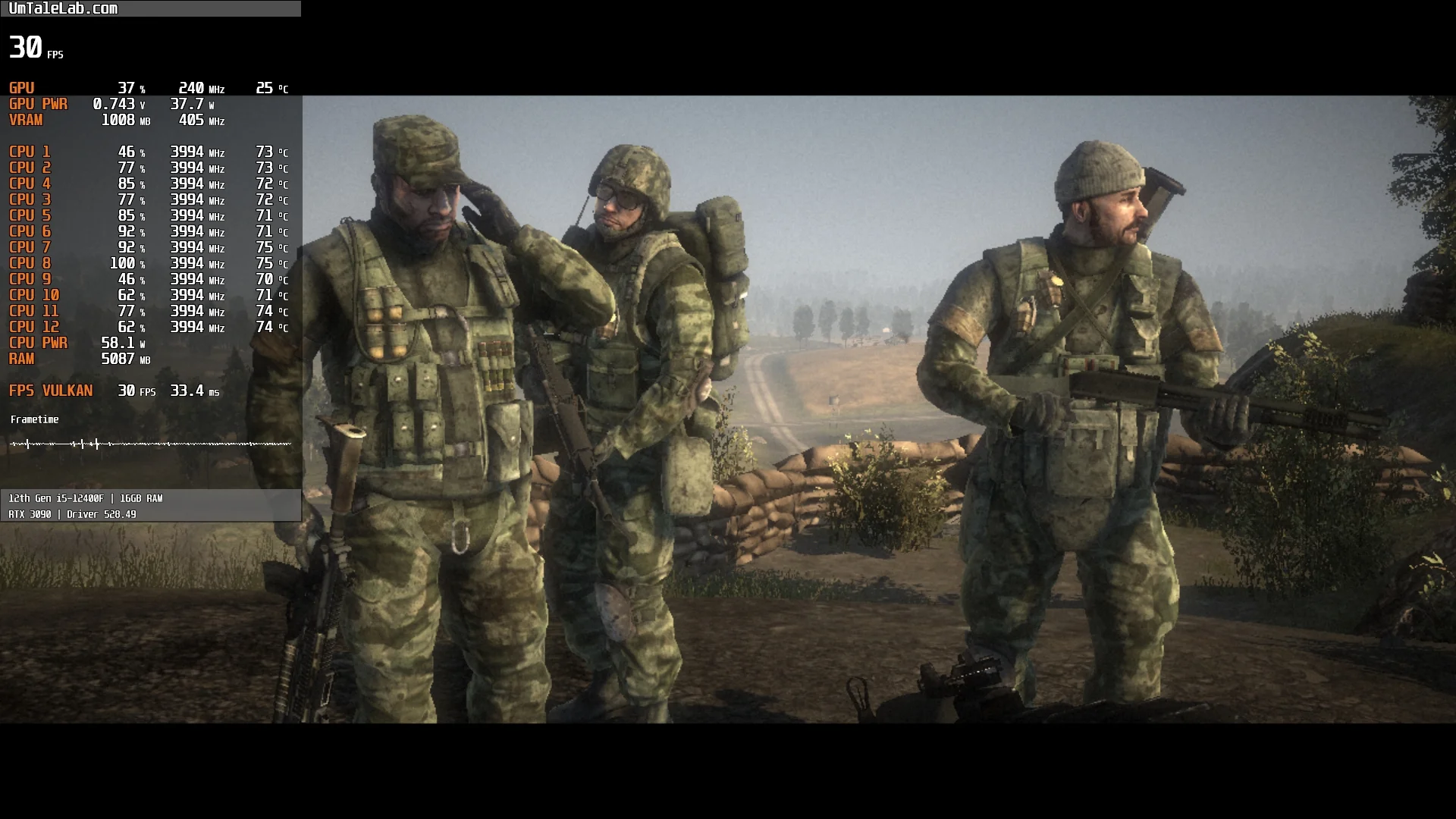
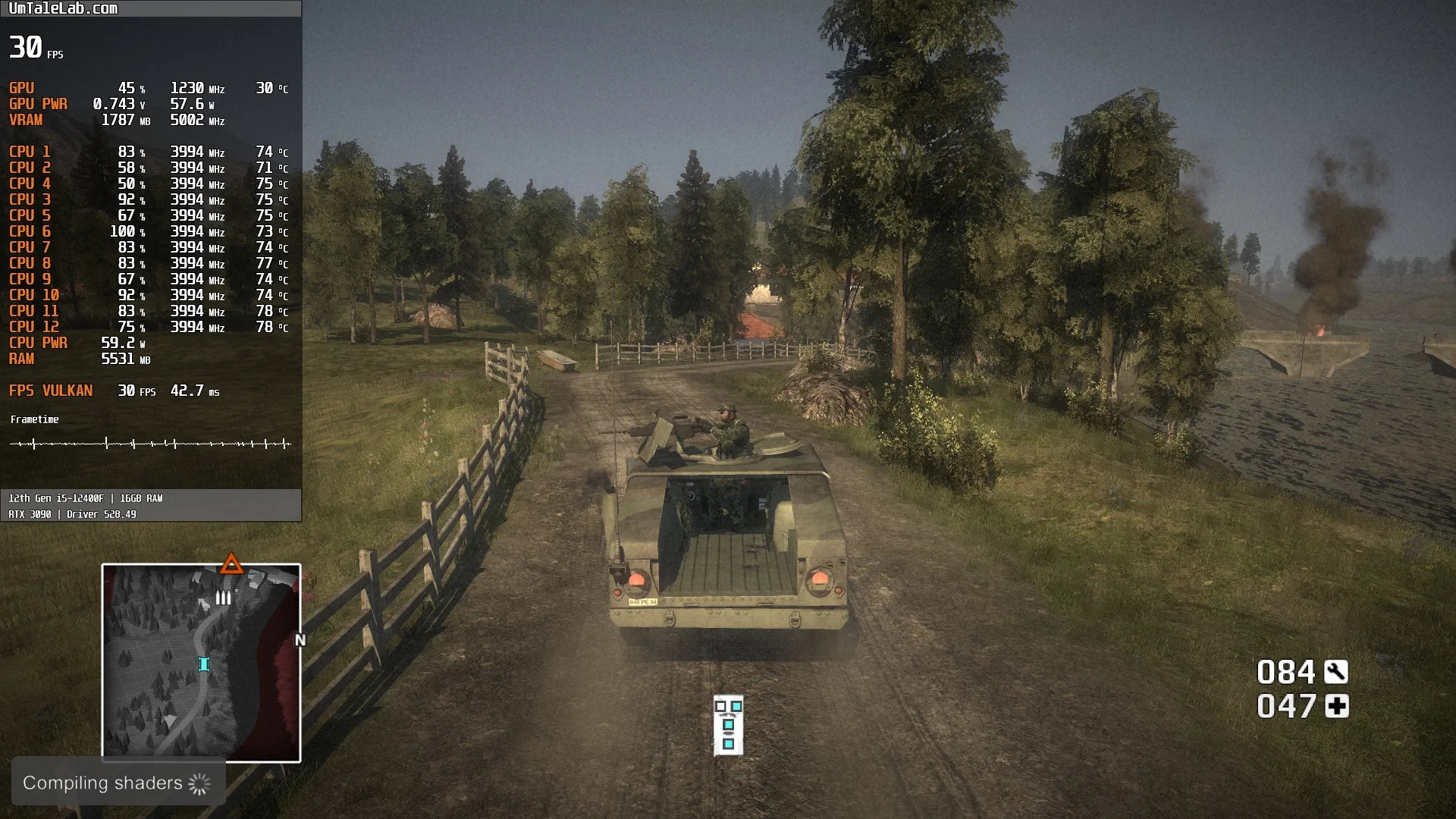
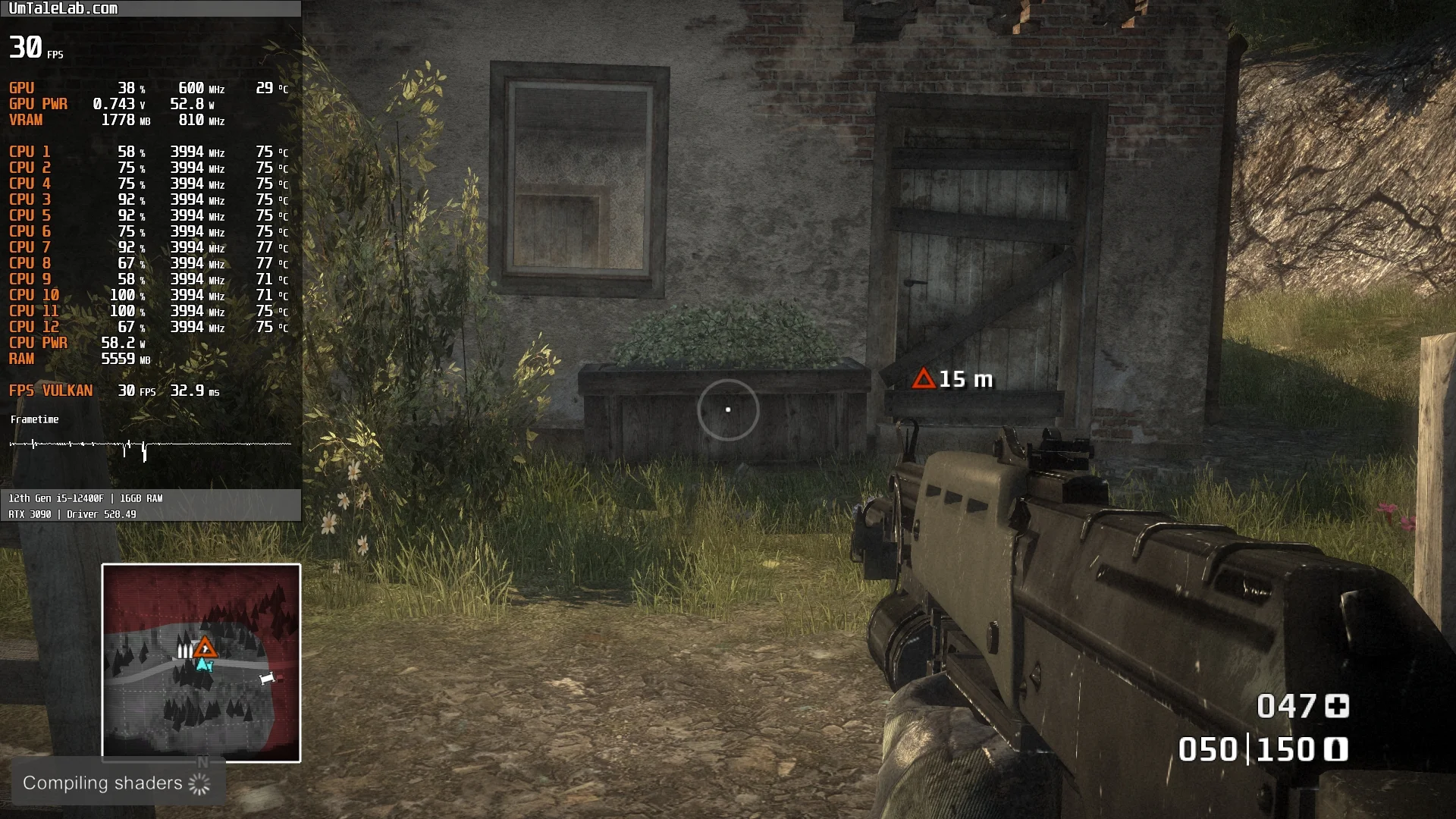
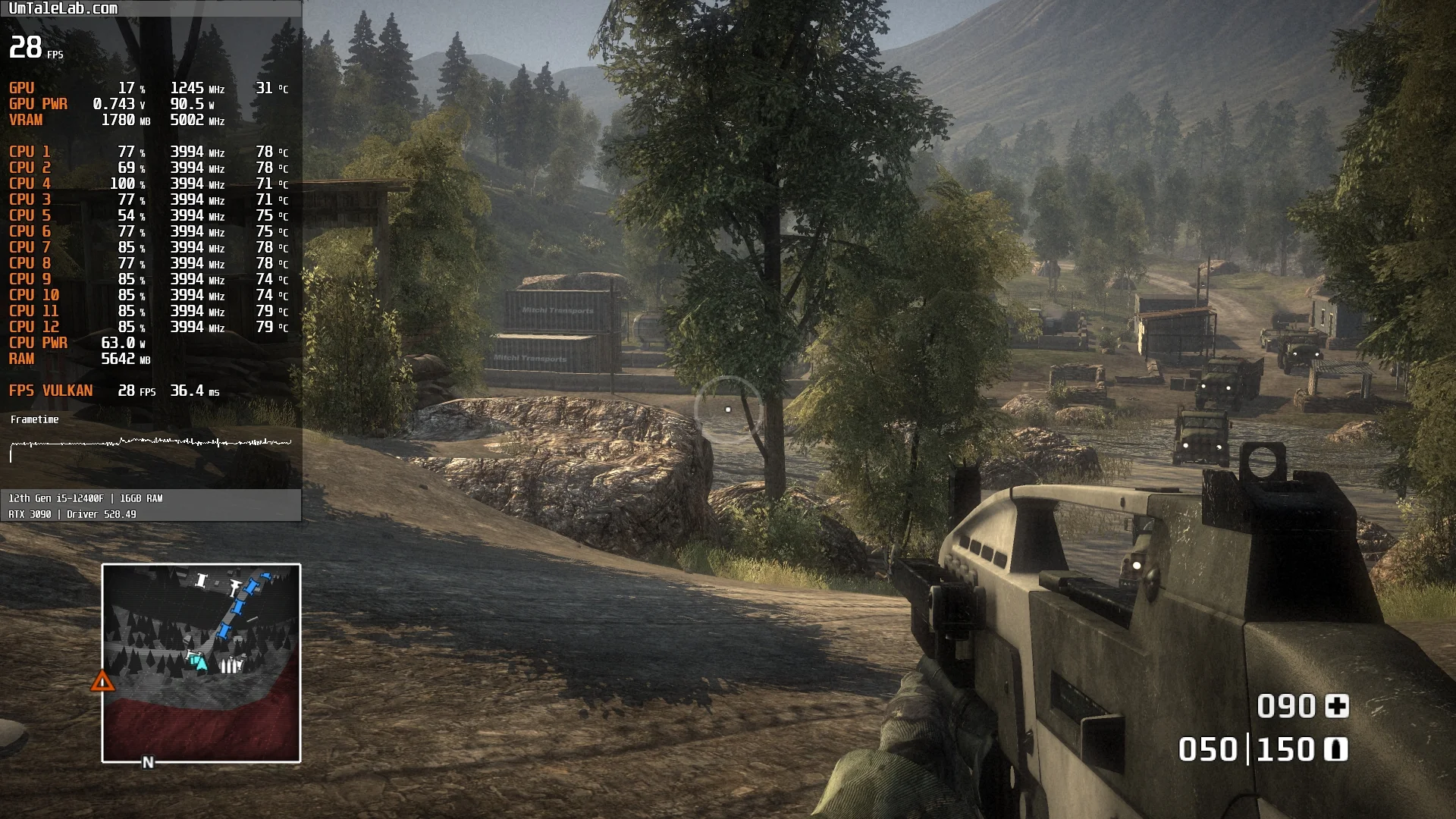
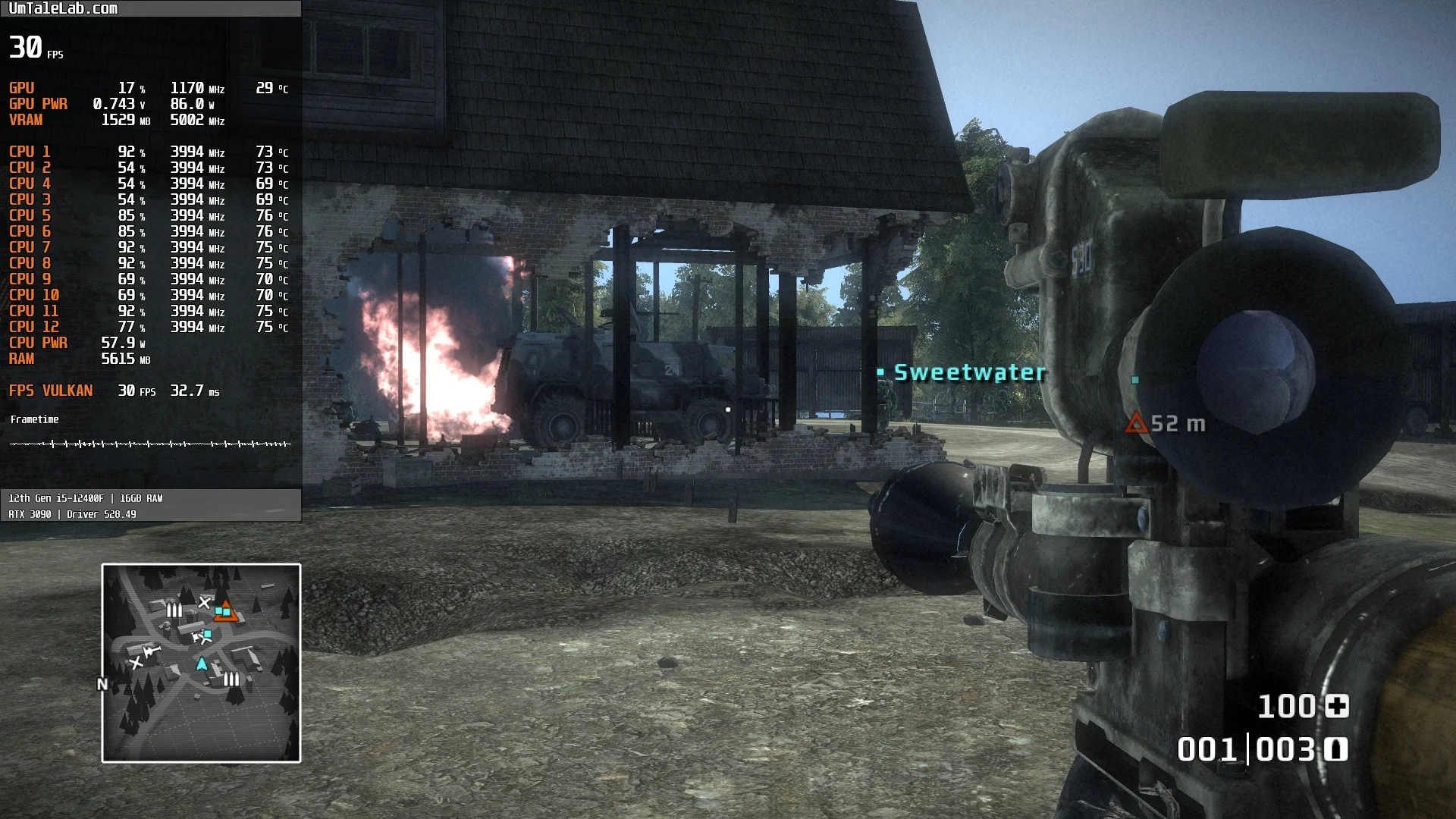
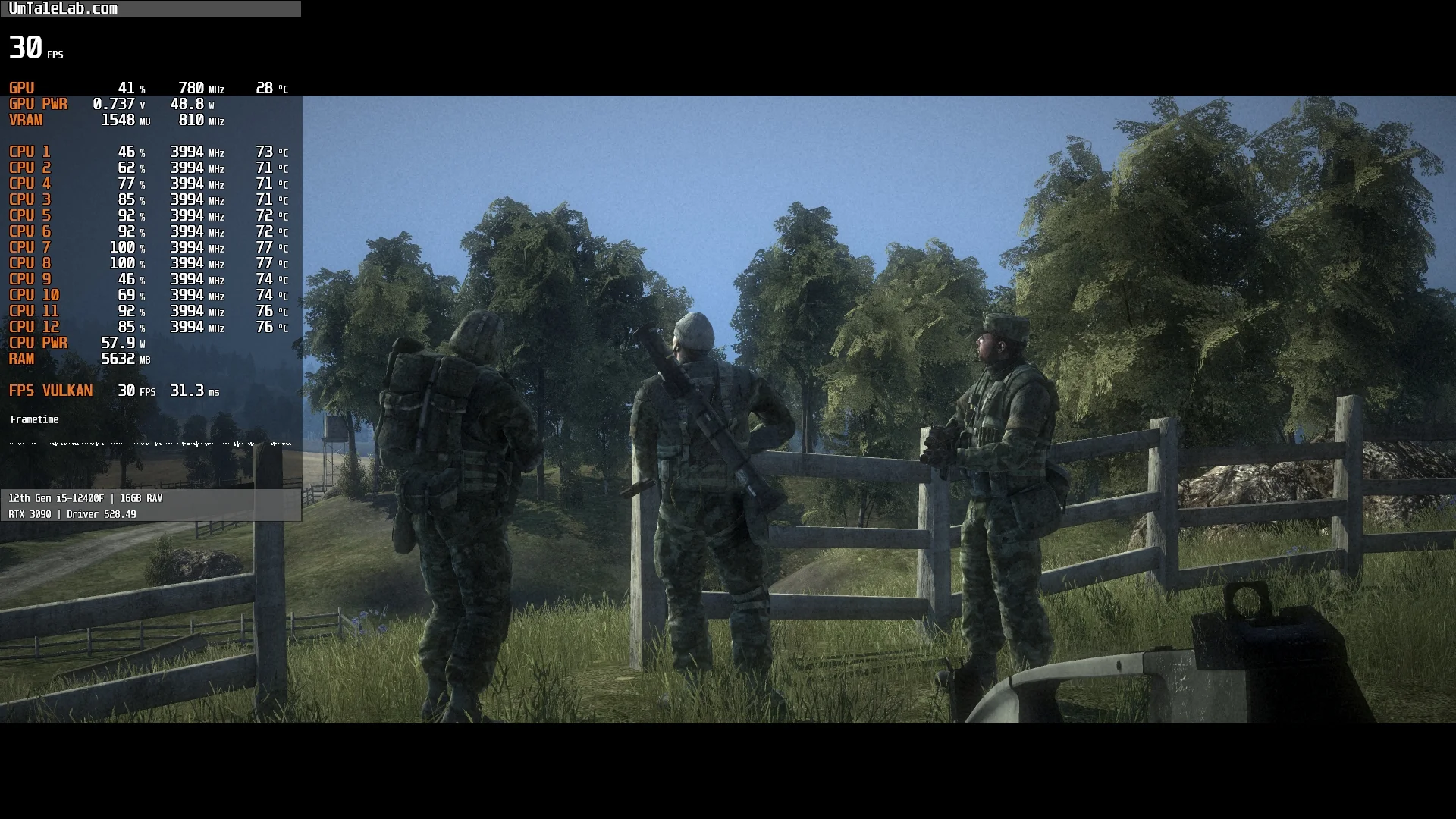
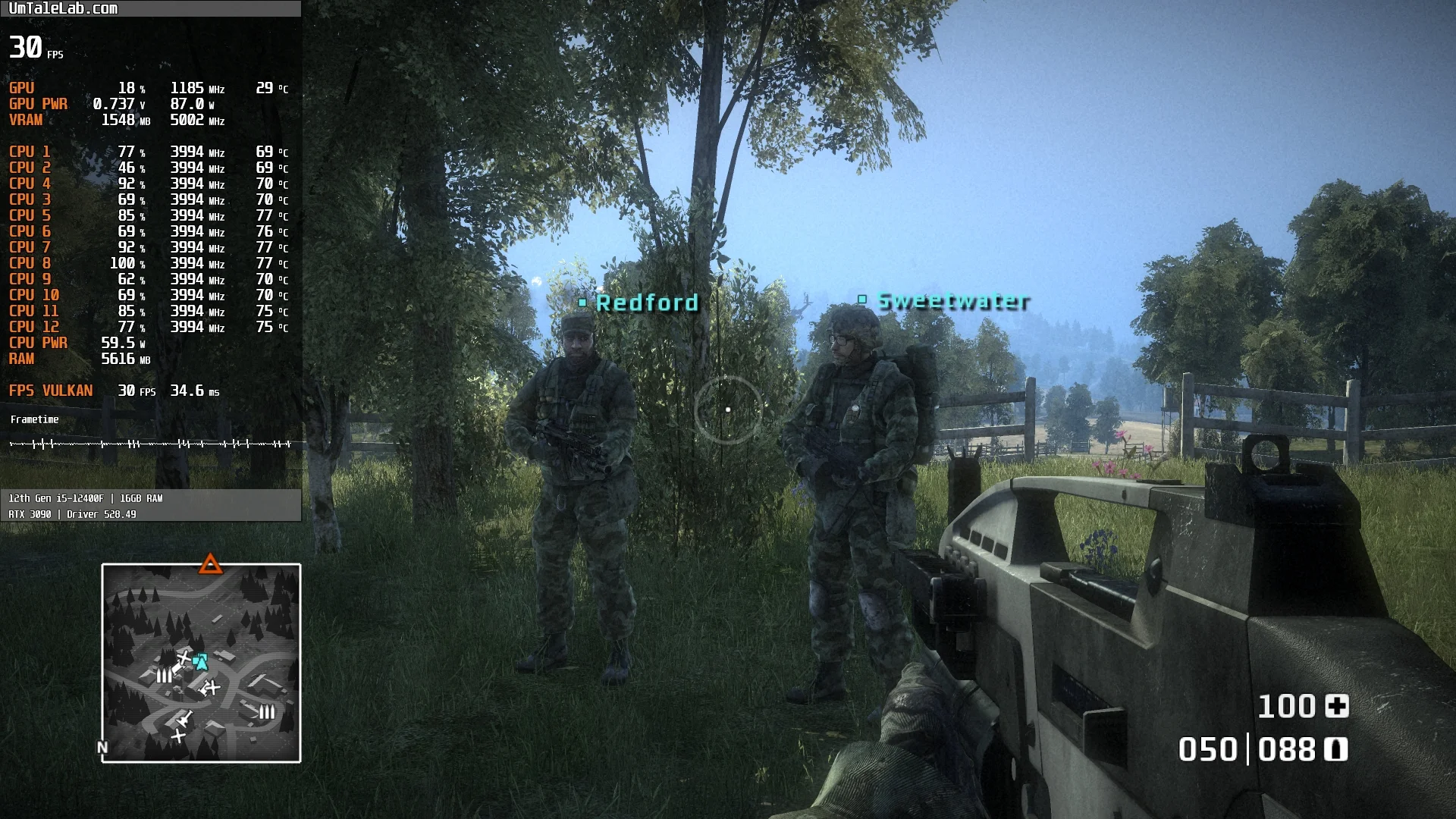
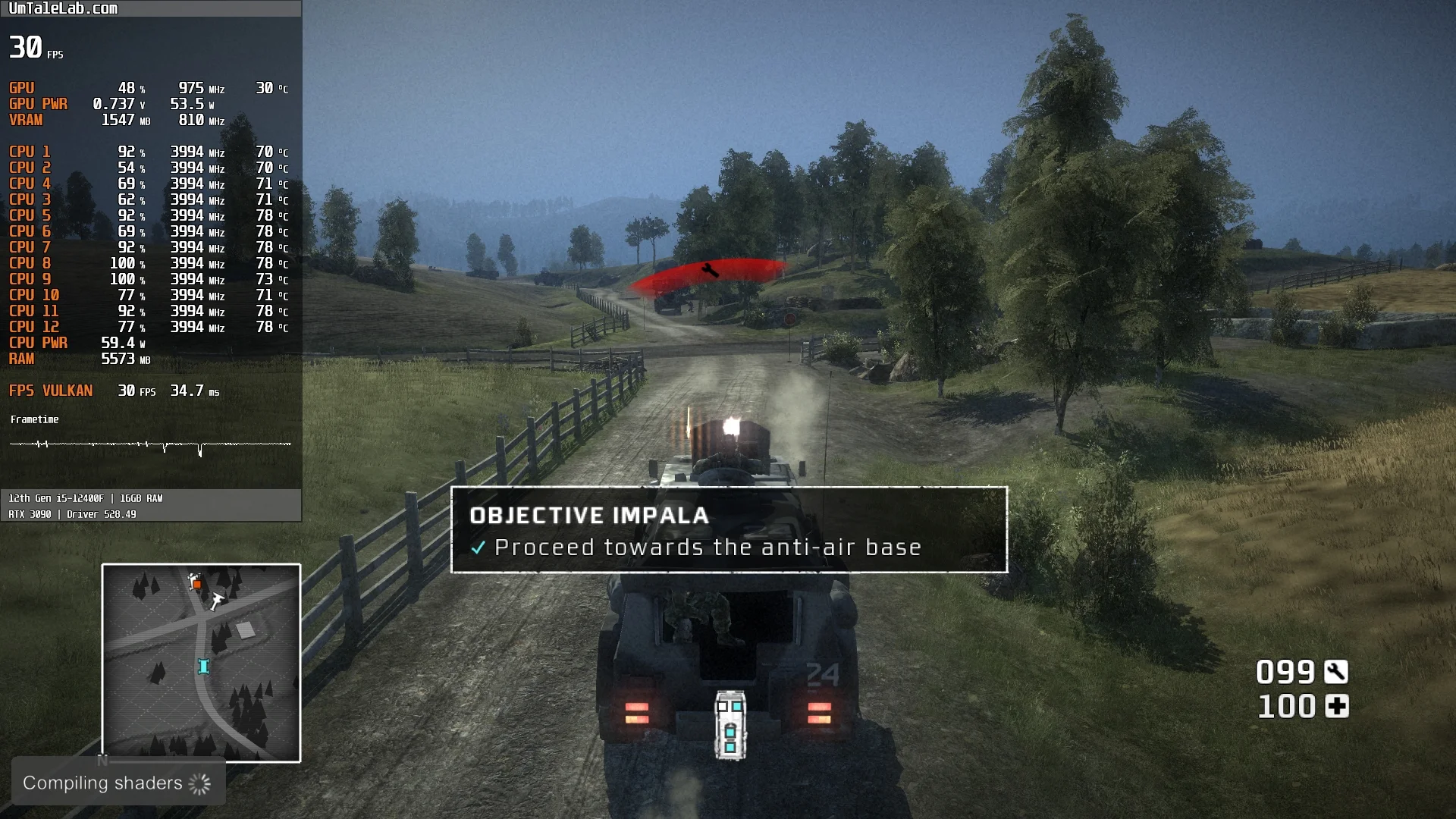
Ultimately, after spending over two hours with Battlefield: Bad Company, we found that the emulation isn't perfect, causing the game to crash randomly. However, players can continue their playthrough without major issues upon restarting.
Our measurements also indicate that Battlefield: Bad Company emulates adequately on systems with 6-core AMD Zen / Intel Haswell CPUs and AMD Radeon RX 400 / NVIDIA GeForce GTX 1000 series graphics cards or better. Beyond that, avoiding significant performance issues will be difficult.
Test the aforementioned settings and describe your results in the comments, and ask any questions you have.