NEWS · SOFT
PUBLISHED
READING2 min
Microsoft pulls Windows 10 build 18947, provides rollback instructions
Microsoft has recalled Windows 10 build 18947 due to widespread bugs and provided detailed instructions for users to roll back to a more stable version.
Build 18947 was compiled just a day ago, meaning it likely hadn't undergone internal testing yet. While users did get a glimpse of an updated Start menu, the build also came with a massive number of bugs and errors.
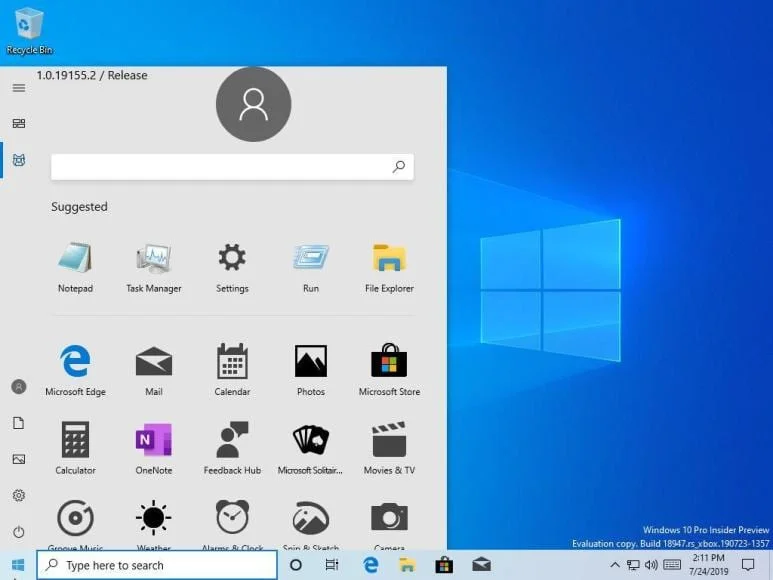 ⤢ ВІДКРИТИ
Following this, Microsoft issued a brief statement and a guide for rolling back to previous, more stable builds:
We apologize for any issues this update may have caused our Insiders and thank you for helping bring this issue to our attention so we can make the necessary changes as quickly as possible. We'd like to share information regarding Build 18947, which was released to the Windows Insider audience earlier today. We'll cover what happened and how to get your device back to a desired state. Who: Windows Insiders who installed Build 18947. What to do: Insiders who installed this build, especially those in the Slow and Release Preview rings, will need to use the rollback feature to restore a previous build. Why: An internal pre-release build was inadvertently released to a broader audience than intended. When: Affected users typically have ten days after installing Build 18947 to complete the rollback process before losing the ability to do so. If you have Storage Sense enabled, this temporary window may be reduced. We urge affected users to take this action as soon as possible to ensure a successful rollback. Microsoft
Here's how to roll back to a previous Windows 10 build if you're on version 18947:
Click "Start"
Open "Settings" (the gear icon)
Select "Update & Security"
Choose "Recovery"
Under "Go back to the previous version of Windows 10," select "Get started"
Follow the on-screen steps, specifically:
For "Why are you going back?" choose "For another reason"
In the "Tell us more" field, enter 18947
Click the "Next" button
On the "Check for updates?" screen, select "No thanks"
You'll see two more screens with information to review. Please read each screen, clicking "Next" to continue.
You'll see one final screen. Select "Go back to previous build" to begin the rollback process.
These steps should restore your device to a previous, hopefully stable, build. Find more details here.
Source: WccfTech